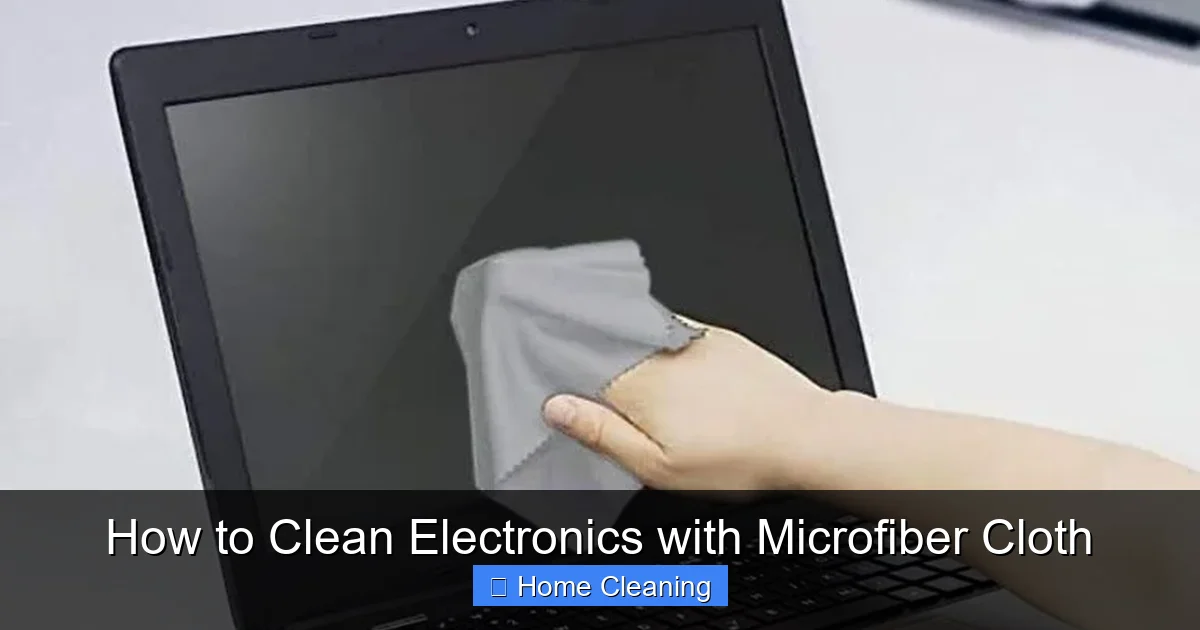
How to Clean Electronics with Microfiber Cloth
Cleaning electronics with a microfiber cloth is safe, effective, and requires no harsh chemicals. This gentle method removes dust, fingerprints, and smudges without scratching screens or damaging delicate components. Whether you’re wiping down your phone, laptop, or TV, using the right technique ensures your devices stay in top shape.
Key Takeaways
- Microfiber is ideal for electronics: Its ultra-fine fibers trap dust and oils without scratching surfaces.
- No liquid needed: Dry microfiber cloths are safe for screens and sensitive electronics.
- Proper technique matters: Use gentle, circular motions and avoid pressing too hard.
- Prevents buildup: Regular cleaning stops grime from hardening on screens and ports.
- Safe for most devices: Works on phones, tablets, laptops, TVs, keyboards, and more.
- Keep it clean: Wash your microfiber cloth regularly to avoid spreading dirt.
📑 Table of Contents
- How to Clean Electronics with Microfiber Cloth
- Why Microfiber is Perfect for Electronics
- Choosing the Right Microfiber Cloth
- Step-by-Step Guide: How to Clean Electronics with Microfiber Cloth
- When to Use a Damp Cloth (And How to Do It Safely)
- Common Electronics and How to Clean Them
- Common Mistakes to Avoid
- Maintaining Your Microfiber Cloths
- Eco-Friendly and Cost-Effective Cleaning
- Final Thoughts: Keep Your Tech Looking Great
How to Clean Electronics with Microfiber Cloth
We all know how satisfying it is to wipe down a dusty screen and watch the grime vanish like magic. But when it comes to electronics—phones, laptops, tablets, TVs—many of us hesitate. Is it safe to use a cloth? What if it scratches? What if we use the wrong cleaning product? The good news? Cleaning electronics with a microfiber cloth is not only safe, it’s one of the best ways to keep your devices looking new and functioning well.
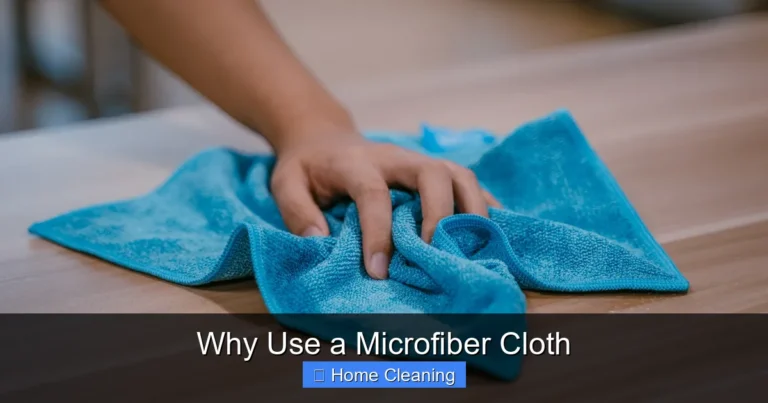
Microfiber cloths are made from ultra-fine synthetic fibers—usually polyester and nylon—that are split into even finer strands. This gives them a large surface area, which allows them to attract and trap tiny particles like dust, hair, and oils. Unlike regular cotton towels or paper towels, microfiber doesn’t just push dirt around—it actually lifts and holds it, leaving your screen or device spotless.
In this guide, we’ll walk you through everything you need to know about cleaning electronics with microfiber cloths. From choosing the right cloth to the safest techniques, we’ll help you keep your tech looking pristine—without risking damage. Whether you’re a tech newbie or a gadget guru, these tips will make cleaning your electronics quick, easy, and stress-free.
Why Microfiber is Perfect for Electronics
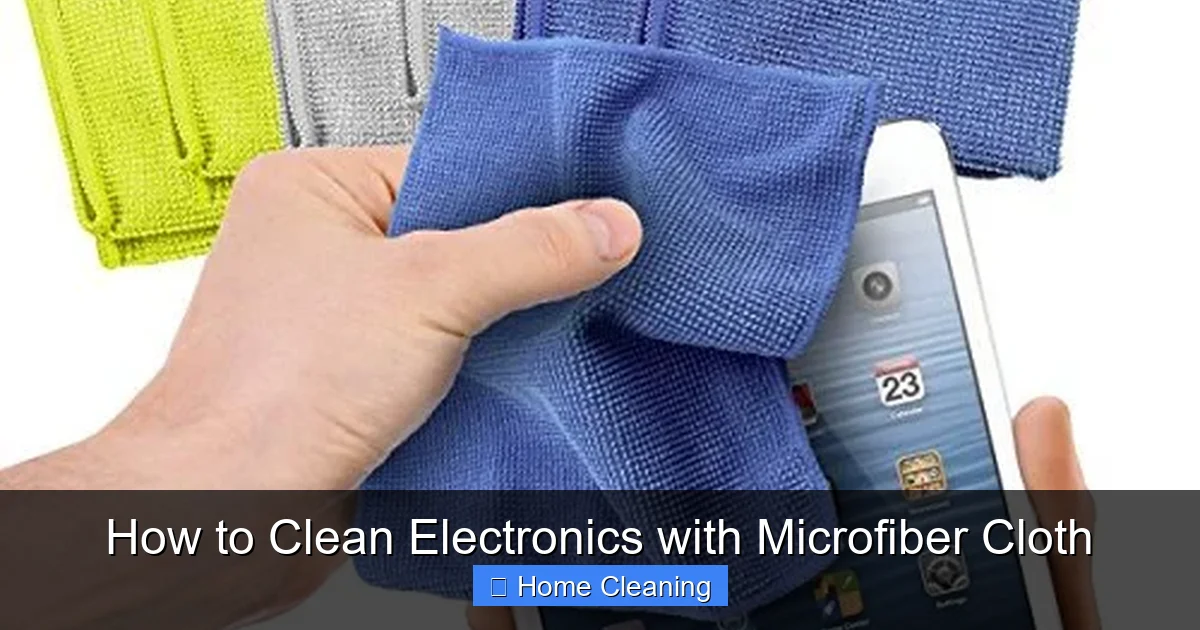
You might be wondering: why microfiber? Why not just use a paper towel or a regular cloth? The answer lies in the science of fibers and surface interaction. Microfiber cloths are engineered to be both soft and highly effective at cleaning. Here’s why they’re the top choice for electronics:
Visual guide about How to Clean Electronics with Microfiber Cloth
Image source: images-na.ssl-images-amazon.com
Ultra-Soft Texture
Microfiber is incredibly soft—so soft that it won’t scratch delicate screens like glass or plastic. This is especially important for smartphones, tablets, and digital cameras, where even a tiny scratch can be visible. The fibers are so fine that they glide over surfaces without abrasion.
Static Electricity
One of microfiber’s superpowers is its ability to generate a slight static charge. This helps attract and hold dust and lint, making it easier to remove particles that cling to screens and surfaces. This is especially helpful for cleaning LCD and OLED screens, which are prone to attracting dust.
Absorbs Oils and Smudges
Your fingers leave behind oils and fingerprints, which can dull the appearance of a screen and make it harder to see. Microfiber cloths are excellent at lifting these oils without needing liquid cleaners. This makes them ideal for touchscreens and keyboards.
Reusable and Eco-Friendly
Unlike paper towels, microfiber cloths can be washed and reused hundreds of times. This not only saves money but also reduces waste. Just toss them in the washing machine (without fabric softener) and they’ll stay effective for years.
No Chemicals Required
Most electronics are sensitive to liquids and harsh chemicals. Microfiber cloths work well dry, meaning you don’t need to spray anything on your screen. This reduces the risk of liquid seeping into ports or damaging internal components.
Choosing the Right Microfiber Cloth
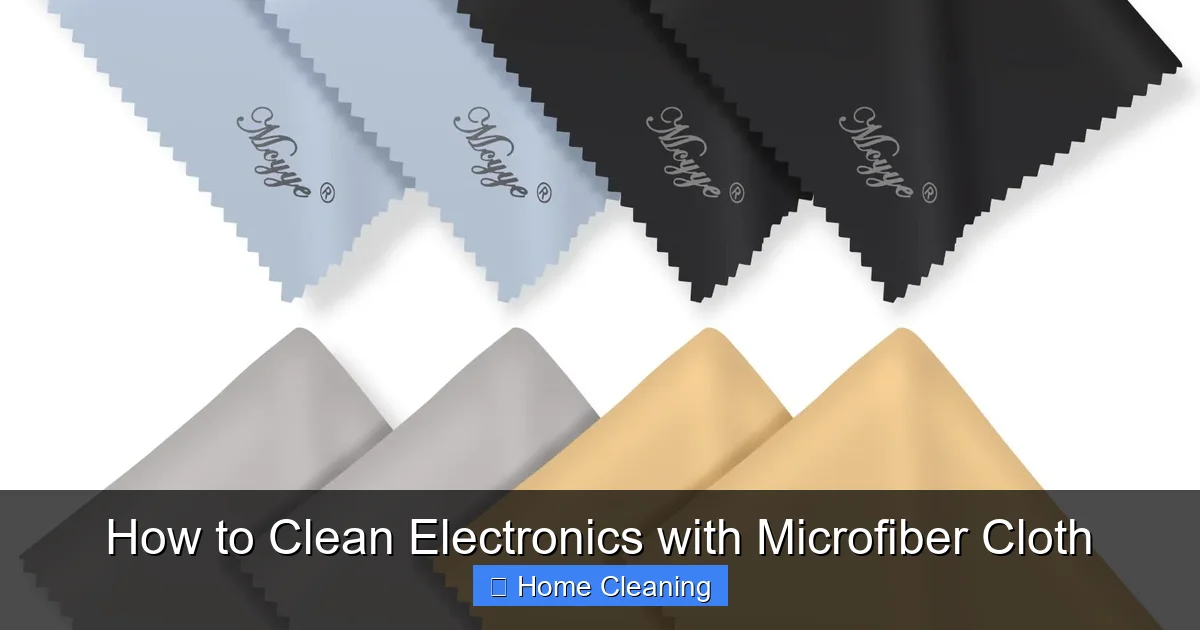
Not all microfiber cloths are created equal. To get the best results, it’s important to choose the right one for your needs. Here’s what to look for:
Visual guide about How to Clean Electronics with Microfiber Cloth
Image source: m.media-amazon.com
Cloth Size
For small devices like phones or tablets, a compact cloth (about 6×8 inches) is ideal. For larger screens like laptops or TVs, opt for a larger cloth (12×12 inches or more). A bigger cloth gives you more surface area to work with and reduces the chance of missing spots.
Cloth Weight
Microfiber cloths come in different weights, usually measured in grams per square meter (gsm). For electronics, choose a cloth between 200–300 gsm. This is soft enough for screens but firm enough to pick up dirt effectively.
Color
It’s a good idea to have separate cloths for different uses. For example, keep one cloth just for screens and another for keyboards or external surfaces. Using a dedicated cloth prevents transferring dust or oils from other surfaces.
Quality Matters
Cheap microfiber cloths may shed fibers or lose their effectiveness after a few uses. Invest in a high-quality cloth from a reputable brand. Look for labels like “lint-free” or “anti-static” for added assurance.
Wash Before Use (Optional)
Some people prefer to wash new microfiber cloths before first use to remove any manufacturing residues. This is especially true if the cloth has been stored in a dusty environment. Just wash it in warm water with a mild detergent—avoid fabric softener, as it can coat the fibers and reduce their effectiveness.
Step-by-Step Guide: How to Clean Electronics with Microfiber Cloth
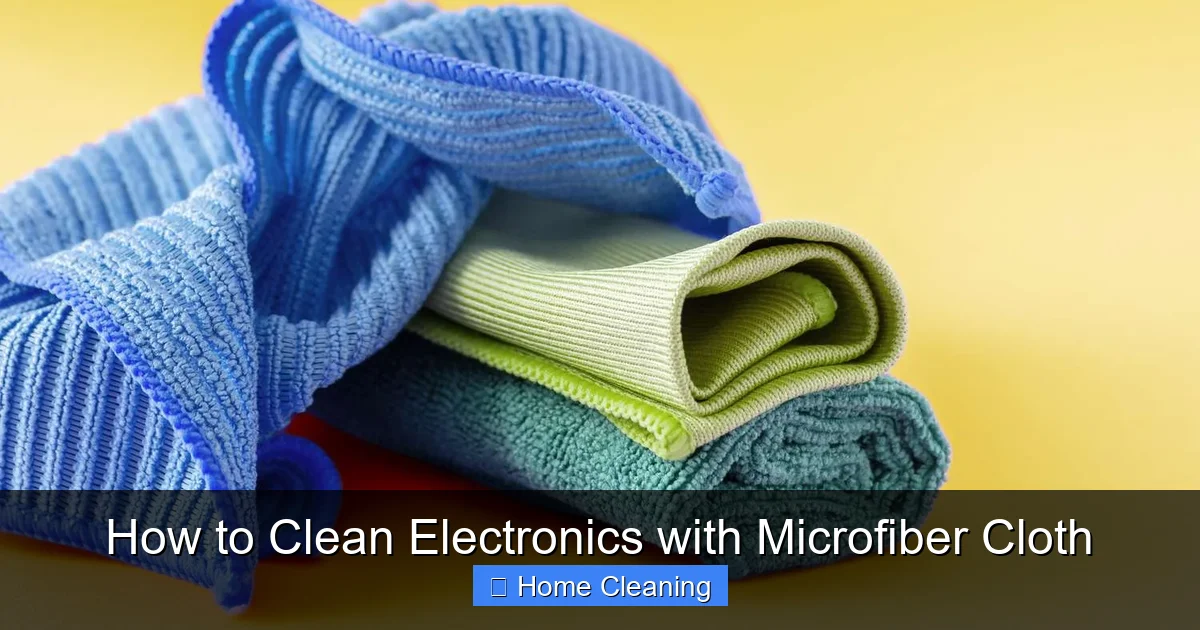
Now that you know why microfiber is great and how to choose the right cloth, let’s get into the actual cleaning process. Follow these simple steps to clean your electronics safely and effectively:
Visual guide about How to Clean Electronics with Microfiber Cloth
Image source: realsimple.com
1. Power Off the Device
Before you start cleaning, turn off your device and unplug it from any power source. This prevents accidental button presses and protects against electrical damage. For laptops and desktop computers, also unplug any peripherals like mice or keyboards.
2. Remove Loose Dust First
Use a dry microfiber cloth to gently wipe the surface and remove loose dust. Start with a corner and work your way across. This prevents dust from being pushed into crevices or smeared into a mess.
3. Use Gentle, Circular Motions
For screens and smooth surfaces, use light, circular motions. This helps lift oils and smudges without scratching. Don’t press too hard—let the cloth do the work. For textured surfaces like keyboards, use straight, back-and-forth strokes.
4. Focus on Problem Areas
Pay extra attention to areas that show fingerprints, smudges, or buildup. These are usually around the edges of screens, the space bar on keyboards, or the camera lens on phones. You can use a corner of the cloth for precision.
5. Clean Ports and Crevices
For charging ports, headphone jacks, or vents, use a dry microfiber cloth rolled into a thin strip. Gently insert it into the opening to remove dust. Avoid using compressed air unless necessary, as it can push dust deeper into the device.
6. Let It Air Dry (If Needed)
If you’ve used a slightly damp cloth (more on that below), let the device air dry completely before turning it back on. Most electronics can handle a tiny bit of moisture, but it’s better to be safe.
7. Store the Cloth Properly
After use, fold the cloth neatly and store it in a clean, dry place. Avoid leaving it in pockets or bags where it can pick up lint or dirt. A small pouch or drawer works well.
When to Use a Damp Cloth (And How to Do It Safely)
While dry microfiber is great for routine cleaning, sometimes you need a little extra help. If your screen is greasy or sticky, a slightly damp cloth can make a big difference. But use caution—too much liquid can damage electronics.
Use Distilled Water Only
If you decide to dampen your cloth, use only distilled water. Tap water contains minerals and impurities that can leave streaks or damage internal components over time. Distilled water is pure and safe.
Damp, Not Wet
Lightly dampen the cloth—just enough to make it slightly moist. Wring it out thoroughly so it’s not dripping. A wet cloth can allow liquid to seep into ports or speakers.
Avoid Spray Cleaners
Even “screen-safe” spray cleaners can contain alcohol or ammonia, which may damage coatings on screens or keyboards. It’s safer to use water and a microfiber cloth.
Never Spray Directly
Always apply the liquid to the cloth first, not directly onto the device. This gives you control over how much moisture is used.
Clean in Sections
For large screens, clean in small sections and wipe immediately. This prevents moisture from pooling and evaporating unevenly.
Use a Separate Cloth for Damp Cleaning
Keep a dedicated cloth for damp cleaning. This prevents transferring oils from your hands to the device when switching between dry and wet wiping.
Common Electronics and How to Clean Them
Different devices have different needs. Here’s how to clean some of the most common electronics using microfiber cloths:
Smartphones and Tablets
Turn off the device, then use a dry microfiber cloth to wipe the screen and back. For the camera lens, use a corner of the cloth and gentle pressure. Avoid the charging port—just use a dry cloth rolled into a thin tip.
Laptops and Desktop Monitors
Shut down the computer, unplug it, and remove the power cord. Wipe the screen and casing with a dry microfiber cloth. For the keyboard, tilt the laptop and tap gently to remove loose debris, then wipe each key with a cloth.
Television Screens
Unplug the TV and use a dry microfiber cloth for LCD or LED screens. For OLED screens, be extra gentle—they’re more fragile. Avoid touching the screen with fingers to prevent oil buildup.
Digital Cameras
Wipe the lens with a dry microfiber cloth, using circular motions. For the body, use a slightly damp cloth if needed, but avoid getting moisture near buttons or ports.
Keyboards and Mice
Turn off the device, tilt it to shake out crumbs, and use a dry microfiber cloth to wipe keys and surfaces. For sticky keys, lightly dampen the cloth with distilled water and wipe carefully.
Headphones and Earbuds
Wipe the ear cups and headband with a dry microfiber cloth. For earbuds, use a cloth rolled into a thin strip to clean the speaker grilles. Avoid getting moisture inside the speakers.
Game Consoles and Remote Controls
Use a dry microfiber cloth to wipe the console and remote. For buttons and crevices, use a damp cloth rolled into a thin tip. Make sure everything is dry before use.
Common Mistakes to Avoid
Even with the best tools, mistakes can happen. Here are some common errors people make when cleaning electronics and how to avoid them:
Using Paper Towels or Regular Cloths
Paper towels shed lint and can scratch screens. Regular cotton cloths leave behind fibers and may not pick up oils effectively. Stick to microfiber for the best results.
Pressing Too Hard
Applying too much pressure can damage screens or push dust deeper into devices. Let the cloth glide gently over the surface.
Using Harsh Chemicals
Ammonia, bleach, and alcohol-based cleaners can damage screen coatings and plastics. Stick to water and microfiber.
Ignoring the Power Off
Cleaning while the device is on increases the risk of accidental input or electrical issues. Always power down first.
Not Washing the Cloth
Using a dirty cloth spreads germs and grime. Wash your microfiber cloth after every few uses with mild detergent—never fabric softener.
Skipping the Crevices
Dust accumulates in ports and around buttons. Use a dry microfiber cloth rolled into a thin strip to clean these areas.
Using the Same Cloth for Everything
Using one cloth for screens, keyboards, and external surfaces can transfer oils and dirt. Keep separate cloths for different purposes.
Maintaining Your Microfiber Cloths
To keep your microfiber cloths working well, proper care is essential. Here’s how to maintain them:
Wash After Every Few Uses
Microfiber cloths should be washed after 2–3 uses to prevent buildup of oils and bacteria. Use warm water and a mild detergent. Avoid fabric softener, as it coats the fibers and reduces their effectiveness.
Air Dry or Tumble Dry on Low
Air drying is best, but you can also use a low-heat setting in the dryer. High heat can damage the fibers. Remove them while still slightly damp to reduce wrinkles.
Store in a Clean Place
Keep cloths in a drawer or pouch, away from dust and lint. Avoid leaving them in pockets or bags where they can collect dirt.
Rotate Between Cloths
Have at least two or three microfiber cloths on hand. This lets you rotate them and ensures you always have a clean one ready.
Replace When Worn
If your cloth starts to fray, lose effectiveness, or shed fibers, it’s time to replace it. High-quality microfiber can last for years with proper care.
Eco-Friendly and Cost-Effective Cleaning
Using microfiber cloths isn’t just good for your devices—it’s good for the planet and your wallet. Here’s why:
- Reusable: Unlike paper towels, microfiber cloths last for hundreds of uses.
- No Chemicals: You don’t need to buy expensive cleaning sprays—just water and a cloth.
- Reduces Waste: Fewer disposable products mean less trash in landfills.
- Saves Money: A good microfiber cloth costs a few dollars but pays for itself over time.
For environmentally conscious cleaners, microfiber is a smart choice. It’s durable, effective, and sustainable.
Final Thoughts: Keep Your Tech Looking Great
Cleaning electronics with a microfiber cloth is simple, safe, and effective. With the right technique and tools, you can keep your devices looking new and performing at their best. Whether it’s a smudged phone screen or a dusty laptop keyboard, a quick wipe with a clean microfiber cloth makes all the difference.
Remember: the key is gentleness. Use soft motions, avoid harsh chemicals, and always power off your devices first. With a little routine maintenance, your electronics will stay clean, functional, and beautiful—for years to come.
So next time you see a fingerprint on your screen, don’t reach for a paper towel or a spray bottle. Grab your microfiber cloth and get to work. Your devices will thank you.
Frequently Asked Questions
Can I use a microfiber cloth on my phone screen?
Yes, microfiber cloths are safe and effective for cleaning phone screens. They remove fingerprints and smudges without scratching the glass. Always use a dry cloth first, and only use a slightly damp one if needed, with distilled water.
Do I need to use water with a microfiber cloth?
Not necessarily. Most electronics can be cleaned effectively with a dry microfiber cloth. Water is only needed for stubborn smudges or greasy buildup. If you do use water, make sure the cloth is only slightly damp.
How often should I clean my electronics?
Clean your devices whenever you notice dust, fingerprints, or smudges. For high-use items like phones and keyboards, a quick wipe every few days is enough. For less-used devices, cleaning once a week is sufficient.
Can microfiber cloths scratch screens?
No, high-quality microfiber cloths are designed to be non-abrasive and won’t scratch screens. However, using a dirty or rough cloth can cause scratches. Always use a clean, soft microfiber cloth.
How do I clean dust from keyboard keys?
Turn off your keyboard, tilt it to shake out loose debris, then use a dry microfiber cloth to wipe around the keys. For deeper cleaning, lightly dampen a cloth with distilled water and wipe carefully. Make sure it’s fully dry before use.
Are microfiber cloths safe for all electronics?
Yes, microfiber cloths are safe for most electronics, including phones, tablets, laptops, TVs, and cameras. Just avoid using them on devices with sensitive coatings or openings that shouldn’t get wet—always check the manufacturer’s guidelines first.