How to Connect Plantronics Headset to Desk Phone
Connecting your Plantronics headset to a desk phone is a straightforward process that dramatically improves call clarity and hands-free convenience. This guide walks you through every connection type, from simple 3.5mm jacks to advanced DECT wireless setups, ensuring you find the perfect method for your specific phone and headset model. We also provide essential troubleshooting tips and optimization advice to create a seamless, professional communication setup in your home office.
Key Takeaways
- Identify Your Ports: Success starts with correctly identifying your desk phone’s connection port (RJ9/RJ11, 3.5mm, USB) and your Plantronics headset’s plug or base.
- Wired vs. Wireless: Wired connections (direct plug) offer reliability, while wireless (DECT/Bluetooth) provides freedom of movement but may require a base station or adapter.
- Adapters Are Common: Many modern VoIP or digital phones need a specific Plantronics adapter (like an APC-41 or EHS cable) to interface correctly with a headset.
- Check Compatibility First: Always verify your Plantronics headset model is compatible with your desk phone model using the manufacturer’s online tool before purchasing any cables.
- Test and Troubleshoot: Basic troubleshooting—checking physical connections, power, and mute buttons—solves most issues before needing technical support.
- Optimize Your Environment: A clean, organized desk with good lighting (consider smart bulb setup) enhances your overall headset experience and reduces strain.
📑 Table of Contents
Unlock Hands-Free Clarity: Connecting Your Plantronics Headset
In today’s home office and hybrid work landscape, a reliable headset isn’t a luxury—it’s a necessity. Plantronics (now part of Poly) has earned its reputation for producing headsets that deliver exceptional audio quality and durability. But that great audio is only useful if you can actually connect the headset to your desk phone. Whether you’re using a traditional landline (POTS), a modern VoIP phone from your provider, or a multi-line office system, the process can seem daunting with all the different plugs and jargon.
This comprehensive guide cuts through the confusion. We’ll demystify RJ9, EHS, DECT, and all those other acronyms. You’ll learn exactly how to identify your equipment, choose the right cable or adapter, and complete the connection for crystal-clear calls. By the end, you’ll have the knowledge to set up your system confidently and troubleshoot common hiccups, turning your desk into a professional communication hub.
Know Your Gear: Identifying Phones and Headsets
Before you buy a single cable, you need to play detective. The wrong connection attempt can lead to frustration and, in rare cases, damaged equipment. The first step is to identify two key pieces: your desk phone’s available port and your Plantronics headset’s connection type.
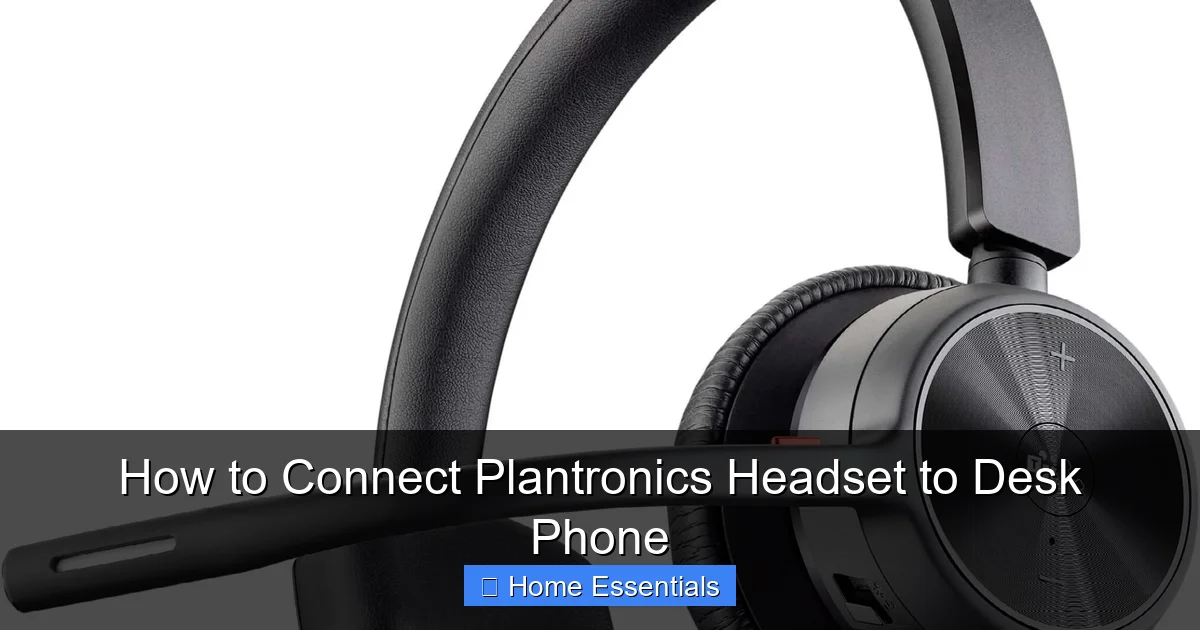
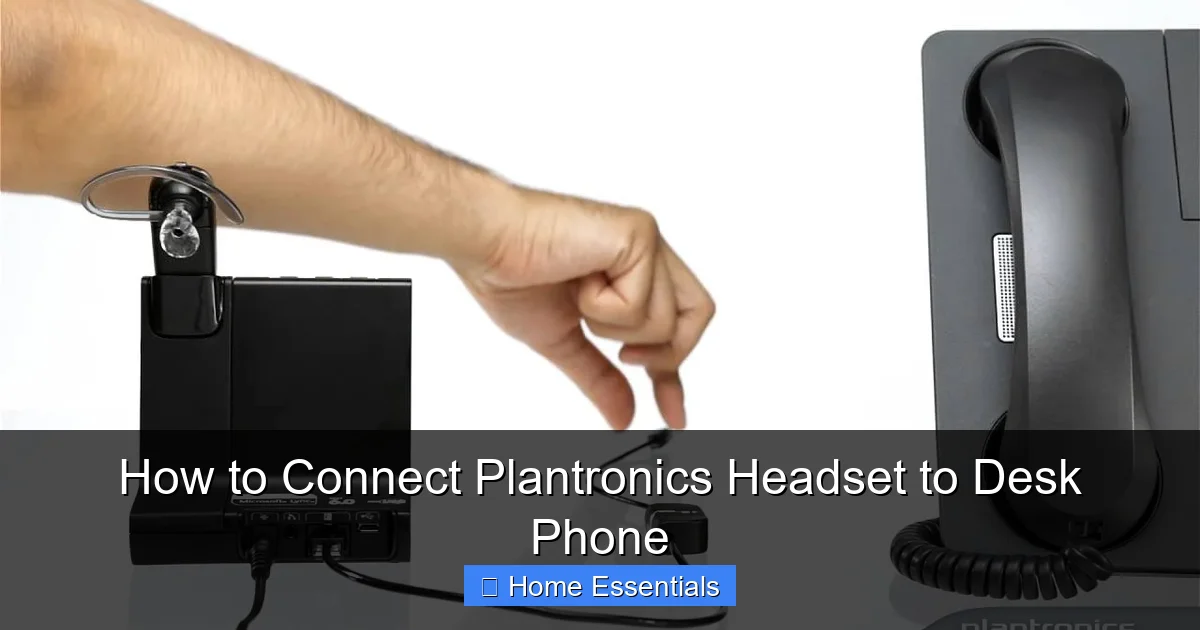
Visual guide about How to Connect Plantronics Headset to Desk Phone
Image source: headphonesaver.com
Decoding Your Desk Phone’s Ports
Flip over or look at the back of your desk phone. You’re searching for a small, square-ish plastic port where a handset cord would plug in. This is your handset port or coiled handset jack. Its official name is often an RJ9 or RJ10 connector (sometimes called a 4P4C plug). This is the traditional port most Plantronics headsets are designed to connect to. However, many newer digital or VoIP phones have different ports:
- USB Port: Some modern phones have a USB-A port labeled “HEADSET” or “USB.” These are often used for direct digital connection or to power a headset.
- 3.5mm Audio Jack: Less common on desk phones but found on some models, usually for a simple headset.
- Dedicated Headset Port: A port explicitly marked with a headset icon, which might use a proprietary connector.
If your phone has a port but no cord is plugged in, that’s likely your target. If a handset cord is permanently attached, you’ll need to use an Electronic Hook Switch (EHS) cable, which we’ll explain later.
Understanding Your Plantronics Headset
Plantronics headsets come in two primary families for desk phone use: wired and wireless.
- Wired Headsets (e.g., Blackwire series): These have a cable ending in a plug—usually a 3.5mm (for computers) or an RJ9/RJ11 plug (for desk phones). The plug must match your phone’s port. If your headset has a USB-A plug, it’s primarily for computer use and needs an adapter for most desk phones.
- Wireless Headsets with a Base Station (e.g., Savi, CS series): The headset is cordless, but it communicates with a base station that connects to your phone. The base station has a cable (usually RJ9) that plugs into your phone’s handset port. This is the most common and flexible setup.
- Wireless Headsets with Direct Bluetooth (e.g., Voyager Focus, Voyager Legend): These can pair directly with a Bluetooth-enabled desk phone or a Bluetooth dongle plugged into the phone’s USB port. They do not use a traditional base station.
Your headset’s manual is the ultimate authority. Look for the section on “connecting to a desk phone” to see the recommended cable or method.
Step-by-Step Connection Methods
Now that you’ve identified your ports, let’s match them up. We’ll start with the simplest and most common method.
Visual guide about How to Connect Plantronics Headset to Desk Phone
Image source: storage.googleapis.com
Method 1: The Direct Plug (For Wired Headsets & Standard Phones)
This is the plug-and-play dream scenario. If your Plantronics wired headset has an RJ9/RJ11 plug and your desk phone has a vacant handset port, you’re golden.
- Power Down: For safety, unplug your desk phone’s power adapter from the wall outlet.
- Locate the Handset Port: Find the square port on the phone where the handset cord would normally plug in.
- Connect the Headset: Firmly plug the RJ9 connector from your headset into this port. You should hear a click.
- Reconnect Power & Test: Plug the phone back in. Pick up the headset’s ear cup or press its call control button. You should get a dial tone. Make a test call.
Pro Tip: If the audio is faint or only in one ear, ensure the headset’s microphone boom is positioned correctly near your mouth. Also, check the phone’s volume settings; some phones have separate handset volume controls.
Method 2: Wireless Headset with Base Station
This is the classic Plantronics setup for office and home office use. The base station acts as an intermediary.
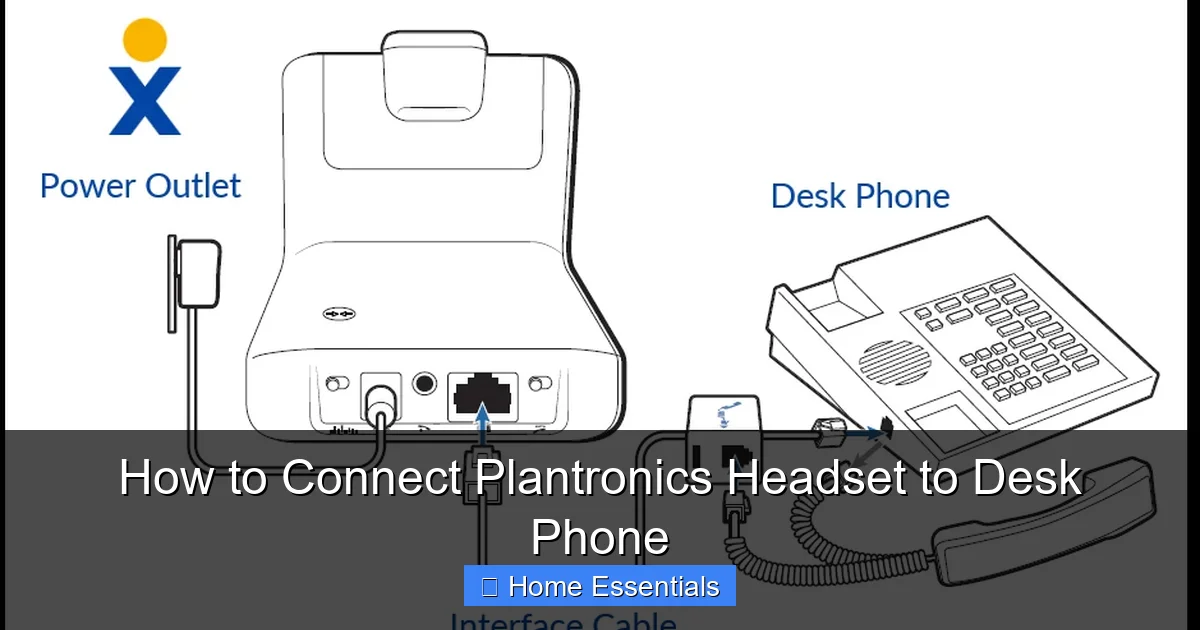
- Connect Base to Phone: Take the RJ9 cable from your wireless headset’s base station. Plug it into your desk phone’s handset port. If the handset cord is permanently attached, you will use an EHS cable instead (see next method).
- Power the Base: Plug the base station’s power adapter into an outlet and connect it to the base.
- Pair the Headset: Place your wireless headset in the base’s charging cradle. It should pair automatically (a light will indicate pairing). If not, consult your manual for the pairing button sequence.
- Test the Hook Switch: Press the call control button on your headset. The phone should go off-hook (get a dial tone). Press it again to hang up. This is the Electronic Hook Switch (EHS) in action, letting you answer calls without touching the phone.
Important: The base station must be within range (typically 30-100 feet) of the headset. Keep it on your desk for optimal performance.
Method 3: Using an Electronic Hook Switch (EHS) Cable
This method is crucial if your desk phone has a permanently attached handset cord or a non-standard port. An EHS cable (like the popular Plantronics APC-41 or equivalent) allows your wireless headset’s base station to electronically control the phone’s hook switch, just like the original handset did.
- Identify Your EHS Cable Type: There are many models (APC-41, APC-42, EHS-P, etc.). You must match it to your specific phone model. Use Plantronics’ online compatibility tool or consult your headset’s manual for the correct EHS cable part number.
- Disconnect the Handset: Unplug the handset cord from the back of your desk phone.
- Connect the EHS Cable: The EHS cable has two ends: one plugs into the handset port on your phone, and the other (often a smaller RJ9) plugs into the “HEADSET” or “TEL” port on your wireless headset base station.
- Reconnect the Handset (Optional): Some EHS cables have a third port to plug your original handset back in, so you can still use the phone normally. If your cable doesn’t have this, the handset will be disabled while the headset is in use.
- Power and Test: Power on the base station and test the call control button as in Method 2.
Using the correct EHS cable is non-negotiable for a seamless experience. An incorrect cable will either not work or cause the phone to malfunction.
Method 4: Bluetooth Connection to a Compatible Desk Phone
If you have a Bluetooth-enabled desk phone (common with newer VoIP models from Cisco, Yealink, etc.) and a Plantronics Bluetooth headset (like a Voyager series), you can pair directly.
- Put Phone in Pairing Mode: Consult your desk phone’s manual. Usually, this involves navigating to Settings > Bluetooth > Pairing or holding a dedicated Bluetooth button.
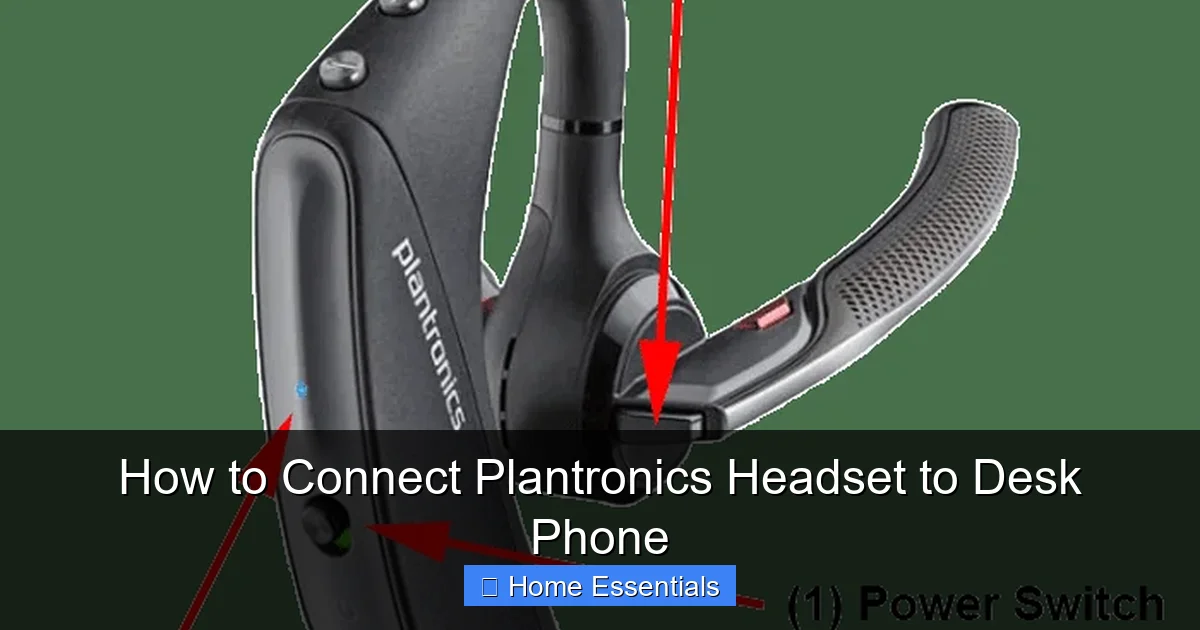
- Put Headset in Pairing Mode: Turn on your Plantronics headset and press and hold the call control button (or a dedicated Bluetooth button) until the LED flashes blue/red (indicating discoverable mode).
- Initiate Pairing on Phone: On your phone, scan for Bluetooth devices. Select your Plantronics headset from the list (e.g., “PLT Vantage”).
- Enter PIN if Prompted: The default PIN is often 0000 or 1234. Confirm on both devices.
- Test: Once paired, the headset’s LED should turn solid blue. Use the headset button to answer calls.
Note: This method bypasses the need for a base station but may have a shorter range than DECT wireless systems. Also, ensure your phone’s Bluetooth profile supports “Headset” (HSP) or “Hands-Free” (HFP) profiles.
Method 5: The USB Connection (For Select Phones & Headsets)
Some desk phones with a USB-A host port and some Plantronics USB headsets (like certain Blackwire models) can connect directly via USB. This often provides digital audio and power through one cable.
- Check Phone Manual: Verify your phone’s USB port supports audio headsets. It may be labeled “USB AUDIO” or “HEADSET.”
- Connect USB Cable: Plug your headset’s USB-A connector directly into the phone’s USB port.
- Configure Phone Settings: You may need to go into the phone’s settings menu to select “USB Headset” as the default audio device.
- Test: Make a test call. Audio should route through the headset automatically.
This method is clean and simple but less universal than the RJ9/EHS method. It’s most common with newer desk phones from brands like Poly (formerly Polycom), Yealink, and Grandstream.
Troubleshooting: When Things Go Wrong
Even with the right cable, issues can arise. Don’t panic—most problems have simple fixes.
Visual guide about How to Connect Plantronics Headset to Desk Phone
Image source: headsetsdirect.com
“I Have No Sound / Very Quiet Audio”
This is the most common complaint. First, check the basics:
- Physical Connections: Is every cable plugged in firmly at both ends? Unplug and replug the RJ9/EHS cable from both the phone and the headset base.
- Mute Button: Is the headset’s mute button accidentally activated? The mute LED will be on. Press it to unmute.
- Phone Volume: Increase the handset volume on your desk phone. Some phones have a separate “Headset” volume setting in their menu.
- Headset Volume: Use the volume up/down buttons on your headset or base station.
- Correct Port: Double-check you plugged into the handset port, not the speakerphone port or a line port.
“My Headset Won’t Answer Calls (Hook Switch Not Working)”
If you have to pick up the phone’s handset to answer, the EHS function isn’t working.
- EHS Cable Compatibility: This is the #1 cause. An incompatible EHS cable won’t send the proper signal. Re-verify your phone model against the required EHS cable using Plantronics’ compatibility guide.
- Phone Settings: Some phones require you to enable “EHS” or “Headset mode” in their administrative settings. Look for settings related to “Headset Adapter” or “Hookswitch.”
- Cable Orientation: Some EHS cables are directional. Ensure the end labeled “PHONE” or “TEL” is plugged into the phone’s handset port, and the end labeled “HEADSET” is plugged into the base.
- Firmware: Update your wireless headset’s firmware via Plantronics’ software (Hub or Update Manager). Outdated firmware can cause compatibility bugs.
“Calls Drop or Audio Cuts In and Out”
This points to a range or interference issue, especially with wireless systems.
- Range: Move closer to the base station. DECT systems have a nominal range of 100 meters/330 feet, but walls and obstacles reduce this.
- Interference: Other wireless devices (Wi-Fi routers, microwaves, cordless phones) can interfere with the 1.9 GHz DECT frequency. Try relocating the base station away from such devices.
- Base Station Placement: Keep the base station in the open, on your desk, not inside a cabinet or behind a metal object.
- Battery: A low battery in the headset can cause instability. Charge it fully.
Optimizing Your Setup for Comfort and Efficiency
Once connected, a few adjustments will transform your experience from good to great.
Ergonomics and Positioning
The physical placement of your headset matters. The microphone boom should be about a finger’s width from the corner of your mouth. This ensures your voice is captured clearly while minimizing breath and popping sounds. Adjust the headset’s headband so it’s snug but not tight—you should be able to wear it for hours without discomfort. Position your desk phone within easy reach so you can still access its keypad for things like navigating voicemail menus, which some automated systems require.
Cable Management: A Tidy Desk is a Happy Desk
A spaghetti monster of cables is frustrating and unprofessional. Use cable clips or a simple sleeve to route the EHS or headset cable neatly from the phone to the base station, then down the back of your desk. A clean workspace reduces stress. For general desk cleaning, using a damp microfiber cloth is perfect for wiping down your phone, headset, and desk surface without scratching.
Lighting and Environment
Good lighting reduces eye strain during long calls, especially if you’re also looking at your computer screen. Consider setting up smart bulbs that you can adjust with your voice or phone to create the perfect, glare-free ambiance for your workspace. Position your primary light source in front of you or to the side to avoid casting shadows on your desk.
Conclusion: Your Clear Communication Hub is Ready
Connecting your Plantronics headset to your desk phone is the final step in building a reliable, professional-grade communication station. By methodically identifying your ports, selecting the correct cable or adapter (the EHS cable is often the unsung hero), and following the connection steps, you’ve unlocked hands-free efficiency and superior audio. Remember, the key is compatibility—when in doubt, use Plantronics’ official resources to verify your phone and headset model pairing. With your connection secure, take a moment to optimize your setup for comfort and cleanliness. Now, you’re ready to take calls, join conferences, and collaborate with clarity, all while keeping your hands free for the work that matters most. Enjoy your newly upgraded workspace!
Frequently Asked Questions
Can I connect any Plantronics headset to any desk phone?
No. Compatibility is not universal. You must match your headset’s connection type (RJ9, Bluetooth, USB) to an available port on your phone, often requiring a specific adapter or EHS cable. Always check the compatibility list on the Plantronics/Poly website for your exact phone model.
What’s the difference between a direct RJ9 plug and an EHS cable?
A direct RJ9 plug is a simple audio cable that works only if your phone has a vacant handset port. An EHS (Electronic Hook Switch) cable is an intelligent adapter that both carries audio and sends signals to electronically answer/end calls on phones where the handset port is already occupied by a built-in handset cord.
My wireless headset base is connected but the call control button doesn’t work. What do I do?
This almost always indicates an incompatible or incorrectly installed EHS cable. First, ensure you have the exact EHS cable model recommended for your phone. Second, verify it’s plugged into the correct ports (phone’s handset port, base’s headset port). Finally, check your phone’s settings menu for any “Headset” or “EHS” options that need enabling.
Can I use my Plantronics Bluetooth headset with a non-Bluetooth desk phone?
Yes, but you need an intermediary. You can purchase a small Bluetooth USB dongle that plugs into your phone’s USB port (if it supports USB audio). Pair your Plantronics Bluetooth headset with this dongle. Alternatively, some wireless headset base stations have a Bluetooth function to connect a second Bluetooth device, but this is less common.
Do I need to update my headset’s firmware?
Yes, it’s a good practice. Firmware updates fix bugs, improve compatibility with new phone systems, and sometimes add features. Download the Plantronics Hub or Update Manager software on your computer, connect your headset (via USB or base station), and follow the prompts to check for and install updates.
Should I contact my phone provider or Plantronics support if I can’t connect?
Start with Plantronics (Poly) support. They have extensive compatibility databases and can tell you the exact cable/adapter you need for your specific phone model. Have both your headset model number and desk phone model number ready. If the issue seems to be with the phone’s settings or firmware, they may direct you to your phone’s manufacturer.