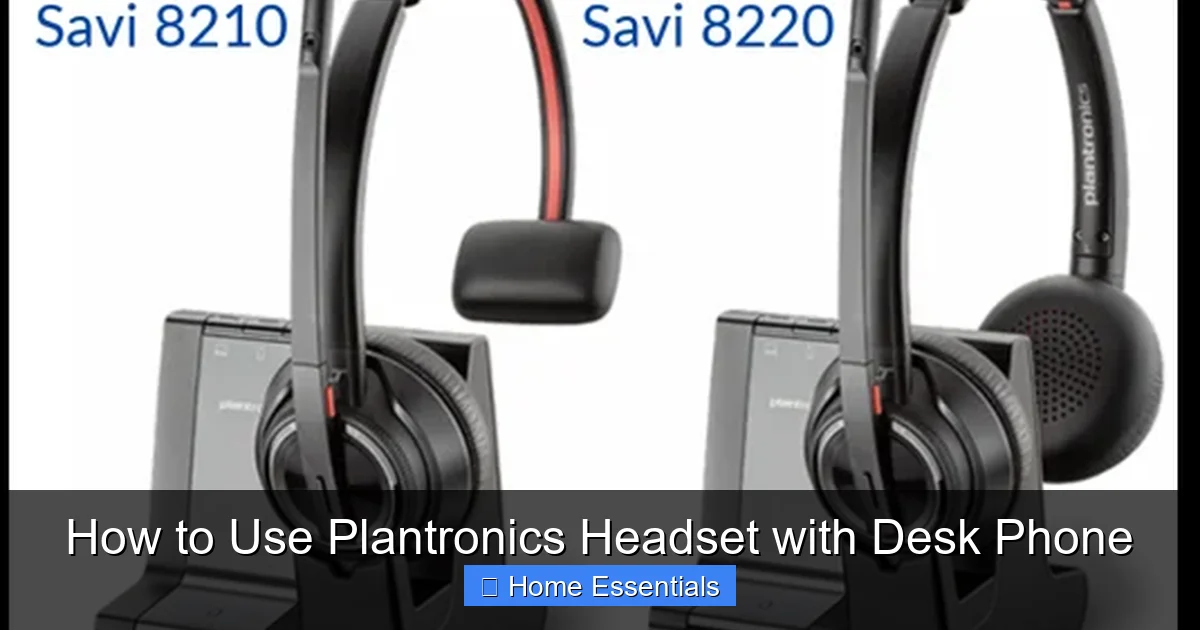
How to Use Plantronics Headset with Desk Phone
Unlock the freedom of hands-free communication by pairing your Plantronics headset with your desk phone. This comprehensive guide walks you through compatibility checks, connection methods—both wired and wireless—and step-by-step setup for a seamless experience. You’ll also master advanced features, troubleshoot common issues, and learn proper care techniques to ensure crystal-clear calls and long-lasting comfort. Say goodbye to cradling the phone and hello to productivity.
Have you ever found yourself juggling a phone receiver between your shoulder and ear while trying to type or take notes? It’s an awkward, uncomfortable, and frankly inefficient way to work. If you use a traditional desk phone—whether at a corporate office or in your home office—there’s a simple, powerful upgrade that can transform your daily workflow: a Plantronics headset. But connecting it isn’t always as simple as plugging in a USB cable. This guide will demystify the entire process, from figuring out what you need to expert-level troubleshooting, so you can start enjoying the freedom and clarity of hands-free calling.
Plantronics, now part of HP, is a legendary name in professional audio. Their headsets are built for durability and clear sound. However, desk phones come in many different technological flavors. The key to success is matching your specific Plantronics headset model to your specific desk phone system. We’ll break it down into plain English, step by step. By the end, you’ll know exactly how to harness the full potential of your setup, turning your desk into a hub of efficient, comfortable communication.
Key Takeaways
- Compatibility is key: Not all Plantronics headsets work with every desk phone. Identifying your phone system (analog, digital, VoIP) and headset model (wired EHS, wireless DECT) is the first critical step.
- Connection methods vary: You can connect via a direct wired cable, an Electronic Hookswitch (EHS) adapter, or a wireless DECT/Bluetooth base station. Each method has specific setup requirements and benefits.
- Setup is a multi-step process: Proper installation involves physical connections, headset pairing (for wireless), and configuring settings on both the headset base and the desk phone itself for full feature support.
- Advanced features enhance usability: Once set up, features like remote call control, mute, volume adjustment, and multi-device switching significantly improve your calling workflow and comfort.
- Troubleshooting is often simple: Common problems like no dial tone, poor audio, or echo usually have straightforward fixes, such as checking connections, re-pairing devices, or adjusting phone settings.
- Maintenance ensures longevity: Regularly cleaning your headset with a proper microfiber cloth prevents dirt and oils from degrading performance. For detailed cleaning guidance, see our guide on how to clean electronics with a microfiber cloth.
- Ergonomic benefits are immediate: Using a headset reduces neck strain, allows for multitasking, and improves call clarity, making it a vital upgrade for any home or traditional office desk setup.
📑 Table of Contents
Understanding Your Gear: Plantronics Headsets & Desk Phone Types
Before you buy a cable or start connecting things, you need to do a little detective work. The compatibility puzzle has two main pieces: your headset and your phone. Getting this right saves hours of frustration.
Decoding Your Plantronics Headset
Plantronics makes headsets in a few primary configurations for desk phone use:
- Wired EHS (Electronic Hookswitch) Headsets: These are the most common professional models. They have a base station that connects to your phone, and a wireless headset that communicates with that base via DECT or RF. The “EHS” part means the base can electronically tell your phone to answer/end calls, so you don’t need to press buttons on the phone itself. Models like the Plantronics Savi 700 series are classic examples.
- Wired Direct Connect Headsets: These have a cable that plugs directly into your phone’s headset jack. They are simpler but lack the wireless range and advanced features of EHS models. They are often less expensive and work with phones that have a dedicated RJ9/RJ22 headset port.
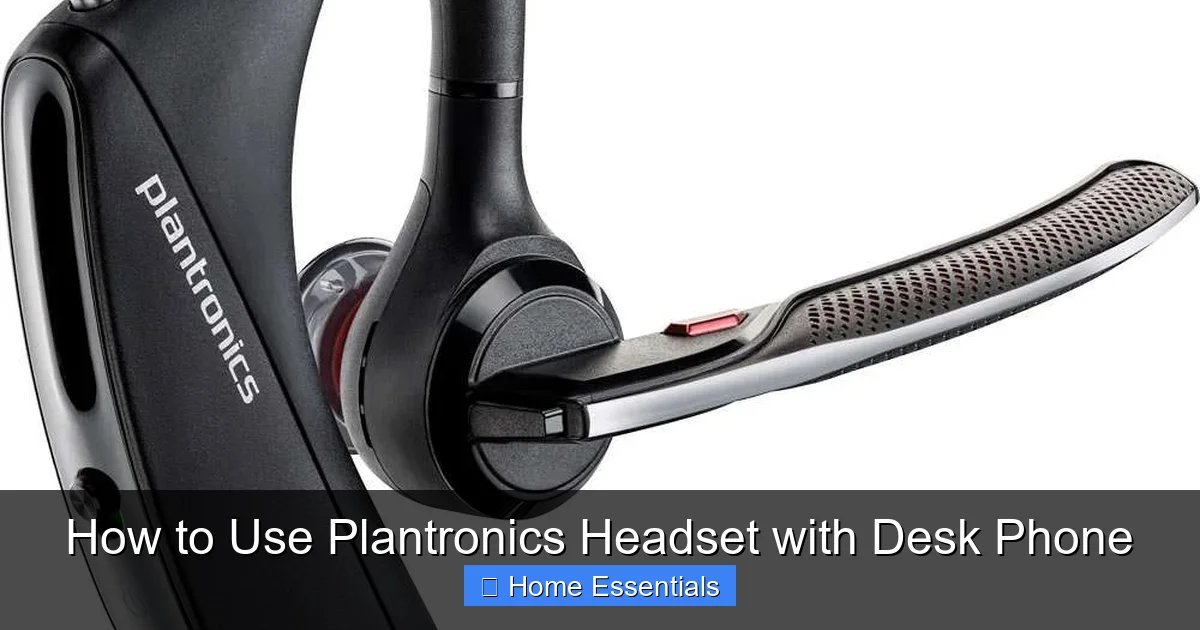
- Wireless Bluetooth Headsets: Some modern Plantronics headsets (like certain models in the Voyager series) have Bluetooth. If your desk phone has Bluetooth capability (many modern VoIP phones do), you can pair directly. More commonly, you’d use a Bluetooth USB dongle plugged into a computer, not a traditional desk phone.
- USB Headsets: These are designed for computer softphones (like Microsoft Teams or Zoom) and generally do not work with traditional analog or digital desk phones without a complicated intermediate device.
Identifying Your Desk Phone System
Your desk phone is likely one of these three types, and it dictates your connection options:
- Analog (POTS) Phones: These are the old-school phones that use a standard RJ11 telephone line. They have a simple, single port for the phone line. They are rare in modern offices but common in older homes or basic setups.
- Digital/Proprietary Phones: This is the most common type in corporate environments from brands like Cisco, Poly (formerly Polycom), Yealink, and Avaya. They have a proprietary handset cord that plugs into a specific port on the phone. They often have a dedicated, smaller headset port (RJ9/RJ22). This is where EHS adapters shine.
- VoIP (SIP) Phones: These look like digital phones but connect via Ethernet (RJ45) to your network. They are software-driven and often have a standard headset port. Many also support Bluetooth. Examples include models from Grandstream, Cisco SPA series, and modern Polycom VVX series.
Practical Tip: Look at the back or bottom of your phone. Find the port where the handset cord plugs in. Is it a standard-looking phone jack (RJ11) or a smaller, unique-looking port (RJ9/RJ22)? That smaller port is your headset port if your phone supports one. If there’s no obvious headset port, you’ll almost certainly need an EHS adapter solution.
Connection Methods: The Three Main Pathways
Now that you’ve identified your gear, let’s explore the three primary ways to connect your Plantronics headset to your desk phone. Think of these as your main highways to hands-free communication.
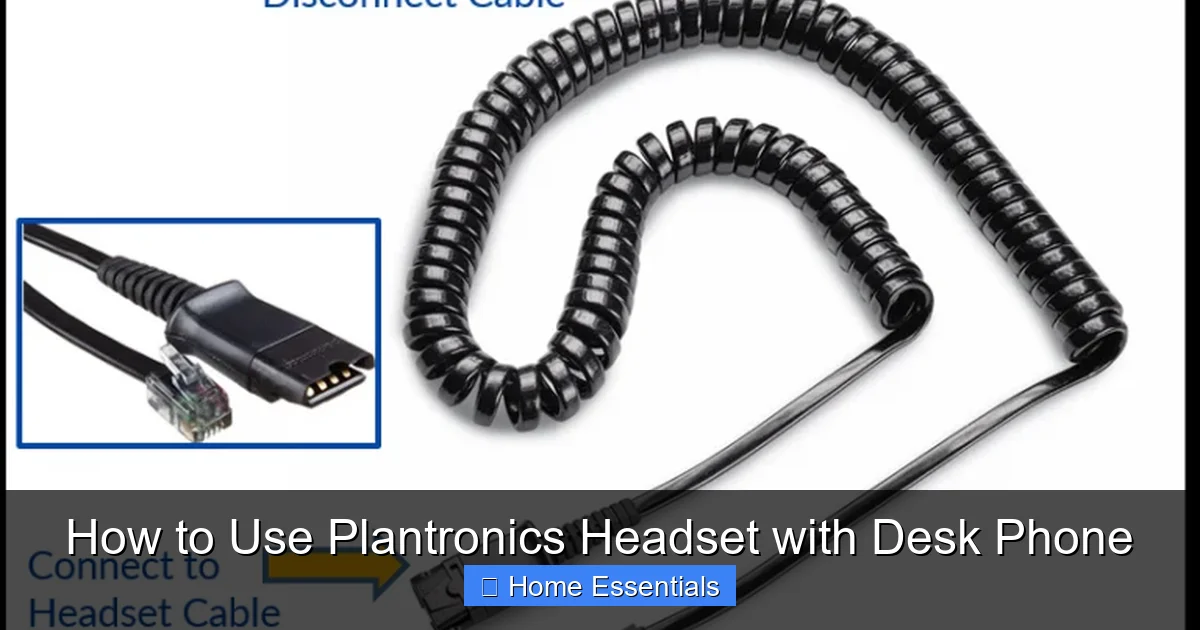
Visual guide about How to Use Plantronics Headset with Desk Phone
Image source: storage.googleapis.com
Method 1: The Wired Direct Connect (The Simple Path)
This is the most straightforward method, but it has limitations.
What you need: A Plantronics headset with a direct-connect cable (usually terminating in an RJ9 plug) and a desk phone with a dedicated headset port (RJ9/RJ22).
How it works: You simply plug the headset cable into the headset port on your phone. The phone’s audio routes directly through the headset. You will typically need to manually press the “Headset” button on your phone to answer/end calls, as there is no remote hookswitch.
Pros: Inexpensive, no adapters needed, very reliable.
Cons: No wireless freedom (you’re tethered by the cable), you must use the phone’s buttons, and the headset port on some phones provides lower audio power/quality than the handset port.
Best for: Simple, stationary setups where you don’t need to walk away from your desk. Often used with analog phones or basic digital phones that have a headset jack.
Method 2: The EHS Adapter (The Professional Standard)
This is the gold standard for professional, wireless use with digital/proprietary desk phones. EHS stands for Electronic Hookswitch.
What you need: A compatible Plantronics wireless headset system (like Savi 700/800 series or newer EncorePro models) and the correct EHS cable for your specific phone model. Plantronics and third-party manufacturers make dozens of these pre-wired cables for phones from Cisco, Poly, Yealink, Avaya, etc.
How it works: The EHS cable has a unique connector on one end that plugs into a specific port on the back of your desk phone (often labeled “EH” or “Headset”). The other end plugs into the base station of your Plantronics wireless headset. This cable carries both audio *and* the electronic signal that tells the phone when you press the call control button on your headset to answer or hang up.
Pros: Full wireless range (typically 100+ meters), remote call control (answer/end/mute/volume from headset), superior audio quality, professional appearance.
Cons: Requires purchasing the correct EHS cable for your phone model, which can add cost and complexity. Setup requires finding the right port on the phone.
Best for: Anyone who wants true wireless freedom and professional features in an office with digital/VoIP phones. This is the most common corporate solution.
Method 3: The Wireless DECT/Bluetooth Base (The Flexible Modern Path)
This method is for phones that lack a dedicated headset port or when you want to connect multiple devices.
What you need: A Plantronics wireless headset that comes with a base station that has a standard RJ11 telephone line cord. This base station acts as a mini-PBX between your phone line and your headset.
How it works: You unplug the handset cord from your phone. You plug the handset cord into the “Handset” port on the Plantronics base station. Then, you plug the base station’s “Line” or “Phone” cord into the port on your phone where the handset *was* originally plugged in. The base station electrically “fakes” a handset, so your phone thinks a regular handset is always off-hook. Your wireless headset then pairs with this base station. You answer calls by pressing the button on the headset or base.
Pros: Works with almost any analog or digital phone (even ones without a headset port), no need for phone-specific EHS cables, can often pair with multiple Bluetooth devices (computer, mobile).
Cons: Can sometimes cause a slight audio delay or require the phone to be set to “headset mode” if it doesn’t auto-detect, may not support all advanced call control features like call waiting tone rollover.
Best for: Users with phones that have no headset port, for home office setups with mixed phone types, or for those who want to easily switch the headset between their desk phone and their mobile phone.
Step-by-Step Setup Guide
Let’s get practical. We’ll walk through the setup for the two most common and powerful scenarios: a wired EHS connection for a digital office phone, and a wireless base station connection for maximum flexibility.
Visual guide about How to Use Plantronics Headset with Desk Phone
Image source: cdn.shopify.com
Setting Up a Wired EHS Connection
This is for when you have a Plantronics wireless headset (Savi, EncorePro) and a digital/VoIP phone with a known EHS port.
- Gather your tools: Your Plantronics headset and base station, the correct EHS cable for your phone model (check Plantronics compatibility guides), and your desk phone.
- Power down: It’s good practice to power off your desk phone before making any connections.
- Connect the EHS cable: Locate the specialized EHS port on your phone (consult your phone’s manual if needed—common labels are “EH,” “Headset,” or a symbol of a headset). Firmly plug the unique connector into this port. Plug the other end (usually a standard RJ9) into the port labeled “EHS” or “Phone” on the back of your Plantronics base station.
- Connect the base station power: Plug the power adapter into the base station and an outlet.
- Power on and pair: Turn your desk phone back on. Turn on your wireless headset. It should automatically pair with the base station (often indicated by a solid light). Consult your headset manual for specific pairing buttons if needed.
- Test the call control: Pick up the handset from your phone to get a dial tone, then hang it up. Now, press the call control button (answer/end) on your headset. You should hear a dial tone in your headset. Make a test call to confirm you can answer and hang up using only the headset.
Setting Up a Wireless Base Station (DECT) Connection
This is the versatile method that works with nearly any phone.
- Unplug your phone’s handset: Locate the cord that goes from the phone body to the handset. Unplug it from the back of the phone body.
- Connect to the base station: Plug the handset cord into the port labeled “Handset” on your Plantronics base station.
- Connect the base to the phone: Take the cord coming from the “Line” or “Phone” port on the base station and plug it into the empty handset port on your desk phone where you unplugged the original cord.
- Power the base station: Plug the base station’s power adapter in. The lights should illuminate.
- Pair your headset: Turn on your wireless headset. It should automatically pair with the base station. If not, consult the manual for the pairing procedure (usually a button on the base).
- Test and configure: Pick up your desk phone’s handset. You should hear a dial tone. Now, place the handset back in the cradle. Your phone may now show a “Headset” icon or light. Press the call control button on your headset. You should get a dial tone in your headset. If you don’t, your phone may need to be manually set to “Headset Mode” via a menu option (often a feature key sequence).
Mastering Advanced Features and Settings
Once connected, don’t stop there. Your Plantronics headset has a treasure trove of features that can make your life easier. You’ll usually configure these using buttons on the base station or headset, or via software on a computer for more advanced models.
Visual guide about How to Use Plantronics Headset with Desk Phone
Image source: headphonesaver.com
Remote Call Control
This is the core feature. Ensure your answer/end call button works. On many models, a short press answers, a long press (2 seconds) ends a call. The mute button should give you a tone in your ear and a light on the headset.
Volume and Sidetone Control
Use the volume up/down buttons on your headset. Sidetone is the faint sound of your own voice in your ear, which helps you monitor your speaking volume. Some base stations have a sidetone adjustment wheel. Too much sidetone can cause you to speak too loudly; too little can make you feel disconnected.
Multi-Device Switching
Many modern Plantronics headsets can remember multiple Bluetooth connections. You can pair your headset to your desk phone base *and* your mobile phone or computer. Then, using a dedicated button (often the call control button held for a few seconds), you can switch which device your audio is routed to. This is perfect for taking your headset from your desk to a conference room.
Range and Battery Management
Know your range. DECT headsets typically offer 100-150 meters of clearline-of-sight range. Walls and interference will reduce this. Keep your base station in an open area on your desk. Charge your headset nightly in the base station. Most have battery indicators—a flashing light usually means low battery.
Troubleshooting Common Problems
Even with perfect setup, issues can arise. Here’s a diagnostic guide for the most frequent headaches.
“I Have No Dial Tone in My Headset”
First, check the physical connections. Is the EHS cable or base station cable securely plugged in at both ends? Is the base station powered on? Second, check your phone’s mode. For base station connections, your phone must be in “Headset Mode.” Consult your phone’s manual for the key sequence (e.g., press “Headset” button, or Feature + 852). Third, test the handset. If you have no dial tone in the handset either, the problem is with your phone line, not the headset.
“My Audio is Crackling, Static, or Dropping Out”
This is almost always an interference issue. DECT headsets operate on the 1.9 GHz band, which is less crowded than 2.4 GHz Wi-Fi, but interference can still happen. Solutions: Move the base station away from routers, microwaves, and large metal objects. Ensure the base station’s antenna is upright. For very large offices, a DECT repeater might be needed. If using a base station method, try a different phone port on your desk phone.
“I Can Hear Them, But They Can’t Hear Me (or Vice Versa)”
This is a wiring issue. For EHS: You may have the wrong EHS cable for your phone model, or it’s inserted into the wrong port. Double-check compatibility. For Base Station: The handset cord and phone cord may be reversed. The handset cord *must* go into the “Handset” port on the base, and the base’s “Phone” cord must go into the phone’s handset port. Swap them if unsure.
“There’s a Loud Echo”
Echo is usually caused by the microphone picking up sound from the speaker. Adjust your headset fit. Ensure the microphone boom is positioned just off the corner of your mouth, not directly in front of it. Check sidetone. Too much sidetone can create a feedback loop. Reduce sidetone via the base station control if available. Check for open windows/desk surfaces. Sound reflecting off hard surfaces can cause echo. A cluttered desk or a properly dusted surface with soft items can help absorb stray sound.
Maintenance, Care, and a Tidy Workspace
Your Plantronics headset is a tool. Like any tool, it performs best when clean and well-maintained. A clean headset isn’t just about hygiene; it’s about performance. Oils from your skin, dust, and debris can degrade microphone sensitivity and speaker sound quality over time.
Daily/Weekly Care: Wipe down the headband, ear cushions, and microphone boom with a dry or slightly damp microfiber cloth. A microfiber cloth is ideal because it lifts away dirt without scratching surfaces or leaving lint. For disinfecting, lightly dampen the cloth with a 70% isopropyl alcohol solution and wipe, then let dry completely. Never spray liquid directly onto the headset.
Deep Cleaning: Every few months, remove the ear cushions (if your model allows) and clean them with mild soap and water. Rinse thoroughly and air-dry completely before reattaching. Use a dry, soft-bristled brush (like a clean makeup brush) to gently dislodge debris from microphone ports and speaker meshes.
Cable and Base Care: Check cables for frays. Keep the base station’s connections dust-free. A tidy desk not only looks professional but also reduces the chance of accidentally snagging a cable. Incorporating quick desk dusting with a microfiber cloth into your weekly routine can prevent dust bunnies from clogging ports and vents.
Storage: When not in use for extended periods, store the headset in a cool, dry place away from direct sunlight. If you have a travel case, use it.
Conclusion: Your Path to Hands-Free Productivity
Connecting your Plantronics headset to your desk phone is one of the highest-impact upgrades you can make to your workspace. It’s an investment in comfort, health, and efficiency. The journey starts with knowledge: understanding your phone system and your headset’s capabilities. From there, you choose the connection method—wired EHS for a dedicated professional setup, or a versatile wireless base for universal compatibility—and follow a careful, methodical setup process.
Remember, the goal is seamless integration. Your headset should feel like a natural extension of your phone, not a foreign gadget. Take the time to pair correctly, test call control, and fine-tune audio settings. When issues arise, troubleshoot logically, starting with the simplest checks—power and connections—before diving into complex settings.
Finally, treat your headset with care. Regular cleaning with a proper microfiber cloth, mindful storage, and cable management will keep it performing like new for years. You’ve now unlocked a new level of freedom. You can pace while on important calls, take notes comfortably, and finally give your neck a break. That’s the true power of a well-configured Plantronics headset with your desk phone. Now, go make those crystal-clear calls.
Frequently Asked Questions
Can I use any Plantronics headset with my desk phone?
No. Compatibility depends on your phone type and the headset’s design. USB headsets are for computers. For desk phones, you need a model with a wired connection for a headset port or a wireless system (EHS or base station) compatible with your phone’s signaling. Always check Plantronics’ compatibility guide for your specific phone model before purchasing.
What’s the difference between an EHS cable and a base station?
An EHS (Electronic Hookswitch) cable is a simple, phone-specific adapter that connects a compatible wireless headset base directly to a digital/VoIP phone’s headset port, enabling remote call control. A base station (or standalone wireless system) is a larger unit that connects between your phone’s handset cord and the phone itself, acting as an intermediary. It works with almost any phone but may not support all advanced features like call waiting tone rollover.
Why is there an echo when I use my headset?
Echo is usually caused by your microphone picking up sound from your speaker. First, adjust the microphone position so it’s just off the corner of your mouth. Second, reduce the sidetone (your own voice in your ear) using the control on your headset base. Third, ensure a good fit—leaky ear cushions can cause sound to leak out and be re-captured by the mic.
Can I use my Plantronics headset with both my desk phone and my mobile phone?
Yes, if your headset model supports multi-point Bluetooth pairing. You would pair your headset to your desk phone’s base station (via DECT) and to your mobile phone (via Bluetooth). You can then switch between the two audio sources, typically by holding the call control button for a few seconds. Check your specific model’s manual for the exact multi-point switching procedure.
How do I clean my Plantronics headset without damaging it?
Use a soft, dry microfiber cloth for daily wiping. For disinfecting, slightly dampen the cloth with a 70% isopropyl alcohol solution, wipe the surfaces, and let it air dry completely. Never spray liquids directly on the headset. Avoid harsh chemicals, abrasives, or submerging it in water. For a thorough guide on cleaning electronics safely, refer to our article on how to clean electronics with a microfiber cloth.
My phone doesn’t have a headset port. What are my options?
You have two main options: 1) Use a wireless base station system. You unplug your handset cord, connect it to the base station, and connect the base to your phone. This works with virtually any phone. 2) Use a Plantronics headset system designed for your specific phone model that uses an EHS cable, but only if your phone has a hidden or proprietary EHS port (common in corporate digital phones). The base station method is generally simpler and more universal.