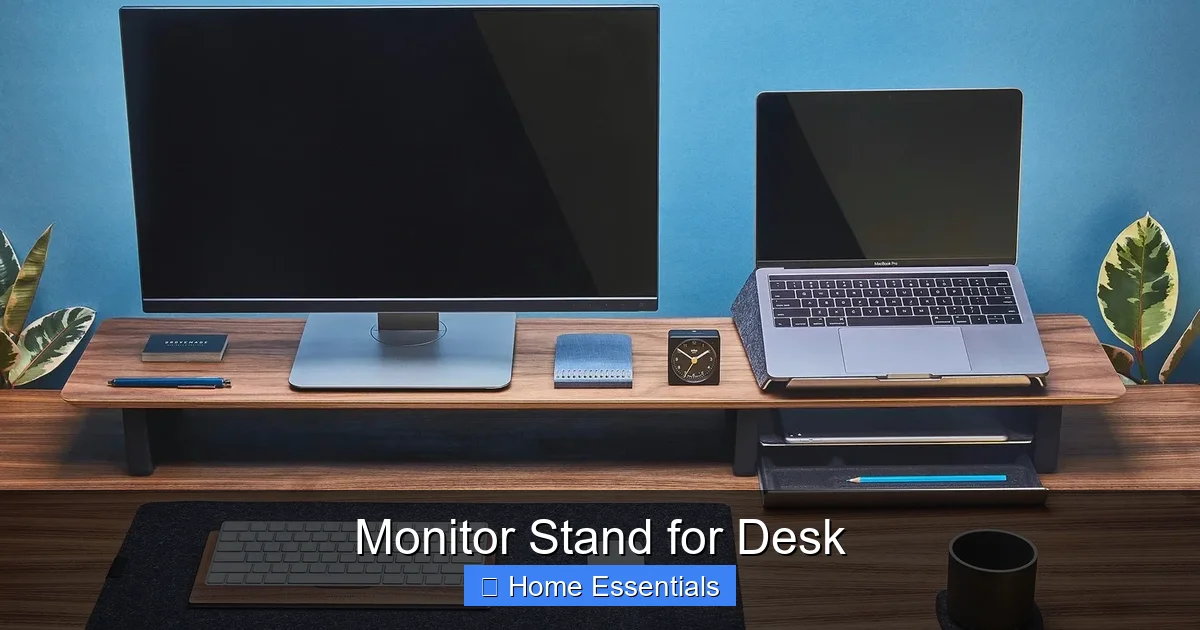
Monitor Stand for Desk
A monitor stand for your desk is a simple yet transformative upgrade that elevates your screen to eye level, combating neck strain and poor posture. It reclaims valuable under-desk space for storage or peripherals, turning clutter into an organized, efficient workspace. Choosing the right stand—whether fixed, adjustable, or with built-in hubs—directly impacts your long-term comfort, productivity, and overall desk health.
Let’s be honest. Your desk is probably a battleground. Papers here, coffee mug there, a tangle of cables lurking beneath, and your monitor… sitting too low, forcing you to hunch like a question mark. You feel it at the end of the day, don’t you? That dull ache in your shoulders, the gritty feeling in your eyes. What if the solution wasn’t another expensive ergonomic chair or a fancy new desk, but a simple, unassuming slab of metal or wood? Enter the monitor stand for desk. It’s not just a riser; it’s a fundamental piece of ergonomic real estate that can redefine your entire workspace. This guide will walk you through everything you need to know, from why you absolutely need one to how to pick the perfect model for your unique setup.
We live in a world of screens. For many of us, our desk is our command center, our studio, our classroom. The object in the center of that universe is our monitor. Yet, we often neglect its placement. The standard desk height is around 29-30 inches. If you’re average height, your eye line is likely several inches above that. Looking down at a screen for 8, 10, or 12 hours a day creates a constant mechanical stress on your cervical spine. It’s a slow, cumulative injury. A monitor stand for desk isn’t a luxury; it’s a critical piece of preventive healthcare for the modern worker. It’s about working smarter, not harder, and your body will thank you for it.
Key Takeaways
- Ergonomic Health is Primary: A monitor stand positions your screen at the correct height to align with your eyes, preventing “tech neck,” shoulder pain, and chronic eye strain.
- Space Reclamation is Key: It lifts the monitor base off your desk, instantly freeing up significant surface area for documents, keyboards, or other essentials.
- Types Dictate Function: Choose between simple fixed risers, fully adjustable arms, laptop-specific models, or DIY solutions based on your specific needs and monitor type.
- Features Beyond Elevation: Look for built-in cable management, storage drawers/shelves, USB hubs, and sturdy materials like aluminum or steel for long-term value.
- Setup is a Science: Proper installation involves setting the top of your screen at or just below eye level and maintaining an arm’s length distance for optimal comfort.
- Maintenance is Simple: Regular dusting with a microfiber duster for electronics keeps the stand and desk surface clean and functional.
- It’s a Worthwhile Investment: For anyone spending hours at a desk, a quality stand is a low-cost, high-impact tool for protecting your health and enhancing daily workflow.
📑 Table of Contents
- The Hidden Toll of Poor Desk Ergonomics
- What Exactly Is a Monitor Stand for Desk?
- Types of Monitor Stands for Desk
- Key Features to Look For: Beyond the Basics
- Setting Up Your Monitor Stand for Optimal Ergonomics
- Maintenance and Care for Longevity
- Choosing the Right Monitor Stand for Your Needs
- Conclusion: Elevate More Than Just Your Screen
The Hidden Toll of Poor Desk Ergonomics
Before we dive into solutions, let’s fully understand the problem. Using a monitor at the wrong height isn’t just uncomfortable; it’s a recipe for chronic pain and reduced efficiency.
Neck and Shoulder Pain: The Forward Head Posture Epidemic
When your head is in a neutral position, your ear aligns with your shoulder. For every inch your head moves forward (to look down at a low screen), the effective weight on your cervical spine increases by about 10 pounds. A 12-pound head in a neutral position becomes a 42-pound weight when jutted forward two inches. This constant strain leads to muscle fatigue, ligament stress, and eventually, pain. A proper monitor stand for desk brings the screen up to you, so you don’t have to bring your head down to it.
Eye Strain and Fatigue: The Squint Factor
A screen that’s too low often forces you to partially close your eyelids to see it clearly, a natural squint that fatigues the eye muscles. Furthermore, if the screen is too close or at a steep downward angle, your eyes have to work harder to focus and refocus, leading to dryness, blurred vision, and headaches. Elevating the stand allows for a more natural, straight-ahead gaze, reducing this strain significantly.
Reduced Productivity and Focus
Discomfort is the ultimate distraction. That nagging neck pain or burning eye sensation pulls your mental energy away from your task. By eliminating these physical distractions, you free up immense cognitive bandwidth for deep work. A well-positioned screen also improves your posture, which is directly linked to increased energy and alertness.
What Exactly Is a Monitor Stand for Desk?
At its core, a monitor stand for desk is a platform or arm that supports your computer monitor and raises it to a more ergonomic viewing height. However, the modern iteration is far more sophisticated than a simple block of wood. It’s a multifunctional hub designed to optimize your entire desktop environment.
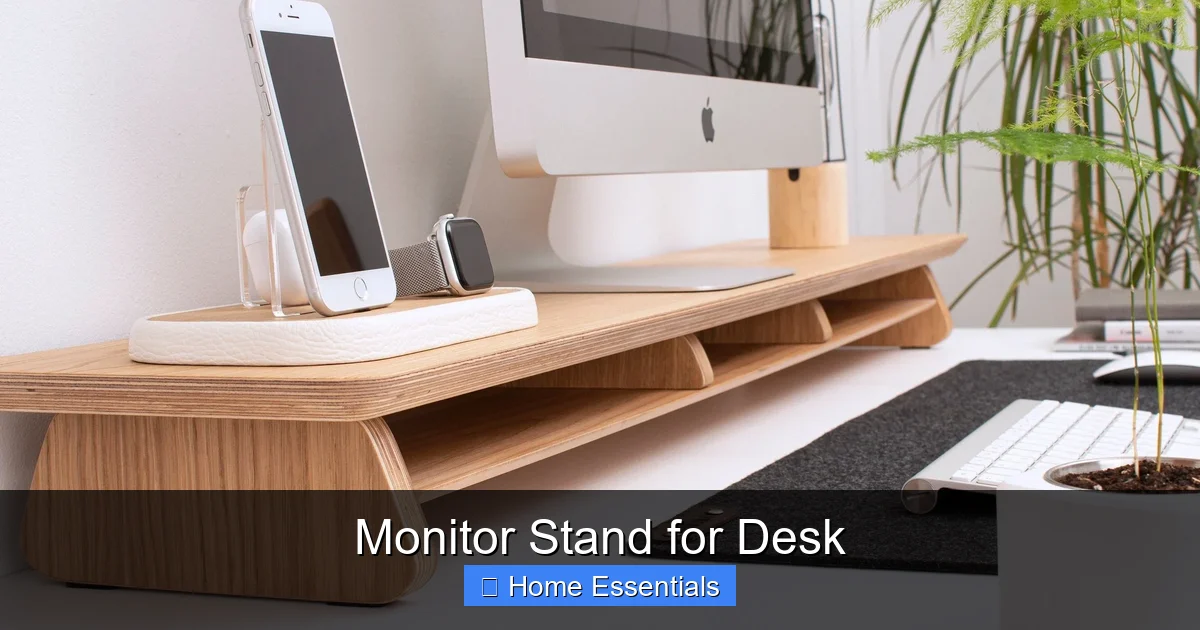
Visual guide about Monitor Stand for Desk
Image source: i.etsystatic.com
Basic Definition: More Than Just a Riser
Fundamentally, it’s a structure that sits on your desk surface and holds your monitor. The simplest versions are non-adjustable risers that add a fixed height (typically 3-6 inches). More advanced versions are articulated arms that offer a full range of motion—height, tilt, swivel, and sometimes even rotation to portrait mode. The key function remains the same: to position your screen correctly.
Beyond Elevation: The Multi-Functional Tool
This is where the real value lies. Today’s best monitor stands are workspace organizers. They commonly incorporate:
- Cable Management: Channels, clips, or sleeves to route unsightly wires neatly down the stand leg or along the desk edge.
- Storage Solutions: Built-in drawers, shelves, or under-platform space for pens, notepads, external drives, or even a laptop when not in use.
- USB Hubs: Integrated ports (USB-A, USB-C) to connect peripherals, often powered by a single cable to your computer.
- Device Charging: Some include wireless Qi charging pads on the platform surface for your phone or earbuds.
These features transform the stand from a passive support into an active organizer, directly combating desk clutter. A clean desk, as they say, is a clear mind.
Types of Monitor Stands for Desk
Choosing the right type is the first step. Your choice depends on your monitor’s weight and VESA mount pattern (if any), your desk surface, and your desired level of adjustability.
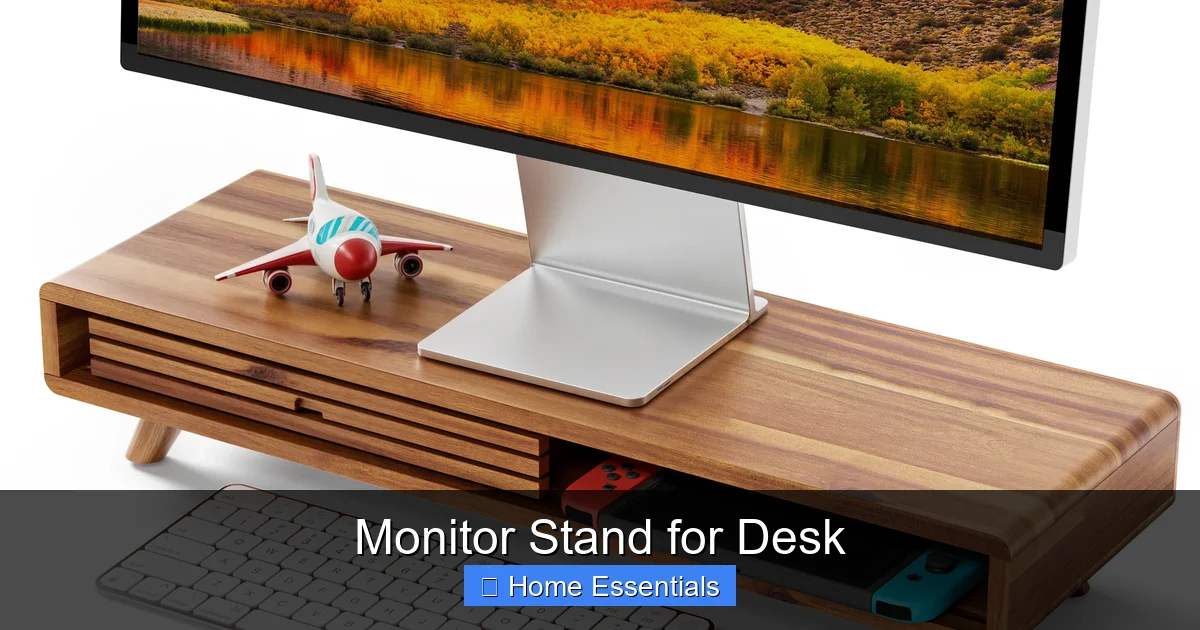
Visual guide about Monitor Stand for Desk
Image source: assets.wfcdn.com
Fixed Height Stands (Risers)
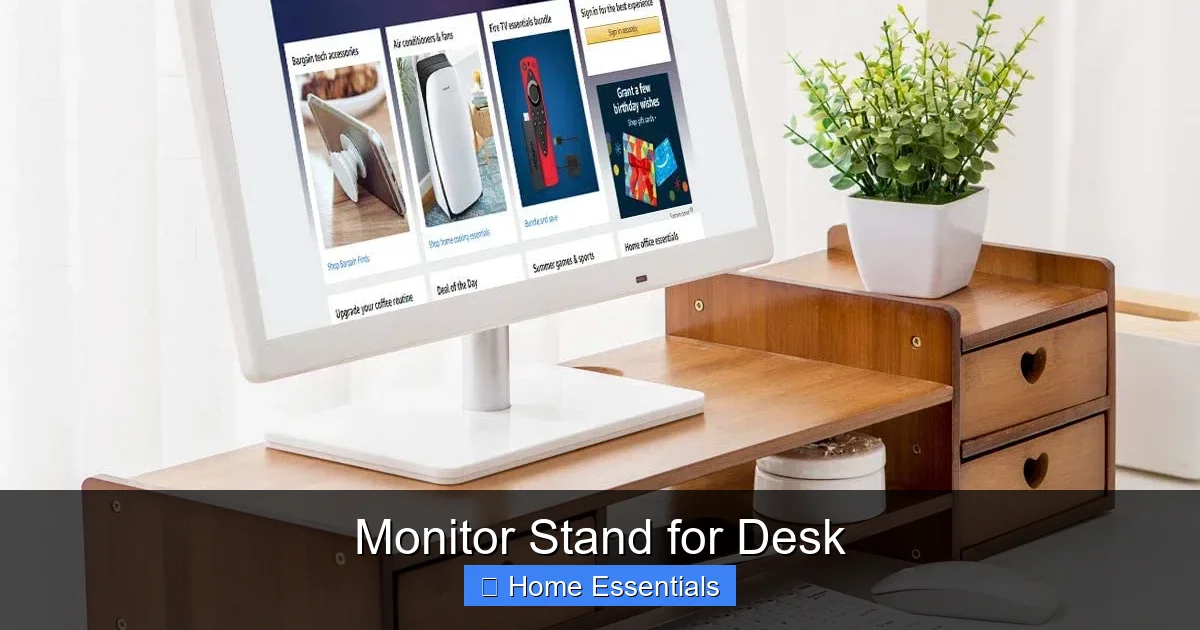
These are the simplest and most affordable. They are solid platforms (often wood, plastic, or metal) with feet that elevate your monitor by a set amount. They are ideal if your monitor’s base is already at a good height but you need extra under-desk storage space. They offer no adjustability once placed, so you must ensure the fixed height is correct for you. They are stable and often have a large surface area for storing items underneath.
Adjustable Height Stands and Arms
This is the gold standard for true ergonomics. These are articulated arms that clamp to the desk edge or use a weighted base. They feature gas springs or mechanical locks to easily raise, lower, tilt, and swivel the monitor. They are perfect for shared workstations, users of varying heights, or anyone who wants to fine-tune their setup. They completely clear the desk surface beneath the monitor, offering maximum flexibility. Ensure your monitor is compatible with the VESA mount pattern (usually 75x75mm or 100x100mm) and within the arm’s weight capacity.
Laptop-Specific Stands
Designed for users who primarily work on a laptop but want to elevate the screen and use external peripherals (keyboard, mouse). These stands often have a minimalist design, sometimes with a built-in cooling pad or a slot to hold the laptop at a comfortable angle. They are generally smaller and lighter than full monitor stands.
DIY Solutions and Creative Alternatives
Not all solutions are store-bought. A stack of books, a sturdy cardboard box, or a repurposed kitchen stand can work in a pinch. However, these lack stability, safety (risk of tipping), and cable management. For a permanent, safe, and feature-rich solution, a purpose-built stand is always recommended. For those on a tight budget, simple wood risers offer a clean, stable look without the cost of an articulated arm.
Key Features to Look For: Beyond the Basics
Once you know the type, you need to evaluate features. Don’t just buy the first one you see; consider these elements for long-term satisfaction.
Visual guide about Monitor Stand for Desk
Image source: secure.img1-fg.wfcdn.com
Weight Capacity and Stability
This is non-negotiable. Check the manufacturer’s weight limit and compare it to your monitor’s weight (including its stand, if you’re not using VESA). A stand that wobbles or tips is dangerous and frustrating. Look for a wide, heavy base on freestanding models or a robust clamp on arm models. A stable stand should not shake when you bump the desk lightly.
Material and Build Quality
You get what you pay for. Budget stands use plastic that can feel flimsy. Mid-range and high-end stands use powder-coated steel, brushed aluminum, or solid hardwood. Aluminum is lightweight yet strong and resists corrosion. Steel offers maximum stability for heavy monitors. Consider the finish—a powder coat is more durable than paint. A well-built stand will last for years.
Cable Management Systems
Look for more than just a hole in the platform. The best systems have internal channels within the stand’s column or arm, adhesive-backed clips, and zip-tie holders. This allows you to route all monitor, keyboard, and peripheral cables neatly from the device, down the stand, and into a single bundle at the desk’s edge. A clean cable run is a sign of a professional setup.
Storage Solutions and Organization
How much do you need to store? Some stands offer a full-width drawer under the platform. Others have a small shelf or cubby. Some have a simple open space. Think about your daily essentials: a notepad, a set of headphones, a webcam when not in use. A stand with integrated storage keeps these items within arm’s reach but out of sight, maximizing your usable desk surface.
VESA Mount Compatibility
If you plan to use an articulated arm, your monitor must have a VESA mounting pattern—a square or rectangular set of threaded holes on the back. Most modern monitors have this, but many older or budget models do not; they use a proprietary stand that attaches to the monitor’s base. You must remove that base and attach the VESA bracket. Check your monitor’s manual or the back panel for the VESA pattern size (e.g., 100x100mm). Ensure the stand’s bracket is compatible.
Setting Up Your Monitor Stand for Optimal Ergonomics
Buying the stand is only half the battle. Proper setup is what delivers the health benefits. Follow these science-backed guidelines.
The Ideal Viewing Angle and Distance
The top of your monitor screen should be at or slightly (0-2 inches) below your direct, straight-ahead eye line. You should look slightly down at the center of the screen, not up. The screen should be about an arm’s length away (20-30 inches). If you use bifocals or progressive lenses, you may need to lower the screen slightly so you can see through the correct part of the lens without tilting your head. The center of the screen should be roughly 10-20 degrees below your horizontal eye line.
Keyboard and Mouse Placement
With your monitor elevated, your keyboard and mouse should remain on the desk surface. Your elbows should be at a 90-degree angle or slightly more open, with your upper arms hanging relaxed at your sides. Your keyboard should be directly in front of you, aligned with the center of your monitor. This prevents twisting your torso. If your stand has a keyboard tray, ensure it is at the correct height and allows enough space for your mouse.
The 20-20-20 Rule
No ergonomic setup is complete without breaks. Every 20 minutes, look at something 20 feet away for at least 20 seconds. This relaxes the ciliary muscle in your eye, reducing fatigue. A good monitor stand for desk facilitates this by promoting a natural, relaxed posture that makes it easier to shift your gaze and stretch your neck periodically.
Maintenance and Care for Longevity
Your investment will last longer with simple care. Dust and grime can accumulate in the moving parts of an adjustable arm or on the platform surface.
Regular Dusting and Cleaning
Make it a weekly habit. Use a soft, dry microfiber cloth to wipe down the stand’s surfaces. For adjustable joints, use a dry cloth to remove any dust or hair that might work its way into the mechanisms. Avoid harsh chemical cleaners, especially on anodized aluminum or powder-coated finishes; a slightly damp cloth is sufficient. For screens, always use a dedicated screen cleaner and microfiber cloth. Keeping the area under the stand clean is easier now that you have space—a quick swipe with a microfiber duster for electronics can remove dust bunnies before they become a problem.
Checking for Wear and Tear
Every month or so, give your stand a quick inspection. For fixed stands, check the feet for stability and the platform for cracks. For articulated arms, check the tension of the gas spring (if it can no longer hold the monitor in place, it may need servicing or replacement). Tighten any visible screws or bolts. Ensure cable clips are secure. Catching small issues early prevents bigger problems and potential accidents.
Choosing the Right Monitor Stand for Your Needs
With all this knowledge, how do you make the final choice? It comes down to three practical assessments.
Assessing Your Desk Space and Setup
Measure your desk depth and the space in front of where your monitor sits. A large, heavy articulated arm with a wide base might overwhelm a small writing desk. A simple riser might be perfect. Consider what’s under your desk—is there a drawer or CPU tower that could interfere with a clamp-style arm? Your desk’s edge thickness is critical for clamp mounts (most clamps fit edges up to 3 inches thick).
Matching Your Monitor and Workflow
List your monitor’s specs: weight, size, and VESA compatibility. Be brutally honest about your workflow. Do you need to switch between landscape and portrait for coding or document review? Get a full-motion arm. Do you use a laptop and a monitor side-by-side? Look for a stand with a large platform or dual-arm capability. Is your desk a minimalist zone? A sleek aluminum riser with hidden storage is better than a bulky arm with a giant base.
Budget Considerations: Value vs. Cost
You can find functional fixed risers for under $20. A high-quality, full-motion aluminum arm with cable management from a reputable brand might cost $100-$200. Determine your budget, but think in terms of value. This is a tool you’ll use daily for years. Spending more for superior build quality, smooth adjustability, and better organization features is a wise investment in your comfort and productivity. It’s one of the most cost-effective ergonomic upgrades you can make.
Conclusion: Elevate More Than Just Your Screen
The journey to a healthier, more productive workspace begins with a single, small step: lifting your monitor. A monitor stand for desk is that step. It’s the unsung hero of the home office, the quiet guardian of your posture, and the architect of your desk’s organization. It transforms a passive piece of furniture into an active tool for well-being. By understanding the types, evaluating the key features, and setting it up with ergonomic precision, you make a commitment to your long-term health. You trade a few minutes of setup for countless hours free from pain and clutter. So, measure your desk, check your monitor’s specs, and choose a stand that fits your life. Your future self—the one with a pain-free neck and a beautifully organized desk—will be incredibly grateful. Remember, a clean, well-arranged desk is easier to maintain with the right tools. For keeping every surface pristine, consider adding a proper microfiber cloth for cleaning to your kit. It’s the perfect companion to your new, elevated setup.
Frequently Asked Questions
Will any monitor stand work with my curved ultrawide monitor?
Most standard VESA-compatible stands will work, but you must check the weight capacity. Curved ultrawides are often heavier than flat panels. For very large or heavy models (32″+), a heavy-duty articulated arm with a high weight limit is strongly recommended for stability and safety. Always verify VESA pattern compatibility (usually 100x100mm).
How do I know if my monitor has a VESA mount?
Look on the back of your monitor. If you see four threaded holes arranged in a square pattern (common sizes are 75x75mm or 100x100mm), it has a VESA mount. If your monitor only attaches via a proprietary clip-on stand that cannot be removed, it likely does not have a VESA pattern. You can also check your monitor’s manual or product specifications online.
Are clamp mounts or grommet mounts better for my desk?
It depends on your desk. A clamp mount attaches to the side or back edge of your desk and is easiest to install, but requires a solid edge and enough clearance underneath. A grommet mount requires a hole (usually 1.5-2 inches in diameter) drilled through your desk surface and provides a very clean, integrated look with a smaller footprint. If you have a solid desk edge and no hole, choose clamp. If you’re installing a new desk or can drill a hole, grommet is often more stable and aesthetic.
Can a monitor stand help with a laptop setup?
Absolutely. Using a laptop stand (or a monitor stand with a large platform) to elevate your laptop screen to eye level is one of the best things you can do for your posture. You then connect an external keyboard and mouse. This separates your input devices from your screen, allowing your arms to rest at your sides while your eyes look straight ahead—the ideal ergonomic position. It prevents the dreaded “laptop hunch.”
How high should my monitor be exactly?
The general rule is: when sitting up straight with your gaze level, the top third of your screen should be at your eye line. More precisely, your eyes should align with a point about 1-3 inches below the top edge of the screen. You should not have to tilt your chin up or down to see the center of the screen comfortably. Adjustable stands make achieving this precise height simple.
Do I really need a monitor stand if my desk has a keyboard tray?
Yes, they serve different purposes. A keyboard tray lowers your keyboard and mouse to a comfortable height, which is great. However, it does nothing for your monitor’s height. You still need to elevate the screen to eye level independently. In fact, with a keyboard tray, your monitor might be even lower relative to your seated eye line, making a stand even more critical. The two accessories work together for full ergonomic optimization.