What Smart Bulbs Work with Home Assistant
Home Assistant is a powerful open-source smart home platform that lets you control your lights, devices, and routines from one central hub. But not all smart bulbs play nicely with Home Assistant—some require proprietary apps or lack local control. In this guide, you’ll discover exactly which smart bulbs integrate smoothly, how to set them up, and how to unlock advanced automations like sunrise simulations or color mood lighting.
Key Takeaways
- Home Assistant supports many smart bulb brands: It works with Zigbee, Z-Wave, Wi-Fi, and Matter-compatible bulbs from brands like Philips Hue, IKEA TRÅDFRI, LIFX, and more.
- Local control is key: Bulbs that work locally (via Zigbee or Z-Wave hubs) offer faster, more reliable performance than cloud-dependent Wi-Fi bulbs.
- Zigbee and Z-Wave bulbs are the most reliable: They use mesh networking and integrate directly with hubs like the Philips Hue Bridge or Aqara Gateway.
- Wi-Fi bulbs offer convenience but come with trade-offs: Brands like LIFX and TP-Link Kasa work directly with Home Assistant but may rely on cloud connectivity.
- Matter support is the future: Newer bulbs with Matter over Thread (like those from Eve or Aqara) will soon work natively with Home Assistant.
- Not all smart bulbs are created equal: Always check compatibility lists before buying—some bulbs only work with specific hubs or apps.
- Automation and scenes unlock the real power: Use Home Assistant to create routines like “Good Morning” that turn on lights, adjust brightness, and change colors automatically.
📑 Table of Contents
- What Smart Bulbs Work with Home Assistant?
- Understanding Home Assistant and Smart Bulbs
- Best Smart Bulbs That Work with Home Assistant
- How to Set Up Smart Bulbs with Home Assistant
- Advanced Features and Automations
- Privacy and Security Considerations
- Common Issues and Troubleshooting
- Future of Smart Bulbs with Home Assistant
- Conclusion
What Smart Bulbs Work with Home Assistant?
Imagine this: you wake up to soft, warm light that gradually brightens as the sun rises. You walk into the kitchen, and your favorite playlist starts playing while the lights shift to a cozy orange tone. You leave the house, and the lights turn off automatically. No apps. No delays. Just seamless control.
That’s the magic of a smart home powered by Home Assistant. It’s an open-source platform that puts you in charge of every device—lights, thermostats, locks, cameras, and more. But when it comes to smart bulbs, not every brand plays well with others. Some work great. Others? Not so much.
In this guide, we’ll walk you through exactly what smart bulbs work with Home Assistant, how to set them up, and how to make the most of them with automations, scenes, and integrations. Whether you’re just starting your smart home journey or upgrading your existing setup, this is the definitive guide to smart bulbs that truly work with Home Assistant.
Understanding Home Assistant and Smart Bulbs
Before we dive into specific brands, let’s talk about what makes a smart bulb compatible with Home Assistant.
Visual guide about What Smart Bulbs Work with Home Assistant
Image source: ledlightinginfo.com
Home Assistant is designed to be flexible and open. It doesn’t force you into one ecosystem—unlike Apple HomeKit or Amazon Alexa, which often lock you into their own devices. Instead, Home Assistant supports a wide range of communication protocols, including Zigbee, Z-Wave, Wi-Fi, and soon, Matter.
The key to compatibility? Local control. The best smart bulbs don’t just respond to voice commands—they work directly with your Home Assistant hub, even when your internet is down. That means faster response times, no cloud dependency, and full control over features like dimming, color, and scheduling.
Why Local Control Matters
Cloud-dependent bulbs might work when you’re at home, but if your internet goes out, you lose control. With local control, your lights respond instantly—even during power outages (depending on your hub).
Also, cloud-connected bulbs often come with privacy concerns. Your data might be stored on servers, and manufacturers could use it for analytics or advertising. Local control keeps everything on your network, where it belongs.
Common Communication Protocols
- Zigbee: A low-power, mesh network protocol. Bulbs talk to a central hub (like the Philips Hue Bridge), which then communicates with Home Assistant. Zigbee bulbs are reliable, battery-efficient, and support many advanced features.
- Z-Wave: Similar to Zigbee but with a different frequency band. Z-Wave bulbs work with Z-Wave hubs and offer excellent range and reliability.
- Wi-Fi: Bulbs connect directly to your home network. They’re easy to set up but can hog bandwidth and may rely on cloud services.
- Matter: The new standard for smart home interoperability. Matter bulbs will eventually work directly with Home Assistant without needing a hub, though support is still growing.
Best Smart Bulbs That Work with Home Assistant
Now, let’s get into the good stuff: which smart bulbs actually work with Home Assistant? We’ll break them down by protocol and brand, so you can pick the best fit for your setup.
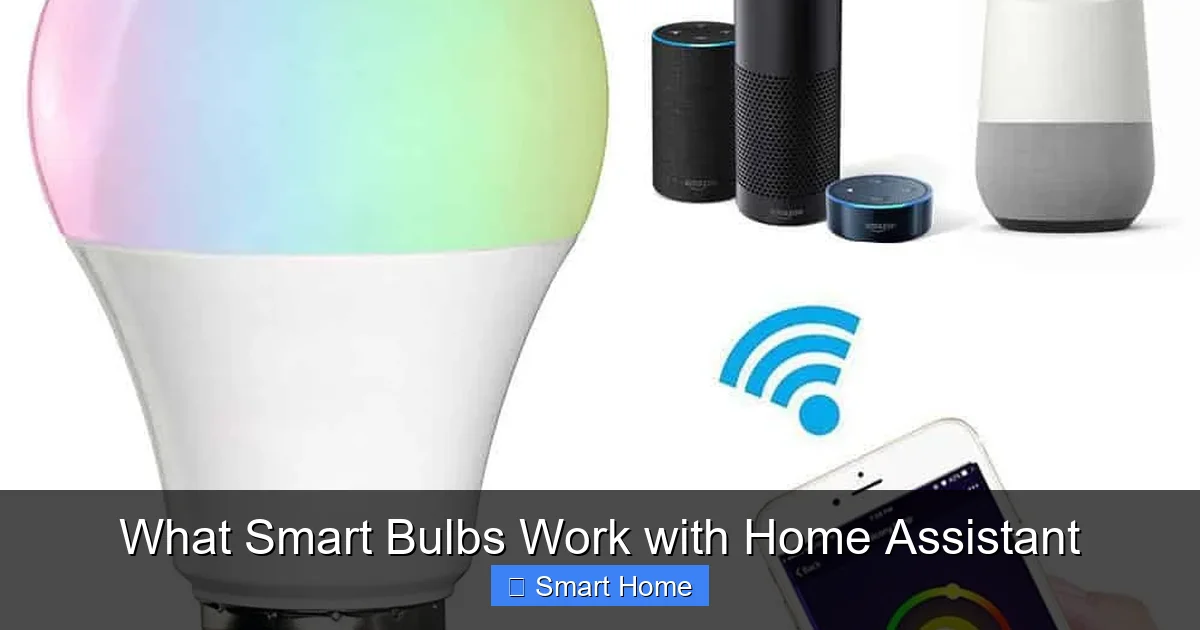
Visual guide about What Smart Bulbs Work with Home Assistant
Image source: myintelligenthouse.com
Zigbee Smart Bulbs
Zigbee is the gold standard for smart bulbs in Home Assistant. They’re reliable, low-power, and work great in large homes thanks to mesh networking.
Philips Hue is the most popular Zigbee bulb brand. With the Hue Bridge, you get full control over color, brightness, and scenes. Home Assistant integrates seamlessly with Hue via the built-in integration. You can dim lights, change colors, and even sync with music—all locally.
IKEA TRÅDFRI bulbs are affordable and work with the TRÅDFRI Gateway. They support dimming and color (on select models) and integrate well with Home Assistant. The downside? Some users report slower response times compared to Hue.
Osram Lightify and Lidl Aurora also offer Zigbee bulbs that work with Home Assistant. Lidl’s Aurora bulbs, in particular, are budget-friendly and support full color control.
Z-Wave Smart Bulbs
Z-Wave bulbs are less common than Zigbee, but they’re solid choices if you’re using a Z-Wave hub like the Aeotec Z-Stick or Fibaro HC3.
GE Enbrighten and Zooz offer Z-Wave bulbs that work with Home Assistant. They support dimming and, in some cases, color tuning. However, Z-Wave color bulbs are rare—most Z-Wave bulbs are white-only.
Wi-Fi Smart Bulbs
Wi-Fi bulbs are easy to set up—just plug them in and connect to your network. But they come with trade-offs: higher power usage, potential cloud dependency, and slower response times.
LIFX bulbs work with Home Assistant via Wi-Fi. They support full color, high brightness, and advanced effects like strobes and music sync. However, they rely on cloud connectivity, which can be a downside for privacy-focused users.
TP-Link Kasa offers affordable Wi-Fi bulbs with good Home Assistant support. The Kasa app is intuitive, and the bulbs respond quickly. They’re a great budget option, though they lack some advanced features of Zigbee bulbs.
Sengled and Wyze also offer Wi-Fi bulbs compatible with Home Assistant. Wyze bulbs, in particular, are very affordable and support color and dimming.
Matter Smart Bulbs
Matter is the future of smart home interoperability. It allows devices from different brands to work together without needing a hub. Home Assistant has experimental Matter support, but it’s still evolving.
Brands like Eve, Aqara, and Nanoleaf are starting to release Matter-compatible bulbs. These will eventually work directly with Home Assistant over Thread, offering true plug-and-play compatibility.
Keep an eye on Home Assistant’s official Matter documentation—support is improving rapidly.
How to Set Up Smart Bulbs with Home Assistant
Setting up smart bulbs with Home Assistant depends on the protocol. Let’s go through each type.
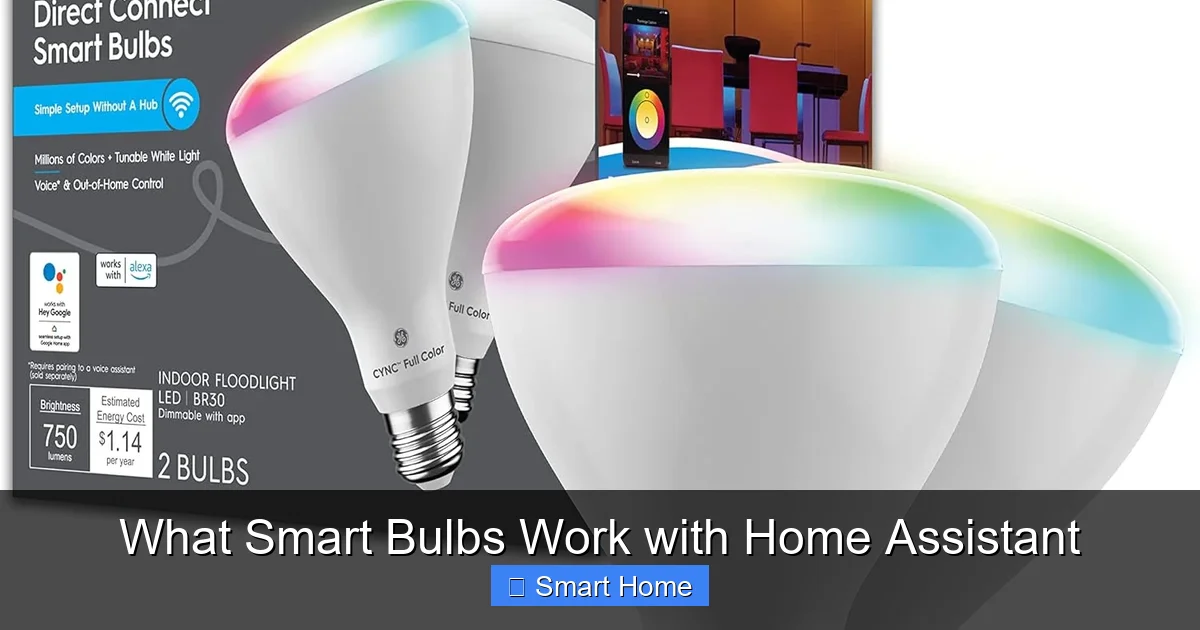
Visual guide about What Smart Bulbs Work with Home Assistant
Image source: smarthomedvs.com
Setting Up Zigbee Bulbs
- Get a Zigbee hub: You’ll need a hub like the Philips Hue Bridge, IKEA TRÅDFRI Gateway, or Aqara Hub.
- Pair the bulb: Follow the hub’s instructions to add the bulb to your network.
- Add to Home Assistant: Go to Settings > Devices & Services > Add Integration, then select your hub (e.g., “Philips Hue”).
- Control and automate: Once added, you can control the bulb in Home Assistant’s dashboard and create automations.
Pro tip: Use the Zigbee2MQTT integration if you want more control. It lets you connect any Zigbee bulb to Home Assistant without a proprietary hub.
Setting Up Z-Wave Bulbs
- Get a Z-Wave hub: Use a Z-Wave controller like the Aeotec Z-Stick or Fibaro HC3.
- Include the bulb: Put your hub in inclusion mode and follow the bulb’s pairing instructions.
- Add to Home Assistant: Go to Settings > Devices & Services, then add the Z-Wave integration.
- Start automating: Your bulb will appear in Home Assistant and can be controlled via dashboards or automations.
Setting Up Wi-Fi Bulbs
- Plug in the bulb: Screw it into a socket and connect to your Wi-Fi network using the companion app.
- Add to Home Assistant: Go to Settings > Devices & Services > Add Integration, then select the brand (e.g., “LIFX” or “TP-Link Kasa”).
- Follow the setup wizard: Home Assistant will discover your bulb and guide you through the process.
- Test and automate: Once connected, you can control the bulb and create automations.
Setting Up Matter Bulbs
- Check Home Assistant version: Matter support is still experimental. Make sure you’re on the latest beta or dev version.
- Enable Matter integration: Go to Settings > Add-ons > Home Assistant Supervisor, then install the Matter add-on.
- Pair the bulb: Use the Matter controller in Home Assistant to scan and add the bulb.
- Test and enjoy: Once paired, the bulb will work locally with full Home Assistant control.
Advanced Features and Automations
Once your bulbs are connected, the real fun begins. Home Assistant lets you go beyond basic on/off controls. Here’s how to unlock advanced features.
Creating Automations
Automations let your lights respond to events like time, motion, or sensor data. Here’s a simple example:
- Trigger: At sunrise
- Action: Turn on bedroom lights to 30% brightness with warm white color
You can also create more complex automations, like:
- Turn on kitchen lights when motion is detected after 8 PM
- Change living room lights to blue when the TV is on
- Dim all lights to 10% when bedtime routine starts
Scenes and Light Groups
Scenes let you save and recall specific light settings. For example, create a “Movie Night” scene that dims the lights and sets them to a warm amber tone.
You can also group bulbs together. Create a “Living Room” group that includes all your smart bulbs in that area. Then, control them all at once with a single command.
Sun and Time-Based Controls
Use Home Assistant’s Sun integration to create sunrise and sunset automations. For example:
- At 7:00 AM (or at sunrise), gradually brighten bedroom lights to 100%
- At sunset, turn on porch lights and set them to cool white
Voice Control and Assistants
Integrate Home Assistant with voice assistants like Google Assistant or Amazon Alexa. Now you can say, “Hey Google, turn on the living room lights,” and Home Assistant will control your bulbs—even if they’re Zigbee or Z-Wave.
Music Sync and Ambient Effects
Some bulbs, like LIFX or Philips Hue, support music sync. Use Home Assistant to trigger light effects that pulse with your music. You can also create ambient lighting that changes color based on the time of day.
Privacy and Security Considerations
When choosing smart bulbs, consider privacy and security. Here’s what to watch out for.
Local vs. Cloud Control
Local control is more secure and private. Cloud-dependent bulbs send data to external servers, which could be a target for hackers. Local control keeps everything on your network.
Encryption and Firmware Updates
Choose bulbs from brands that support firmware updates and use encryption. This helps protect against vulnerabilities.
Network Security
Use a strong Wi-Fi password and enable WPA3 encryption. Also, consider setting up a separate network for smart devices to isolate them from your main devices.
Common Issues and Troubleshooting
Even with compatible bulbs, you might run into issues. Here’s how to fix common problems.
Bulbs Not Showing Up in Home Assistant
- Check your hub connection
- Restart Home Assistant
- Re-pair the bulb
- Ensure the bulb is on the same network
Slow Response Times
- Wi-Fi bulbs may lag due to network congestion
- Try using Zigbee or Z-Wave for faster response
- Reduce the number of devices on your network
Color Accuracy Issues
- Some cheap bulbs have poor color rendering
- Choose bulbs with high CRI (Color Rendering Index)
- Calibrate colors in Home Assistant using the color picker
Future of Smart Bulbs with Home Assistant
The smart home landscape is evolving fast. Here’s what to expect in the coming years.
Matter Dominance
Matter will eventually make smart bulbs truly interoperable. No more hubs. No more apps. Just plug in and control via Home Assistant.
AI and Predictive Lighting
Future integrations may include AI that learns your habits and adjusts lighting automatically. Imagine lights that brighten when you wake up or dim when you start working.
Energy Efficiency
Newer bulbs will be even more energy-efficient, with features like motion detection and adaptive brightness.
Conclusion
Choosing the right smart bulbs for Home Assistant doesn’t have to be overwhelming. Whether you go with reliable Zigbee bulbs like Philips Hue, affordable Wi-Fi options like TP-Link Kasa, or future-proof Matter devices, the key is to pick bulbs that support local control and integrate smoothly.
With Home Assistant, you’re not just controlling lights—you’re building a smarter, more efficient, and more personalized home. So go ahead, plug in those bulbs, and start automating. Your future self will thank you.
Frequently Asked Questions
Which smart bulbs work with Home Assistant?
Smart bulbs that work with Home Assistant include Philips Hue (Zigbee), IKEA TRÅDFRI (Zigbee), LIFX (Wi-Fi), TP-Link Kasa (Wi-Fi), and Z-Wave bulbs from GE Enbrighten and Zooz. Zigbee and Z-Wave bulbs offer the best local control, while Wi-Fi bulbs are easier to set up but may rely on cloud connectivity.
Do all smart bulbs work with Home Assistant?
No, not all smart bulbs work with Home Assistant. Compatibility depends on the communication protocol (Zigbee, Z-Wave, Wi-Fi, or Matter) and whether the bulb supports local control. Always check Home Assistant’s official integration list before purchasing.
Can I use Philips Hue bulbs with Home Assistant?
Yes, Philips Hue bulbs work excellently with Home Assistant via the Philips Hue integration. They support full color, dimming, scenes, and automations, and all control happens locally through the Hue Bridge.
Are Wi-Fi smart bulbs better than Zigbee?
It depends. Wi-Fi bulbs are easier to set up and don’t need a hub, but they can be slower, consume more power, and rely on cloud connectivity. Zigbee bulbs offer faster, more reliable local control and are better for large homes due to mesh networking.
How do I add smart bulbs to Home Assistant?
To add smart bulbs, go to Settings > Devices & Services > Add Integration, then select your bulb’s brand (e.g., “Philips Hue” or “TP-Link Kasa”). Follow the setup wizard to pair the bulb. For Zigbee bulbs, ensure your hub is connected to Home Assistant first.
What is the best smart bulb protocol for Home Assistant?
Zigbee is generally the best protocol for Home Assistant due to its reliability, low power usage, and full local control. Z-Wave is a close second, while Wi-Fi is convenient but less ideal for advanced use cases. Matter will soon offer the most seamless experience.