What Smart Bulbs Work with Apple Home
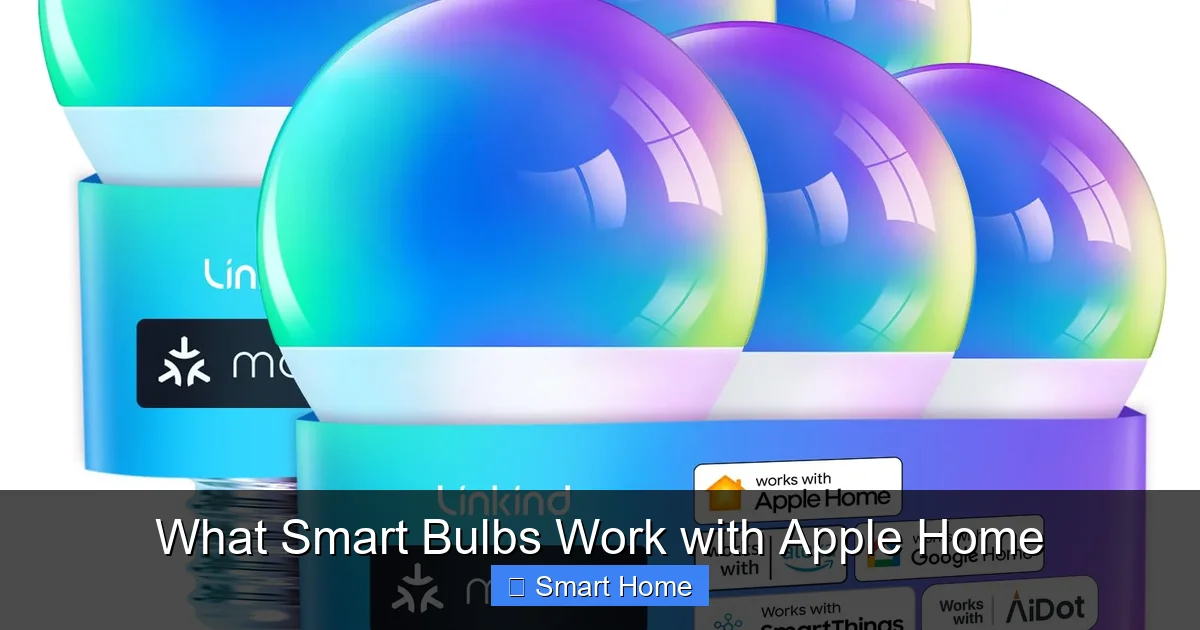
What Smart Bulbs Work With Apple Home? If you’re looking to build a smarter home using Apple Home, you’ll want smart bulbs that integrate smoothly with Siri and the Home app. From Philips Hue to LIFX and Nanoleaf, many top brands offer reliable, voice-controlled lighting. This guide walks you through the best Apple-compatible bulbs, setup steps, and tips for maximizing your smart lighting experience.
Key Takeaways
- Apple Home supports Wi-Fi, Zigbee, and Thread smart bulbs. Not all smart bulbs work with Apple Home, so check compatibility before buying.
- Siri voice control is a key feature. You can dim, change colors, and set schedules using just your voice.
- Philips Hue is the most popular Apple-compatible option. It offers extensive automation, color options, and reliable performance.
- Energy efficiency matters. Smart bulbs use less power and can help reduce your electricity bill.
- Set up is simple with the Home app. Most bulbs connect directly through the app without extra hubs.
- Automation enhances convenience. Create scenes and routines to control multiple bulbs at once.
- Third-party integrations expand functionality. Use apps like Eve or HomeKit-compatible sensors to add more control.
📑 Table of Contents
- What Smart Bulbs Work With Apple Home?
- Understanding Apple Home and Smart Bulb Compatibility
- Top Smart Bulb Brands Compatible With Apple Home
- How to Set Up Smart Bulbs With Apple Home
- Automating Your Smart Bulbs With Apple Home
- Energy Efficiency and Cost Savings
- Future-Proofing Your Smart Lighting
- Conclusion
What Smart Bulbs Work With Apple Home?
Imagine walking into a room and saying, “Hey Siri, it’s movie night,” and your smart bulbs instantly dim to the perfect ambiance. Or waking up to soft, warm light that gently brightens with the sun. That’s the magic of Apple Home and compatible smart bulbs. If you’re part of the Apple ecosystem—owning an iPhone, iPad, or Mac—you already have access to one of the most user-friendly smart home platforms out there. But not every smart bulb plays nicely with Apple Home. So, which ones do? And how do you make sure yours works seamlessly?
In this guide, we’ll walk you through everything you need to know about smart bulbs that work with Apple Home. From top brands and setup tips to automation tricks, we’ll help you create a lighting system that’s both smart and simple. Whether you’re a tech newbie or a seasoned smart home enthusiast, this article will give you the confidence to build a lighting setup that fits your lifestyle—and your Apple devices.
Understanding Apple Home and Smart Bulb Compatibility
How Apple Home Works
Apple Home is more than just an app—it’s the brain of your smart home. Integrated into your iPhone, iPad, or Apple Watch, it lets you control compatible devices through the Home app. You can create rooms, add accessories, and even set up scenes and automations. The real power? Siri. With voice commands, you can control your lights without lifting a finger.
Visual guide about What Smart Bulbs Work with Apple Home
Image source: ratedgadgets.com
But here’s the catch: not all smart bulbs are built to work with Apple Home. Apple uses a secure protocol called HomeKit, which requires devices to pass a rigorous certification process. This ensures privacy, reliability, and smooth integration. So, when we talk about “smart bulbs that work with Apple Home,” we’re really talking about HomeKit-certified bulbs.
Types of Smart Bulbs That Work With Apple Home
There are three main types of smart bulbs that integrate with Apple Home:
- Wi-Fi Bulbs: These connect directly to your Wi-Fi network. They’re easy to set up and don’t need extra hubs. Examples include LIFX and Nanoleaf Essentials.
- Zigbee Bulbs: These use a low-power mesh network and usually require a Zigbee hub (like Apple’s own HomePod or HomeKit-certified hub). Philips Hue bulbs are a popular choice here.
- Thread Bulbs: A newer, more efficient protocol. Thread bulbs work best with Thread-enabled hubs like the Apple TV (4th gen or later) or HomePod mini. Nanoleaf Essentials uses Thread for reliable, low-latency control.
Each type has pros and cons. Wi-Fi bulbs are plug-and-play but may use more bandwidth. Zigbee bulbs are energy-efficient but need a hub. Thread bulbs offer the best performance and are future-proof. The key is choosing the right one for your home setup.
Top Smart Bulb Brands Compatible With Apple Home
Philips Hue
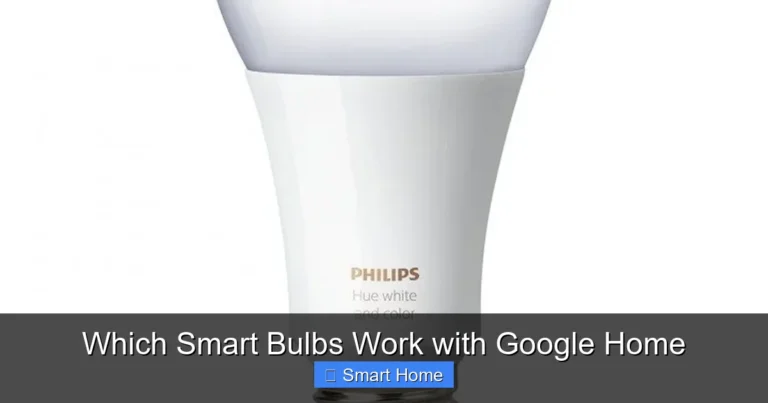
If you’re looking for the gold standard in smart lighting, Philips Hue is hard to beat. With over a decade in the market, Hue bulbs are reliable, feature-rich, and deeply integrated with Apple Home. You can control them via the Hue app or the Home app, set schedules, create scenes, and even sync lights to music.
Visual guide about What Smart Bulbs Work with Apple Home
Image source: ledlightinginfo.com
Hue bulbs use Zigbee, so they require a Hue Bridge (hub) to work with Apple Home. But once connected, they respond instantly to Siri commands. Try saying, “Hey Siri, turn on the living room lights,” and watch them light up in seconds.
One of Hue’s standout features is its color-changing ability. With billions of color options, you can turn any room into a moody cinema or a vibrant party space. Plus, Hue bulbs are dimmable and energy-efficient, using up to 80% less energy than traditional bulbs.
LIFX
LIFX is a favorite among Apple users because its bulbs connect directly to Wi-Fi—no hub needed. This makes setup incredibly simple. Just screw in the bulb, open the LIFX app, and connect it to your network. Then, add it to Apple Home.
LIFX bulbs offer vibrant colors, high brightness, and smooth dimming. They’re also known for fast response times and reliable performance. While they don’t have as many advanced features as Hue, they’re perfect for users who want simplicity and speed.
One downside? LIFX bulbs can consume more power than Zigbee or Thread bulbs, especially when left on all the time. But for most homes, this is a minor trade-off for the convenience.
Nanoleaf Essentials
Nanoleaf is known for its sleek designs and innovative shapes. But their Essentials line is specifically built for Apple Home. These bulbs use Thread, making them fast, reliable, and energy-efficient. They’re also designed to work seamlessly with Apple’s ecosystem, including HomePod and Apple TV.
What sets Nanoleaf Essentials apart is their focus on privacy and performance. Since they use Thread, they don’t rely on cloud processing, which means faster response times and better security. Plus, they’re affordable compared to Hue and LIFX.
Nanoleaf bulbs come in standard A19 and candle shapes, and they support full color and dimming. You can create scenes, set schedules, and control them with Siri. And because they’re Thread-enabled, they’re ideal if you’re building a future-ready smart home.
Other Compatible Brands
Several other brands offer Apple Home-compatible bulbs, including:
- GE C by GE: Affordable, Wi-Fi bulbs with voice control and scheduling.
- TP-Link Kasa Smart Bulbs: Budget-friendly options with good performance.
- Yeelight: Offers a range of HomeKit-compatible bulbs, often at competitive prices.
While these brands may not have the same level of polish as Hue or LIFX, they’re worth considering if you’re on a budget or just starting out.
How to Set Up Smart Bulbs With Apple Home
Step-by-Step Setup Guide
Setting up smart bulbs with Apple Home is surprisingly easy. Here’s how to do it:
Visual guide about What Smart Bulbs Work with Apple Home
Image source: mydimmerswitch.com
- Choose a Compatible Bulb: Pick a HomeKit-certified bulb from a brand like Philips Hue, LIFX, or Nanoleaf.
- Install the Bulb: Screw the bulb into a compatible lamp or fixture. Make sure it’s securely in place.
- Power On: Turn on the light switch to ensure the bulb is receiving power.
- Open the Home App: On your iPhone or iPad, open the Home app. Tap the “+” icon and select “Add Accessory.”
- Scan the Code: Point your camera at the QR code on the bulb or its packaging. The bulb should start blinking.
- Follow On-Screen Instructions: The app will guide you through naming the bulb and assigning it to a room.
- Test It Out: Say, “Hey Siri, turn on the bedroom light,” and see if it responds.
If you’re using a bulb that requires a hub (like Hue), make sure the hub is connected to Wi-Fi and added to Apple Home first.
Troubleshooting Common Issues
Sometimes, setup doesn’t go smoothly. Here are a few common issues and how to fix them:
- Bulb Not Appearing in Home App: Make sure the bulb is on and within range of your Wi-Fi or hub. Try resetting the bulb (usually by turning it on and off three times).
- Siri Not Responding: Check that Siri is enabled in Settings > Siri & Search. Also, ensure the bulb is named correctly (e.g., “bedroom light,” not “bulb 1”).
- Slow Response: Wi-Fi bulbs may lag if your network is congested. Consider switching to Zigbee or Thread bulbs for faster control.
- Bulb Not Dimmable: Some bulbs only support full brightness or dimming in the app, not with dimmer switches. Check the product specs.
Automating Your Smart Bulbs With Apple Home
Creating Scenes and Routines
One of the best things about Apple Home is how easy it is to automate your lights. You can create scenes—like “Movie Night” or “Good Morning”—and control multiple bulbs at once.
For example, create a “Relax” scene that dims the living room lights to 30% and turns on the bedroom light to a soft blue. Then, set a routine so it activates every Friday at 8 PM. You can even trigger scenes with motion sensors or time of day.
Using Siri for Voice Control
Siri is your ultimate smart lighting assistant. You can say things like:
- “Hey Siri, turn off all the lights.”
- “Hey Siri, set the kitchen to red.”
- “Hey Siri, is the bedroom light on?”
Siri can also understand context. Try saying, “Hey Siri, good night,” and it will turn off lights, lock doors, and set your alarm—all at once.
Integrating With Other Smart Devices
Smart bulbs don’t work in isolation. You can pair them with other Apple Home devices for even more control. For example:
- Set your lights to turn on when you arrive home (using the Find My or Location Services).
- Turn off lights when you leave (using geofencing).
- Sync lights with music or TV (with compatible apps).
You can also use third-party apps like Eve or HomeKit-compatible sensors to add more functionality. For instance, a motion sensor can trigger lights when someone enters a room.
Energy Efficiency and Cost Savings
How Smart Bulbs Save Energy
Smart bulbs are not only convenient—they’re also energy-efficient. Most LED smart bulbs use 75-80% less energy than incandescent bulbs. Plus, you can schedule them to turn off when not in use or dim them during the day to save power.
For example, set your living room lights to turn off at 11 PM every night. Or use a “Sleep” routine that dims all lights to 10% at bedtime. These small changes add up over time.
Cost Comparison
While smart bulbs cost more upfront than regular bulbs, they pay for themselves in the long run. Here’s a quick comparison:
- Regular Bulb: $1, lasts 1,000 hours, uses 60 watts.
- Smart Bulb (LED): $10-20, lasts 25,000 hours, uses 9 watts.
Over 25,000 hours, a smart bulb uses about $11 in electricity, compared to $150 for a regular bulb. And with scheduling and automation, you’ll use even less.
Future-Proofing Your Smart Lighting
Why Thread Matters
If you’re building a smart home today, consider Thread-enabled bulbs like Nanoleaf Essentials. Thread is a next-generation protocol that’s faster, more reliable, and more energy-efficient than Wi-Fi or Zigbee. Plus, it’s designed to work seamlessly with Apple’s ecosystem.
Thread bulbs don’t rely on your Wi-Fi network, so they’re less likely to lag or disconnect. They also support more devices on a single network, making them ideal for larger homes.
Expanding Your Ecosystem
Start with a few smart bulbs, then add more devices over time. Consider smart plugs, sensors, or even a HomePod mini as a hub. The more devices you add, the more powerful your smart home becomes.
And remember: Apple Home is constantly improving. New features and integrations are added regularly, so your setup will only get better.
Conclusion
Smart bulbs that work with Apple Home make it easy to create a smarter, more convenient living space. Whether you choose Philips Hue, LIFX, or Nanoleaf, you’ll enjoy voice control, automation, and energy savings—all through the familiar Home app and Siri.
The key is choosing the right bulb for your needs. Wi-Fi bulbs are great for simplicity, Zigbee bulbs offer advanced features, and Thread bulbs are the future. Once you’ve picked your bulbs, setup is a breeze, and the real fun begins when you start automating your home.
So go ahead—screw in that smart bulb, open the Home app, and say, “Hey Siri, let’s get smart.” Your future self will thank you.
Frequently Asked Questions
Which smart bulbs work with Apple Home?
Smart bulbs that work with Apple Home are those certified for Apple’s HomeKit. Popular options include Philips Hue (with a hub), LIFX (Wi-Fi), and Nanoleaf Essentials (Thread). These brands offer reliable integration with the Home app and Siri.
Do I need a hub for Apple Home smart bulbs?
It depends on the bulb. Wi-Fi bulbs like LIFX connect directly to your network and don’t need a hub. Zigbee bulbs like Philips Hue require a hub (like the Hue Bridge) to work with Apple Home. Thread bulbs like Nanoleaf Essentials work with Thread-enabled hubs like the HomePod mini or Apple TV.
Can I control my smart bulbs with Siri?
Yes! Once your bulbs are set up in Apple Home, you can control them with Siri using voice commands. Say things like, “Hey Siri, turn on the living room lights” or “Hey Siri, dim the kitchen to 50%.”
Are smart bulbs energy-efficient?
Yes, most smart bulbs use LED technology, which is up to 80% more energy-efficient than traditional incandescent bulbs. You can also schedule them to turn off when not in use, further reducing energy consumption.
How do I add a smart bulb to Apple Home?
Open the Home app, tap the “+” icon, select “Add Accessory,” and scan the QR code on the bulb or its packaging. Follow the on-screen instructions to name the bulb and assign it to a room.
Can I use smart bulbs with a dimmer switch?
Some smart bulbs work with dimmer switches, but not all. Check the product specifications before buying. If the bulb doesn’t support dimming, you’ll need to control brightness through the Home app or Siri.