How to Connect Smart Bulb to Wifi
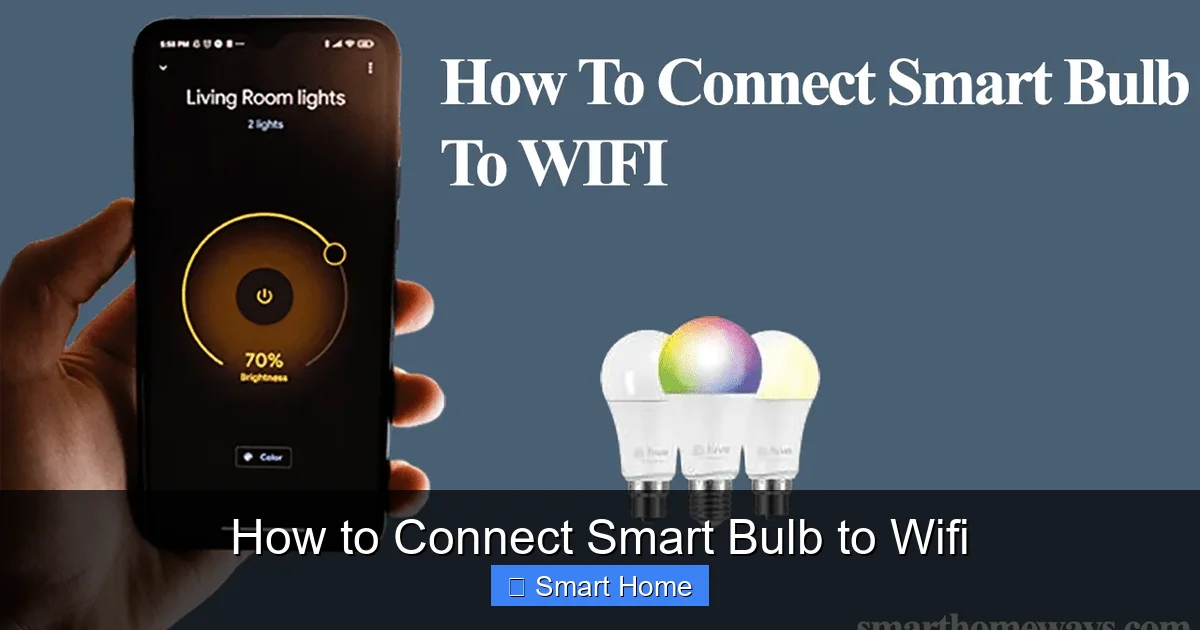
Connecting a smart bulb to WiFi is simpler than you think. Whether you’re using a Philips Hue, LIFX, or a budget-friendly option like a TP-Link bulb, the process usually takes just a few minutes. You’ll need your smartphone, the right app, and a stable 2.4GHz WiFi network.
Key Takeaways
- Check compatibility first: Not all smart bulbs work with every router or phone. Make sure your bulb supports your WiFi frequency (usually 2.4GHz) and is compatible with your operating system.
- Use the correct app: Each brand has its own app—Philips Hue uses the Hue app, LIFX uses the LIFX app, and TP-Link uses Kasa. Download the right one before starting.
- Reset your bulb if needed: If the bulb won’t connect, try resetting it by turning it on and off several times—this puts it into pairing mode.
- Keep your router close: Place your bulb within range of your router during setup. Walls and interference can weaken the signal and cause connection issues.
- Update firmware regularly: Manufacturers release updates that improve stability and add features. Always check for updates in the app.
- Troubleshoot common issues: If your bulb disconnects, check your WiFi password, restart your router, or move the bulb closer to the router.
- Consider a hub for better performance: Some smart bulbs work best with a hub (like Philips Hue Bridge), especially if you have a weak WiFi signal or want advanced features.
📑 Table of Contents
- How to Connect Smart Bulb to WiFi: A Complete Guide
- Understanding Smart Bulbs and WiFi Requirements
- Step-by-Step: How to Connect Smart Bulb to WiFi
- Troubleshooting Common Smart Bulb Connection Issues
- Tips for a Smooth Smart Bulb Setup
- Advanced Features After Setup
- Choosing the Right Smart Bulb for Your Needs
- Final Thoughts: Enjoy Your Smart Lighting
How to Connect Smart Bulb to WiFi: A Complete Guide
If you’ve ever wanted to turn on your lights with your voice, schedule them to turn on at sunrise, or change their color from your phone, you’re probably thinking about getting a smart bulb. But before you can enjoy all that convenience, you need to connect your smart bulb to WiFi. It might sound tricky, but it’s actually one of the easiest parts of setting up your smart home.
In this guide, we’ll walk you through the entire process—from checking compatibility to troubleshooting common connection issues. Whether you’re using a Philips Hue, a LIFX bulb, or a budget-friendly TP-Link Kasa smart bulb, we’ve got you covered. By the end, you’ll be able to control your lights from anywhere, set up scenes, and integrate them with voice assistants like Alexa or Google Assistant.
Understanding Smart Bulbs and WiFi Requirements
What Makes a Bulb “Smart”?
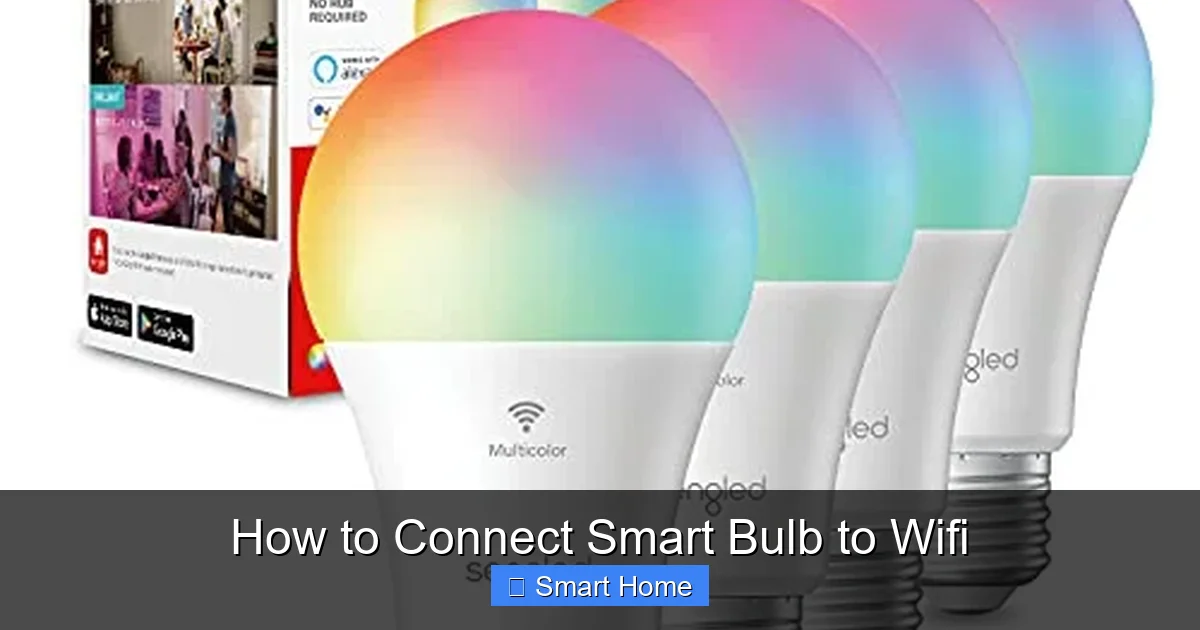
A smart bulb is different from a regular LED bulb because it connects to your home network and can be controlled remotely. Instead of just turning on and off with a switch, you can adjust brightness, color, and even schedule it through an app or voice command. Most smart bulbs use WiFi to communicate with your router, though some use Zigbee or Bluetooth and require a hub.
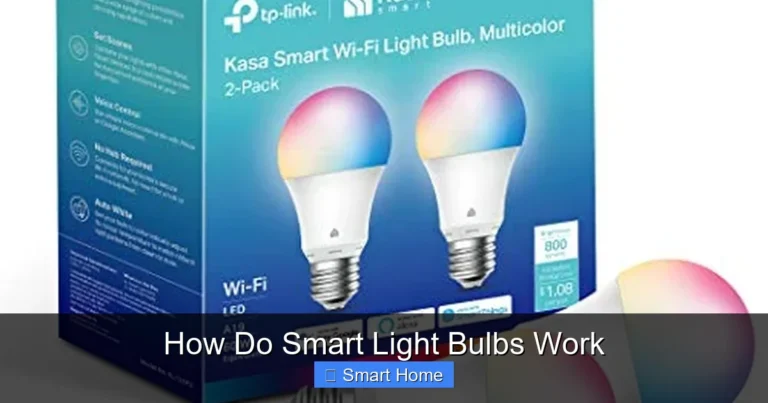
Visual guide about How to Connect Smart Bulb to Wifi
Image source: m.media-amazon.com
Before you buy, make sure your bulb supports 2.4GHz WiFi. Most home networks run on 2.4GHz, but some newer routers only offer 5GHz. If your router only supports 5GHz, you may need to enable both bands or get a dual-band router. Also, check that your smartphone or tablet can run the app—most modern devices work, but older models might not.
Why WiFi Is Important
WiFi is what allows your smart bulb to talk to the internet and your phone. Without a stable connection, your bulb won’t respond to commands, won’t follow schedules, and might even disconnect randomly. That’s why it’s so important to connect your smart bulb to WiFi properly from the start.
Some smart bulbs are designed to work directly with your router—these are called WiFi-enabled bulbs. Others, like certain Philips Hue models, require a bridge or hub to connect to your network. The hub acts as a middleman, making communication more reliable. If you’re unsure whether your bulb needs a hub, check the packaging or product description.
Step-by-Step: How to Connect Smart Bulb to WiFi
Step 1: Choose the Right Smart Bulb
Not all smart bulbs are created equal. Before you even plug anything in, make sure you’ve chosen a bulb that fits your needs. Popular options include:
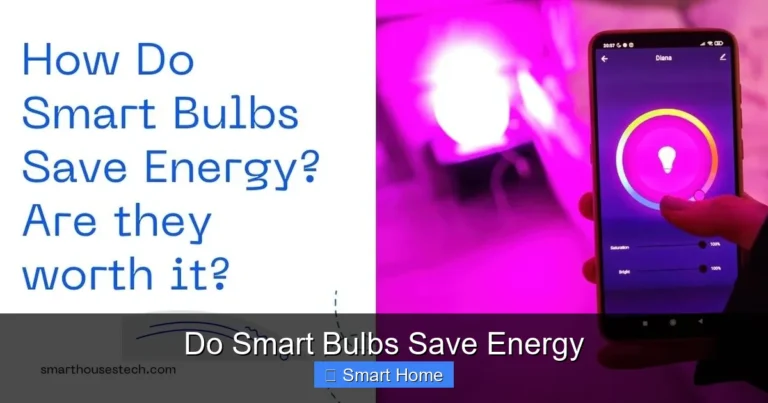
Visual guide about How to Connect Smart Bulb to Wifi
Image source: jopetlimited.co.ke
- Philips Hue: Great for color control and integration with Alexa, Google Assistant, and Apple HomeKit. Requires a Hue Bridge for full functionality.
- LIFX: No hub required, works directly with WiFi. Offers bright colors and smooth dimming.
- TP-Link Kasa: Affordable, easy to set up, and works with Alexa and Google Assistant.
- Wyze Bulb: Budget-friendly, supports color changing, and works with Alexa and Google.
Each brand has its own app and setup process, so choose one that matches your preferences and existing smart home ecosystem.
Step 2: Download the Correct App
Once you have your bulb, download the manufacturer’s app. For example:
- Philips Hue → Hue app (by Signify)
- LIFX → LIFX app
- TP-Link → Kasa app
- Wyze → Wyze app
Make sure you’re downloading the official app from your device’s app store—beware of fake or third-party apps that could compromise your security.
Step 3: Insert the Bulb and Turn It On
Before connecting, install the bulb in your fixture and screw it in securely. Then, turn on the light switch so the bulb is powered. Most smart bulbs will flash or change color when they’re ready to connect—this is a sign they’re in pairing mode.
If your bulb doesn’t light up or flash, it might not be in pairing mode. Try turning the switch off and on three times in a row—this often resets the bulb and puts it into setup mode.
Step 4: Connect to the Smart Bulb’s WiFi Network
Open your phone’s WiFi settings and look for a network name (SSID) that starts with your bulb’s brand—for example, “TP-Link_XXXX” or “PhilipsHue_XXXX.” Connect to this network. You may need to enter a temporary password, which is usually printed on the bulb’s packaging or included in the app instructions.
Note: This step is only needed for the first connection. Once your bulb connects to your home WiFi, it won’t show up in your WiFi list anymore.
Step 5: Follow the In-App Setup
Now open the app and follow the on-screen instructions. The app will search for nearby bulbs. When it finds yours, select it and enter your home WiFi name and password. The app will send this information to the bulb so it can connect to your network.
Wait a few minutes for the connection to complete. You’ll usually see the bulb blink or change color to indicate success.
Step 6: Test Your Smart Bulb
Once connected, try turning the bulb on and off from the app. Adjust the brightness and color. If everything works, you’re all set! If not, don’t panic—we’ll cover troubleshooting next.
Troubleshooting Common Smart Bulb Connection Issues
Bulb Won’t Show Up in the App
If the app can’t find your bulb, it might not be in pairing mode. Try resetting it by turning the switch off and on five times in 10 seconds. Make sure your phone is connected to your home WiFi (not the bulb’s temporary network) during setup.
Visual guide about How to Connect Smart Bulb to Wifi
Image source: diysmarthomehub.com
Connection Drops Frequently
This usually means your bulb is too far from the router. Move it closer or consider a WiFi extender. Also, make sure your router isn’t overloaded with devices—too many connected gadgets can slow things down.
Can’t Remember the WiFi Password
Double-check the password. WiFi passwords are case-sensitive. If you’ve changed it recently, make sure the app has the latest one. You can also restart your router and try again.
Bulb Works Locally but Not Online
Some bulbs only respond to voice commands or local app controls but can’t be controlled from outside your home network. This is often due to router settings like AP Isolation or Firewall blocking external access. Check your router settings or contact your ISP.
App Keeps Crashing
Try closing the app, restarting your phone, and reopening it. If that doesn’t work, uninstall and reinstall the app. Make sure your phone’s operating system is up to date.
Tips for a Smooth Smart Bulb Setup
Use a 2.4GHz Network
Most smart bulbs only support 2.4GHz WiFi. If your router has both 2.4GHz and 5GHz bands, make sure you’re connecting to the 2.4GHz one. You can usually tell by the network name—it might say “2.4” or “5G” in the name.
Keep Your Bulb Within Range
During setup, keep your phone and bulb within 30 feet of the router. After setup, you can move the bulb farther away, but signal strength may decrease.
Update Firmware Regularly
Manufacturers release updates to fix bugs and improve performance. Check the app for firmware updates and install them when available.
Use a Hub for Better Performance
If you have multiple smart bulbs or a weak WiFi signal, consider using a hub. The Philips Hue Bridge, for example, offers better reliability and advanced features like routines and geofencing.
Label Your Bulbs
Once connected, rename your bulbs in the app to something meaningful—like “Bedroom Lamp” or “Kitchen Light.” This makes it easier to control them later.
Advanced Features After Setup
Set Up Scenes and Routines
Most smart bulb apps let you create custom scenes—like “Movie Night” with dim red lighting or “Morning Boost” with bright white light. You can also set routines that trigger based on time, sunrise/sunset, or your location.
Integrate with Voice Assistants
Connect your smart bulb to Amazon Alexa or Google Assistant by saying, “Alexa, discover devices” or “Hey Google, add new device.” Once linked, you can say, “Turn on the living room light” or “Set the bedroom to blue.”
Use Geofencing
Some apps allow geofencing, which automatically turns your lights on when you arrive home and off when you leave. This requires your phone’s location services to be on.
Monitor Energy Usage
Apps like Kasa and LIFX show how much energy your bulbs are using. This can help you save on electricity bills and reduce your carbon footprint.
Choosing the Right Smart Bulb for Your Needs
Brightness and Color Options
Decide whether you want a simple white bulb or one that changes colors. If you want ambiance, go for RGB bulbs. If you just want adjustable brightness, a tunable white bulb is perfect.
Price vs. Features
Budget bulbs like Wyze and Kasa are great for beginners. Mid-range options like LIFX offer better color accuracy and no hub needed. Premium bulbs like Philips Hue provide the most features but cost more.
Compatibility with Smart Home Ecosystems
Are you using Apple devices? Go for Hue or LIFX. Prefer Amazon Alexa? Most bulbs work, but check for multi-platform support if you use both Alexa and Google Assistant.
Final Thoughts: Enjoy Your Smart Lighting
Connecting a smart bulb to WiFi is the gateway to a more convenient, energy-efficient, and fun home. Once your bulb is online, the possibilities are endless—from setting mood lighting for movie nights to automating your morning routine. With the right setup and a little troubleshooting, you’ll have your smart lighting system up and running in no time.
Remember, the key is to start simple: check compatibility, use the right app, and keep your bulb close to the router during setup. From there, you can expand your smart home with more bulbs, switches, and devices.
So go ahead—screw in that smart bulb, open the app, and say goodbye to fumbling for light switches in the dark. Your future self will thank you.
Frequently Asked Questions
Can all smart bulbs connect to WiFi?
Most smart bulbs connect directly to WiFi, but some older or budget models use Bluetooth or Zigbee and require a hub. Check your bulb’s specifications before purchasing.
Do I need a special router for smart bulbs?
No, but your router must support 2.4GHz WiFi. Most home routers do, but if yours only offers 5GHz, you may need to enable dual-band or get a compatible bulb.
How do I reset my smart bulb?
Turn the power off and on five times in 10 seconds. Most bulbs will flash or change color to indicate they’re in reset mode and ready to reconnect.
Can I control my smart bulb without WiFi?
Some bulbs allow local control through Bluetooth or via a hub, but full features like scheduling and remote access require a stable WiFi connection.
Why won’t my smart bulb connect to my phone?
This could be due to a weak signal, incorrect app, or the bulb not being in pairing mode. Try resetting the bulb and ensure your phone is on the same WiFi network.
Is it safe to connect smart bulbs to my home WiFi?
Yes, as long as you use official apps and strong passwords. Smart bulbs don’t access personal data, but it’s always good to keep your network secure with WPA3 encryption.