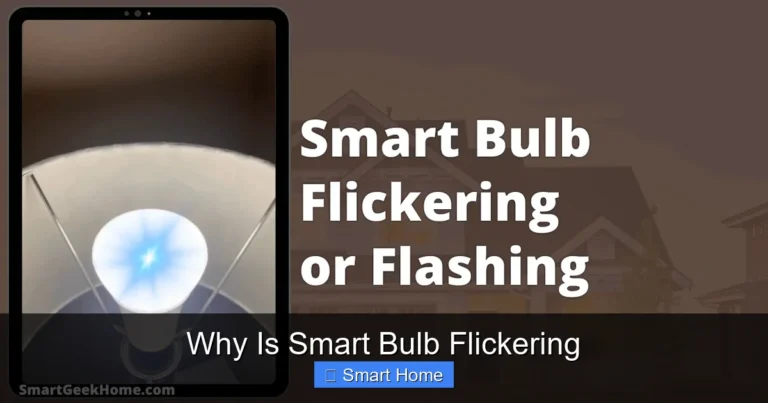
Why Is Smart Bulb Flashing
Smart bulbs flashing is more common than you think and usually signals a small hiccup—not a big disaster. Whether it’s a Wi-Fi disconnect, outdated firmware, or a loose connection, most flashing issues have quick fixes. Understanding why your smart bulb is flashing helps you troubleshoot faster and keep your smart home running smoothly.
Why Is Smart Bulb Flashing? Here’s What You Need to Know
If your smart bulb is flashing—especially in random colors or patterns—it’s likely trying to tell you something. Whether it’s a steady red blink, a rapid blue flash, or a slow pulse, this behavior usually isn’t a sign of imminent failure (though that’s possible too). Instead, it’s often a diagnostic signal from the bulb itself. Understanding what’s behind the flashing helps you fix the issue fast and get back to enjoying your smart home.
Smart bulbs are more than just lights you can control from your phone. They’re part of a connected ecosystem—communicating with your router, hub, app, and even voice assistants. When that communication breaks down, the bulb responds by flashing. It’s like a tiny light-based SOS. In most cases, the cause is fixable with a few simple steps. Let’s walk through the most common reasons your smart bulb is flashing and how to solve them.
Key Takeaways
- Wi-Fi instability is the #1 reason smart bulbs flash. Weak signals or network congestion disrupt communication between the bulb and your hub.
- Outdated firmware can cause glitches. Manufacturers release updates to fix bugs—keeping your bulb updated prevents unexpected flashing.
- Power or connection issues—like a loose socket or faulty dimmer—often trigger blinking as a warning signal.
- Hub or app conflicts may arise when multiple devices try to control the same bulb, leading to sync errors and flashing.
- Overheating or hardware faults can make bulbs flash red or erratically. This usually means it’s time to replace the bulb.
- Zigbee vs. Wi-Fi differences matter. Zigbee bulbs often flash to show pairing mode, while Wi-Fi bulbs may blink when offline.
- Resetting the bulb can resolve most issues. Most models have a simple power-cycle reset you can do in seconds.
📑 Table of Contents
Why Smart Bulbs Flash: The Basics
Before diving into fixes, it’s helpful to understand why smart bulbs flash in the first place. Unlike traditional bulbs, smart bulbs rely on digital signals to function. They’re constantly checking in with your home network and your smart home hub (if you use one). When something goes wrong—like a dropped Wi-Fi connection, a software bug, or a hardware hiccup—the bulb uses light patterns to communicate its status.
For example, a slow blink might mean the bulb is trying to connect to Wi-Fi. A rapid red flash could signal overheating. A steady blue light might indicate it’s in pairing mode. These patterns are designed to be user-friendly, but they can be confusing if you don’t know what to look for. The good news? Most flashing issues are easy to resolve once you know what’s causing them.
Common Reasons Smart Bulbs Flash
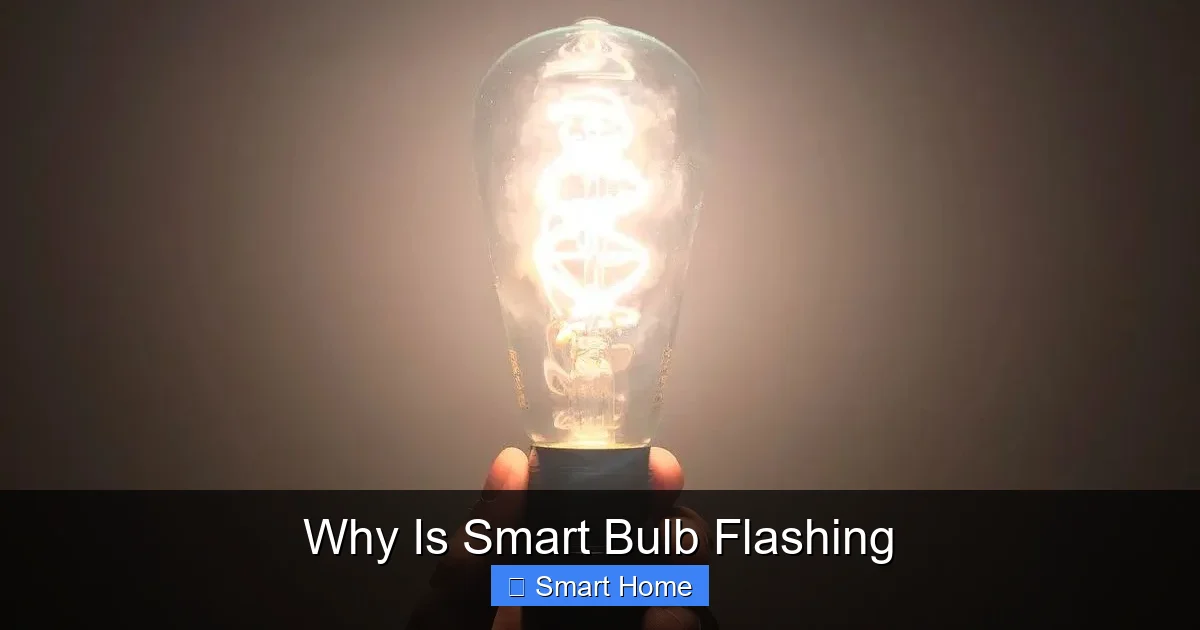
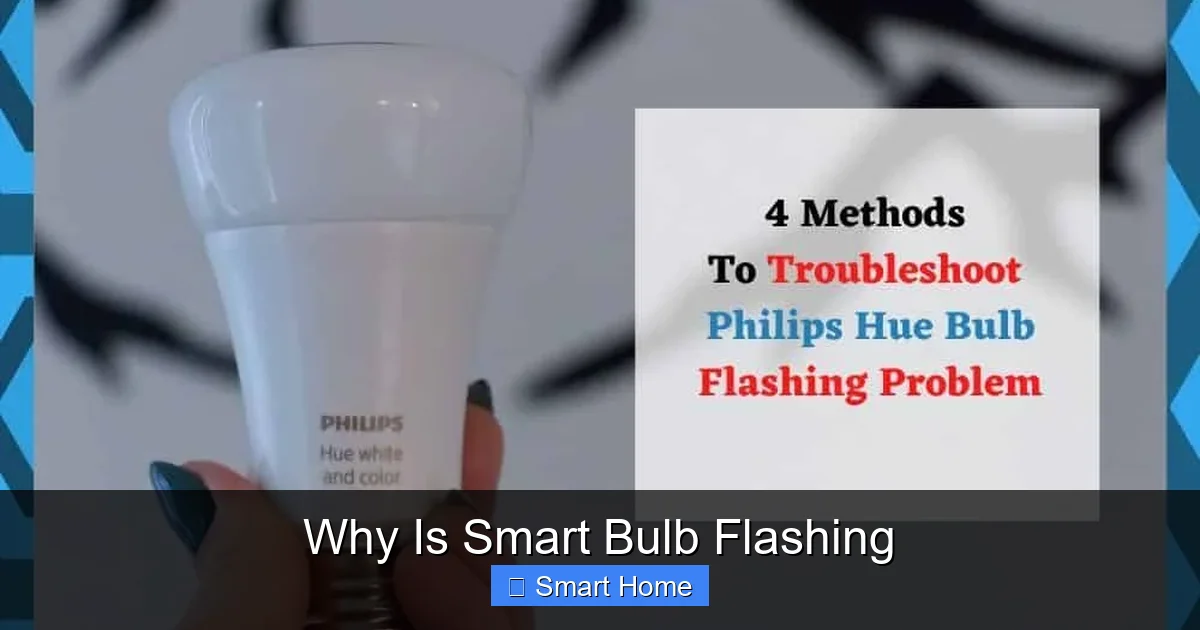
Visual guide about Why Is Smart Bulb Flashing
Image source: robots.net
Let’s break down the top reasons your smart bulb is flashing and what each pattern might mean.
1. Wi-Fi Connectivity Problems
One of the most frequent causes of flashing smart bulbs is a weak or unstable Wi-Fi connection. Smart bulbs that rely on Wi-Fi (like those from Philips Hue, LIFX, or Wyze) need a strong signal to stay online. If your router is too far away, has interference, or is overloaded with devices, the bulb may lose connection and start flashing.
For instance, if your bulb is in a basement or far from your router, it might only get a weak signal. When the connection drops, the bulb flashes blue or white to show it’s offline. Once reconnected, it might flash green once to confirm success.
Tip: Place your router in a central location, or consider a Wi-Fi extender to boost coverage. Also, avoid putting your bulb near microwaves, cordless phones, or thick walls—they can interfere with signals.
2. Firmware or Software Glitches
Just like your phone or computer, smart bulbs run on firmware—software that controls their behavior. Manufacturers release updates to fix bugs, improve performance, and add features. But if your bulb hasn’t been updated, it might start flashing due to a known bug.
For example, a firmware update might fix a bug that caused bulbs to flash red when switching scenes. If the update isn’t installed, the issue persists. Some bulbs even flash during an update—a process that usually takes a few minutes.
How to fix: Open your smart home app and check for firmware updates. Most apps have a “Device Settings” or “Firmware” section where you can manually update. Enable automatic updates if available.
3. Power or Electrical Issues
Sometimes, the problem isn’t with the bulb—it’s with the power source. A loose connection, a faulty socket, or an incompatible dimmer switch can cause your smart bulb to flash. For example, if the bulb isn’t getting consistent power, it might blink as a warning.
Some smart bulbs also have trouble with older dimmer switches. Traditional dimmers reduce voltage to save energy, but smart bulbs need full power to communicate. This mismatch can cause flickering or flashing.
Tip: Try plugging the bulb into a different outlet. If it stops flashing, the original outlet might be faulty. Also, replace any old dimmer switches with smart-compatible ones (look for “LED compatible” or “smart dimmer” labels).
4. Hub or App Conflicts
If you’re using a smart hub (like Philips Hue Bridge or Samsung SmartThings), your bulb communicates with it instead of directly with Wi-Fi. But if the hub goes offline or the app loses sync, the bulb may flash to show it’s disconnected.
For example, if you update your hub’s firmware and the bulb isn’t recognized afterward, it might flash red until reconnected. Similarly, if two apps try to control the same bulb (like Alexa and Google Home), conflicts can cause erratic flashing.
How to fix: Restart your hub and app. Make sure only one app controls the bulb. If issues persist, reset the bulb and re-pair it through the hub.
5. Overheating or Hardware Failure
Smart bulbs generate heat, especially when used at high brightness or in enclosed fixtures. If the bulb overheats, it may flash red or turn off to protect itself. This is common in recessed lighting or pendant lights where airflow is limited.
In rare cases, a manufacturing defect or damaged bulb can cause random flashing. If the bulb flashes rapidly in red and won’t turn off, it’s likely failing.
Tip: Always use smart bulbs in open fixtures unless the packaging says “for enclosed fixtures.” If you suspect overheating, turn off the bulb and let it cool before using it again.
How to Fix a Flashing Smart Bulb
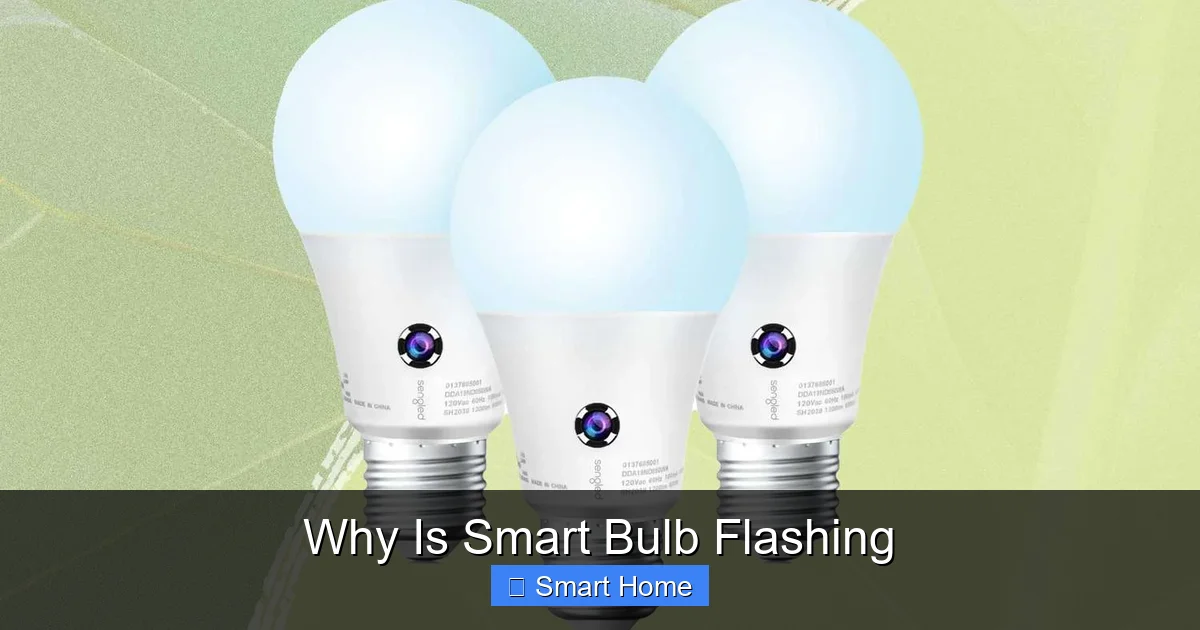
Visual guide about Why Is Smart Bulb Flashing
Image source: robots.net
Now that you know why smart bulbs flash, here’s how to fix it.
Step 1: Check the Flashing Pattern
First, watch the pattern. Is it slow? Rapid? Red? Blue? Different patterns mean different things:
– Slow blue blink: Trying to connect to Wi-Fi
– Rapid red blink: Overheating or hardware fault
– Steady blue: In pairing mode
– Green flash: Successfully reconnected
– White flicker: Offline or weak signal
Write it down—it helps when troubleshooting.
Step 2: Restart the Bulb
The simplest fix is a power cycle. Turn off the bulb, wait 10 seconds, then turn it back on. This resets the bulb’s internal systems and often resolves minor glitches.
Pro tip: For bulbs with no physical switch, unplug the lamp or remove the bulb, wait 10 seconds, then reinsert it.
Step 3: Check Your Wi-Fi
Make sure your router is on and within range. Test other devices—do they connect to Wi-Fi? If not, reboot your router. If only the bulb has issues, move it closer or use a Wi-Fi extender.
Step 4: Update Firmware
Open your smart home app and look for firmware updates. For example, in the Philips Hue app, go to “Settings” > “System” > “Check for Updates.” Install any available updates and let the bulb restart.
Step 5: Reset the Bulb
If the bulb still flashes, reset it. Most bulbs have a reset sequence:
– Turn the bulb on and off 5 times quickly (within 2 seconds per cycle).
– It should flash green when reset.
After resetting, re-pair it through the app.
Step 6: Test in a Different Outlet
Plug the bulb into another lamp or outlet. If it stops flashing, the original outlet or dimmer switch is the problem.
Preventing Future Flashing Issues
Visual guide about Why Is Smart Bulb Flashing
Image source: diysmarthomehub.com
Once your bulb stops flashing, you can avoid future problems with a few simple habits.
Use a Stable Wi-Fi Network
Smart bulbs work best on 2.4 GHz Wi-Fi bands. 5 GHz is faster but has shorter range. If your bulb supports both, choose 2.4 GHz for better stability.
Keep Firmware Updated
Enable automatic updates in your app. This ensures your bulb gets fixes and improvements without you having to check manually.
Avoid Enclosed Fixtures (Unless Labeled)
Always check the bulb’s packaging. If it says “for enclosed fixtures,” you’re safe to use it in a recessed light. Otherwise, keep it in open areas.
Use Smart-Compatible Dimmers
Replace old dimmer switches with smart dimmers designed for LED bulbs. These maintain consistent power and prevent flickering.
Monitor Usage Patterns
If the bulb flashes more often after high usage, it might be overheating. Reduce brightness or give it breaks during long use.
When to Replace the Bulb
If you’ve tried all the fixes and the bulb still flashes—especially in red or erratically—it may be time to replace it. Persistent flashing after reset and re-pairing often indicates a hardware fault.
Also, if the bulb is more than 2–3 years old, it might be nearing the end of its lifespan. Most smart bulbs last 15,000–25,000 hours, but performance can degrade over time.
Before replacing, check the warranty. Many manufacturers offer replacements for defective bulbs.
Final Thoughts
Smart bulb flashing isn’t always a sign of disaster—it’s often a helpful signal that something needs attention. Whether it’s a Wi-Fi hiccup, a firmware bug, or a loose connection, most flashing issues are fixable with a few simple steps. By understanding the patterns and causes, you can troubleshoot faster and keep your smart home running smoothly.
Remember: a flashing bulb is just trying to communicate. With the right knowledge, you can decode its message and get back to enjoying your smart lighting.
Frequently Asked Questions
Why is my smart bulb flashing red?
Red flashing usually means overheating or a hardware fault. Check if the bulb is in an enclosed fixture or used at high brightness. If it continues after cooling, it may need replacement.
How do I stop my smart bulb from flashing blue?
Blue flashing often means the bulb is trying to connect to Wi-Fi or is in pairing mode. Make sure your Wi-Fi is on and the bulb is within range. If it’s in pairing mode, complete the setup through your app.
Can a weak Wi-Fi signal cause smart bulbs to flash?
Yes. Smart bulbs need a stable connection to communicate with your network. A weak or unstable signal can cause the bulb to lose connection and flash as a warning.
Do smart bulbs flash when updating firmware?
Sometimes. During an update, bulbs may blink white or blue as they install new software. This is normal and usually lasts a few minutes.
Why does my smart bulb flash when I turn it off?
This could be a feature or a glitch. Some bulbs flash when turned off to indicate they’re in standby mode. If it’s random or excessive, try resetting the bulb.
Can a faulty dimmer switch cause smart bulbs to flash?
Yes. Traditional dimmer switches can interfere with smart bulbs by cutting power inconsistently. Use a smart-compatible dimmer or avoid dimming if not needed.