What Smart Bulbs Work with Siri
Want to control your lights with just your voice? Siri makes it easy to dim, change colors, and schedule your smart bulbs using simple voice commands. Not all smart bulbs are created equal when it comes to Siri compatibility. This guide walks you through the best options, setup steps, and tips to get the most out of your smart lighting with Apple’s voice assistant.
Key Takeaways
- Apple HomeKit is the key to Siri compatibility. Only smart bulbs that work with HomeKit can be controlled directly by Siri.
- Top brands include Philips Hue, LIFX, Eve, and Nanoleaf. These offer reliable performance, color options, and smooth integration.
- Setup is simple with the Home app. Just add your bulb to HomeKit using the app, and Siri will recognize it automatically.
- Voice commands are intuitive and powerful. Say things like “Hey Siri, set the living room to warm white” or “Turn on movie mode.”
- Automation and scenes enhance convenience. Create routines like “Good Morning” to gradually wake you with light.
- Not all smart bulbs support full color control. Some only offer dimming and white tones—check features before buying.
- Energy efficiency and app control are bonus benefits. Save on bills and manage lights remotely via iPhone or iPad.
📑 Table of Contents
- What Smart Bulbs Work with Siri?
- How Siri Controls Smart Bulbs
- Top Smart Bulbs That Work with Siri
- How to Set Up Smart Bulbs with Siri
- Voice Commands You Can Use with Siri and Smart Bulbs
- Automations and Scheduling
- Troubleshooting Common Issues
- Energy Efficiency and Cost Savings
- Future of Smart Lighting with Siri
- Conclusion
What Smart Bulbs Work with Siri?
Imagine walking into your living room and saying, “Hey Siri, make it cozy,” and suddenly your smart bulbs shift to a warm, dim glow. That’s the magic of voice-controlled lighting—and it all starts with Siri. But here’s the catch: not every smart bulb plays nice with Apple’s voice assistant. To get Siri to respond to your lighting commands, you need bulbs that are compatible with Apple HomeKit, the smart home platform that powers Siri’s device control.
In this guide, we’ll break down exactly which smart bulbs work with Siri, how to set them up, and how to make the most of your smart lighting. Whether you’re building your first smart home or upgrading your existing setup, we’ve got you covered with practical tips, top product recommendations, and clear explanations of what to look for. Let’s dive in.
How Siri Controls Smart Bulbs
Before we talk about specific bulbs, let’s understand how Siri actually controls them. When you say, “Hey Siri, turn on the bedroom light,” your iPhone or HomePod processes the command through the Apple Home app. The Home app communicates with your smart bulbs using the HomeKit protocol—a secure, Apple-built communication standard designed specifically for smart home devices.
Visual guide about What Smart Bulbs Work with Siri
Image source: photos5.appleinsider.com
Only bulbs that support HomeKit can be added to your Home app and thus controlled by Siri. This means you can’t just plug in any smart bulb and expect it to work with your voice. The bulb must be certified by Apple, which involves rigorous testing for security, reliability, and compatibility.
Why HomeKit Matters
HomeKit isn’t just a feature—it’s a whole ecosystem. Devices with the HomeKit Secure Video or HomeKit Accessory Protocol (HAP) badge are designed to work seamlessly with Siri, the Home app, and other Apple devices like the Apple Watch, iPad, and HomePod.
When you buy a HomeKit-compatible bulb, you’re not just getting voice control—you’re getting:
- End-to-end encryption for privacy
- Automatic firmware updates
- Reliable connectivity through your home network
- Integration with automations and scenes
Without HomeKit, you’d need to rely on third-party apps, which may not support Siri or offer the same level of integration.
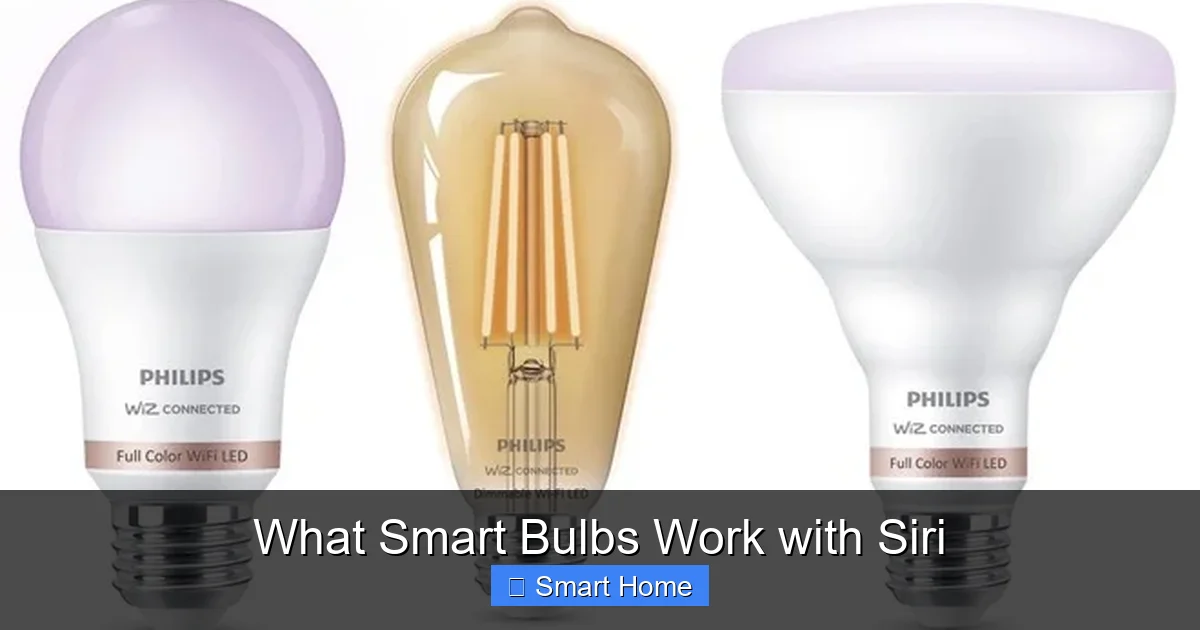
Top Smart Bulbs That Work with Siri
Now that you know what to look for, let’s explore the best smart bulbs that work with Siri. These products are tested, certified, and ready to respond to your voice commands.
Visual guide about What Smart Bulbs Work with Siri
Image source: m.media-amazon.com
Philips Hue
Philips Hue is the gold standard in smart lighting. With a wide range of bulbs, light strips, and accessories, Hue offers everything from basic white bulbs to full-color RGB options. All Hue bulbs work with Siri once added to the Home app.
You can control Hue bulbs with commands like:
- “Hey Siri, turn on the kitchen lights.”
- “Hey Siri, set the living room to blue.”
- “Hey Siri, dim the bedroom to 50%.”
Hue also supports complex scenes and automations. For example, you can create a “Movie Night” scene that dims all lights, turns on ambient lighting, and plays music via HomePod—all triggered by a single Siri command.
Hue bulbs connect via Zigbee, a low-power wireless protocol, so they work even if your Wi-Fi goes down. You’ll need a Hue Bridge for full functionality, though newer bulbs like the Hue White and Color Ambiance A19 come with built-in connectivity.
LIFX
LIFX is another top contender. Unlike Hue, LIFX bulbs connect directly to your Wi-Fi network—no bridge required. This makes setup faster and simplifies your smart home network.
LIFX bulbs offer vivid colors, high brightness, and a wide color temperature range (from 2700K warm white to 6500K cool daylight). They work seamlessly with Siri and respond quickly to voice commands.
Try these commands:
- “Hey Siri, set the reading lamp to 4000K.”
- “Hey Siri, make the bathroom lights red.”
LIFX also supports Thread, a newer wireless protocol that’s more energy-efficient and reliable than Wi-Fi. Thread devices can work together in a mesh network, improving performance and reducing lag.
One downside? LIFX bulbs are generally more expensive than Hue. But if you want Wi-Fi-only control and don’t want to buy a bridge, LIFX is a great choice.
Eve Light
Eve Light is a premium option designed specifically for Apple users. It’s built with HomeKit from the ground up and offers a sleek, minimalist design that fits any decor.
Unlike most smart bulbs, Eve Light doesn’t require a hub. It connects directly to your Wi-Fi and works with Siri, the Home app, and HomeKit Secure Video. You can control it with commands like:
- “Hey Siri, turn on the Eve Light.”
- “Hey Siri, set the Eve Light to 3000K.”
Eve Light also supports Thread, making it future-proof and energy-efficient. It’s dimmable, color-tunable, and available in soft white and full color.
What sets Eve apart is its focus on privacy and simplicity. It’s made in Europe, uses local processing (no cloud dependency), and integrates beautifully with other Apple devices.
Nanoleaf Essentials
Nanoleaf is known for its modular lighting panels, but their Essentials line includes smart bulbs that work with Siri. These bulbs use Thread for reliable, low-power connectivity and are designed for easy setup.
Nanoleaf bulbs offer rich colors and smooth transitions. You can say:
- “Hey Siri, set the Nanoleaf bulb to party mode.”
- “Hey Siri, turn off all Nanoleaf lights.”
They’re ideal if you’re already using Nanoleaf panels and want to extend your lighting system. The bulbs are affordable, energy-efficient, and work with HomeKit without needing a hub.
TP-Link Kasa Smart Bulbs
TP-Link’s Kasa smart bulbs are budget-friendly options that still work with Siri. These bulbs support HomeKit Secure Router and can be added to the Home app for voice control.
While Kasa bulbs don’t offer the same color depth or brightness as Hue or LIFX, they’re perfect for basic needs like dimming and scheduling. Try:
- “Hey Siri, dim the porch light to 30%.”
- “Hey Siri, turn off the hallway light.”
Kasa bulbs connect via Wi-Fi and don’t require a hub. They’re easy to set up and integrate well with Apple’s ecosystem.
How to Set Up Smart Bulbs with Siri
Setting up smart bulbs with Siri is easier than you think. Follow these steps to get started:
Visual guide about What Smart Bulbs Work with Siri
Image source: elexexplorer.com
Step 1: Check Compatibility
Make sure your bulb is HomeKit-certified. Look for the Works with Apple HomeKit badge on the packaging or product page. You can also check Apple’s official HomeKit compatibility list.
Step 2: Install the Bulb
Turn off your light, screw in the bulb, and turn the light back on. The bulb should light up normally—no special settings needed.
Step 3: Open the Home App
On your iPhone or iPad, open the Home app. Tap the “+” button in the top-right corner, then select Add Accessory.
Step 4: Scan the QR Code
Most HomeKit bulbs come with a QR code on the packaging. Scan it using your camera or the Home app. If you don’t have the code, you can manually enter the setup code (usually found on the bulb or packaging).
Step 5: Name Your Bulb
Give your bulb a name like “Living Room Lamp” or “Bedroom Ceiling.” This helps Siri recognize it when you give commands.
Step 6: Test Siri
Say, “Hey Siri, turn on the living room lamp.” If the bulb responds, you’re all set!
Pro Tips for Setup
- Make sure your iPhone is on the same Wi-Fi network as your bulb.
- If the bulb doesn’t show up, restart your router and try again.
- For Thread devices (like Eve or Nanoleaf), ensure your router supports Thread or use a HomePod as a Thread border router.
Voice Commands You Can Use with Siri and Smart Bulbs
Siri understands natural language, so you don’t need to learn complex commands. Here are some practical examples:
- “Hey Siri, turn on the kitchen lights.”
- “Hey Siri, set the bedroom to warm white.”
- “Hey Siri, dim the living room to 50%.”
- “Hey Siri, make it red.” (Changes color if your bulb supports it)
- “Hey Siri, turn off all lights.”
- “Hey Siri, set a timer for 30 minutes.”
You can also use scenes for more complex actions. For example:
- Create a “Good Morning” scene that gradually brightens your bedroom lights.
- Set a “Movie Night” scene that dims all lights and turns on ambient lighting.
To create a scene, open the Home app, tap “+” > “Add Scene,” then follow the prompts. You can include multiple devices and actions in one scene.
Automations and Scheduling
One of the best features of smart bulbs is the ability to automate them. You can set schedules, trigger actions based on location, or link them to other smart devices.
Scheduling Lights
Use Siri or the Home app to set timers. For example:
- “Hey Siri, turn on the porch light at 7 PM every day.”
- “Hey Siri, turn off the bedroom light at 11 PM.”
You can also set sunrise and sunset-based automations. For instance, have your lights gradually brighten 30 minutes before sunrise.
Location-Based Triggers
Use geofencing to turn lights on when you arrive home. In the Home app, go to Automations > Create Automation > People Arrive, then select your bulb.
Smart Home Integrations
Link your bulbs to other devices. For example:
- Turn on your lights when your security system arms.
- Dim the lights when you start playing music on HomePod.
These automations make your home more intuitive and responsive.
Troubleshooting Common Issues
Even with the best setup, you might run into issues. Here’s how to fix common problems:
Bulb Not Showing in Home App
Check that the bulb is HomeKit-certified. If it is, try restarting your router and phone. Make sure your phone is on the same Wi-Fi network.
Siri Doesn’t Respond
Ensure Siri is enabled in Settings > Siri & Search. Also, check that the bulb is named correctly in the Home app.
Lights Lag When Controlled by Siri
This is often due to Wi-Fi congestion. Try switching to a 2.4 GHz network (if your bulb supports it) or use Thread devices for better performance.
Bulb Keeps Disconnecting
Check your Wi-Fi signal strength. Move the bulb closer to your router or use a Wi-Fi extender. For Thread devices, ensure you have a Thread border router (like a HomePod or Apple TV).
Energy Efficiency and Cost Savings
Smart bulbs aren’t just convenient—they can save you money. LED smart bulbs use up to 80% less energy than incandescent bulbs. Plus, you can automate them to turn off when no one’s home or during the day.
For example, set your bedroom lights to turn off automatically at 11 PM. Or use geofencing to ensure lights are off when you leave work. Over time, these small savings add up.
Also, many smart bulbs have dimmable and color-tunable features, so you only use the brightness and color you need—no wasted light.
Future of Smart Lighting with Siri
Apple continues to improve Siri and HomeKit. New features like HomeKit Adaptive Lighting automatically adjust your bulb’s color temperature based on the time of day, mimicking natural light. This reduces eye strain and improves sleep.
Future updates may include better integration with Apple Intelligence, enhanced voice recognition, and deeper automation capabilities. As more devices adopt Thread and Matter protocols, smart lighting will become even more reliable and interconnected.
Conclusion
Smart bulbs that work with Siri transform your home into a responsive, efficient space. With voice control, automation, and energy savings, they’re more than just lights—they’re part of a smarter lifestyle. Whether you choose Philips Hue, LIFX, Eve, or Nanoleaf, the key is choosing HomeKit-certified bulbs and setting them up properly.
Once you’ve got them working, the possibilities are endless. From creating movie night scenes to waking up with gentle light, Siri makes smart lighting intuitive and fun. So go ahead—light up your world with voice control.
Frequently Asked Questions
Can any smart bulb work with Siri?
No, only smart bulbs that are certified for Apple HomeKit can be controlled by Siri. These bulbs must support the HomeKit protocol and be added to the Home app. Non-HomeKit bulbs won’t respond to voice commands.
Do I need a special hub to use smart bulbs with Siri?
It depends on the bulb. Some, like Philips Hue, require a Hue Bridge. Others, like LIFX and Eve, connect directly to Wi-Fi and don’t need a hub. Thread-based bulbs work without a hub but need a Thread border router like a HomePod.
Can I control multiple bulbs at once with Siri?
Yes. Once added to the Home app, you can group bulbs into rooms or create scenes. Say, “Hey Siri, turn on all the lights” or “Hey Siri, activate movie mode” to control multiple bulbs with one command.
Are smart bulbs with Siri compatible with HomePod?
Yes. HomeKit bulbs work seamlessly with HomePod, Apple Watch, and iPad. You can control them from anywhere using Siri on any Apple device connected to your iCloud account.
Do smart bulbs work during a power outage?
Most smart bulbs won’t work during a power outage since they need electricity to operate. However, some battery-powered smart switches or backup power solutions can keep your smart home running.
Can I use Siri to dim or change colors on my smart bulbs?
Yes, if your bulb supports dimming and/or color control. Say, “Hey Siri, dim the lamp to 50%” or “Hey Siri, make it blue.” Not all bulbs offer full color—check features before buying.