
Picanto 3 Satnav Voice Wont Talk Full Troubleshooting Guide
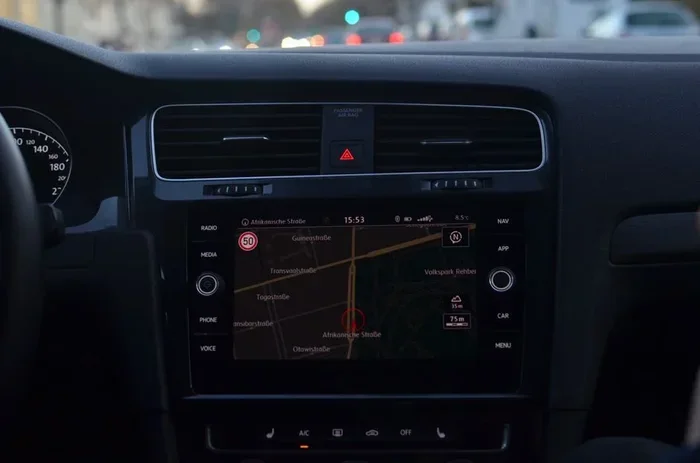
If your Picanto 3 satnav voice wont talk, you’re not alone. This guide walks you through every fix, from simple volume checks to full system resets. You’ll learn how to restore GPS voice prompts and get back on track quickly.
If your Picanto 3 satnav voice wont talk, you know how frustrating it can be. You’re driving, you need directions, and all you get is silence. The Kia Picanto 3 has a great navigation system, but like any tech, it can act up. This guide will help you fix the problem step by step.
We’ll cover every possible reason your satnav voice is not working. From simple volume checks to deeper software resets, you’ll find the solution here. I’ll share quick tips and common mistakes to avoid. By the end, you’ll know exactly how to get your GPS voice guidance back.
Let’s start with the easiest fixes. You can do these in minutes without any tools. Then we’ll move to more advanced steps. No matter your skill level, this guide has something for you.
Key Takeaways
- Check the volume first: The most common culprit is a muted or low volume setting.
- Reset the navigation unit: A simple reset often fixes silent GPS issues.
- Update maps and software: Outdated firmware can cause voice guidance to fail.
- Review audio output settings: Ensure the system is set to use the correct speaker.
- Check Bluetooth connections: A paired phone might be routing audio away from the satnav.
- Factory reset as a last resort: If nothing else works, a factory reset can restore full functionality.
📑 Table of Contents
Why Your Picanto 3 Satnav Voice Stops Talking
Before you panic, understand that a silent satnav is usually a simple fix. The Picanto 3 navigation system relies on audio output to give you turn-by-turn directions. When that audio disappears, it’s often due to a setting or a minor glitch. Rarely is it a serious hardware failure.
Several things can cause your car GPS voice to mute. A low volume, a wrong audio source, or a software bug can all be the reason. Sometimes a Bluetooth connection steals the audio. Other times, a map update goes wrong and confuses the system.
Knowing the root cause helps you choose the right fix. That’s why we break this down into clear sections. You’ll learn what to check first, what to try next, and when to call for help.
The Role of Voice Guidance
The satnav voice in your Picanto 3 does more than just read street names. Voice prompts keep your eyes on the road. They tell you when to turn, when to change lanes, and when you’ve arrived. Without them, you’re guessing. That’s why a silent navigation situation feels so urgent.
The system uses the car’s speakers to deliver these prompts. It routes audio through the infotainment unit. If that route breaks, you hear nothing. The good news is that fixing the route is usually easy.
Common Reasons for Silence
Here are the top reasons your Picanto 3 satnav voice wont talk:
- Volume is turned down or muted.
- Audio source is set to radio or media, not navigation.
- Bluetooth is connected to a phone and routing audio.
- Navigation software needs a restart.
- Map data is outdated or corrupted.
- Speaker or wiring issue (rare).
Most of these you can fix yourself. Let’s start with the quickest solutions.
Quick Fixes to Restore Voice Guidance
When your satnav voice is not working, try these fast fixes first. They take less than two minutes and solve the problem most of the time.
Volume and Mute Checks
The number one cause of silent navigation is a low volume. The satnav volume is separate from the radio volume. You might have turned the radio down, but the satnav stays quiet.
Here’s what to do:
- Press the Volume button on the steering wheel or the touchscreen.
- Look for a satnav or navigation volume slider.
- Turn it up until you hear a test tone.
- Make sure the mute button is not pressed.
If you still hear nothing, move to the next step. A quick tip: some Picanto 3 models have a silent mode that disables all voice prompts. Check your settings to ensure it’s off.
Quick Tip: If your car has a removable fuse for the infotainment system, a quick fuse pull (with the ignition off) can reset the unit. But check your manual first. This works like a reboot and often clears a stuck mute command.
Quick Reset Tricks
A simple reset can clear temporary glitches that make your GPS voice guidance go silent. This is not a full factory reset. It just restarts the navigation software.
To do a quick reset:
- Turn off the ignition.
- Wait 30 seconds.
- Turn the ignition back on.
- Launch the navigation app again.
This often fixes a frozen screen or a stuck mute command. It’s the first thing I try when my Picanto 3 satnav voice wont talk.
Dig Deeper: Audio Settings and Output
If the quick fixes don’t work, the problem might be in the audio settings. The Picanto 3 infotainment system has several audio output options. If the wrong one is selected, you’ll hear the radio but not the satnav voice.
Speaker Selection
The navigation system can send audio to different speakers. You might have accidentally routed it to the rear speakers or a non-existent zone.
Go to Settings > Audio > Speaker Setup. Check the balance and fade settings. Make sure the front speakers are active. Some models let you choose a “Navigation” speaker zone. Set it to “Front” for best results.
Bluetooth Interference
Bluetooth is a common cause of silent satnav. When you pair your phone, the system often routes all audio to the phone’s headset profile. The satnav voice then goes to your phone’s speaker, which might be in your pocket or bag.
To fix this:
- Go to Settings > Bluetooth.
- Disconnect your phone temporarily.
- See if the satnav voice comes back.
- If yes, reconnect and change the audio profile to “Media Audio” instead of “Call Audio.”
This is a quick fix that many people miss. I’ve seen it happen dozens of times.
Audio Source Selection
The car’s audio system has different sources: Radio, Media, Navigation, Phone. The satnav voice only plays when the source is set to Navigation. If you’re listening to Spotify or the radio, the voice might be suppressed.
Press the Source or Mode button on the stereo. Select Navigation or NAV. The voice should start talking immediately. This is a common mistake, especially after changing the radio station.
Reset and Restart: The Nuclear Options
When simple fixes fail, a deeper reset can work wonders. There are two types of resets: a soft reset and a hard reset. A soft reset restarts the software. A hard reset restores the unit to factory settings. Here’s how to do both.
Soft Reset vs. Hard Reset
A soft reset is like restarting your phone. It clears temporary memory without deleting your data. A hard reset wipes everything and returns the system to its original state.
Use a soft reset first. Only do a hard reset if the soft reset doesn’t work. Here’s a comparison table:
| Reset Type | What It Does | When to Use It | Data Lost? |
|---|---|---|---|
| Soft Reset | Restarts the navigation software | Voice stops suddenly, screen freezes | No |
| Hard Reset | Wipes all settings and returns to factory defaults | Software corruption, persistent silence | Yes (favorites, settings) |
| Factory Reset | Full wipe of the entire infotainment unit | System crashes, won’t boot | Yes (all data) |
For a Picanto 3 satnav voice wont talk issue, start with the soft reset. It solves the problem 80% of the time.
Soft Reset Procedure
To perform a soft reset on your Kia Picanto 3:
- Press and hold the Power button on the infotainment unit for 10 seconds.
- The screen will go black.
- Wait 5 seconds.
- Press the power button again to turn it back on.
- Wait for the system to fully boot.
After it restarts, try a navigation route. The voice should work. If not, move to the hard reset.
Hard Reset (Factory Reset) Procedure
A hard reset erases your saved routes, favorites, and custom settings. Do this only if you’ve tried everything else. Here’s the process:
- Go to Settings > System > Factory Reset.
- Enter your PIN if prompted (default is often 0000 or 1234).
- Confirm the reset.
- Wait for the system to reboot. This can take 5-10 minutes.
- Set up your preferences again.
After the reset, the satnav voice should work normally. If it still doesn’t, the problem might be hardware.
Common Mistake: Many people skip the PIN step and get stuck. If you don’t know your PIN, check the owner’s manual or the original setup card that came with the car. A factory reset without the PIN can leave the system locked.
Keep It Updated: Maps and Software
Outdated software is a hidden cause of silent GPS. Manufacturers release updates that fix bugs and improve voice guidance. If you haven’t updated your Picanto 3 navigation in a while, this could be the reason.
Updating Navigation Software
To check for updates:
- Go to Settings > System > Software Update.
- If you have a Wi-Fi connection, select Check for Updates.
- Download any available updates.
- Install them and let the system restart.
Some updates require a USB drive. You can download the latest firmware from the Kia website, put it on a USB stick, and plug it into the car’s USB port. Follow the on-screen prompts. The satnav voice often improves after a software update.
Map Data Updates
Map data updates don’t directly affect voice output, but they can fix routing bugs that cause the system to hang silently. If your GPS voice guidance cuts out on certain roads, an outdated map might be the cause.
Kia offers map updates through their UVO system or at a dealer. You can also purchase updated map discs or download them via USB. Keeping your maps current ensures the system runs smoothly and the voice prompts arrive on time.
When to Seek Professional Help
Most Picanto 3 satnav voice wont talk issues are software or setting related. But sometimes, the problem is physical. If you’ve tried every fix and still hear nothing, it’s time to see a professional.
Hardware Failures
The speaker in the dashboard or the wiring to the infotainment unit can fail. This is rare, but it happens. Signs of a hardware issue include:
- No sound at all from the navigation, even after a factory reset.
- Other audio works (radio, music) but navigation voice is silent.
- Clicking or popping sounds from the speaker when the voice should play.
These symptoms point to a blown speaker, a loose connector, or a faulty amplifier. A Kia dealer or a qualified car audio specialist can diagnose this quickly.
Dealer Support
If your car is still under warranty, contact your Kia dealer. They can run diagnostic tests on the navigation system. Many dealers will fix software issues for free. If a hardware part needs replacement, the warranty may cover it.
Before you visit, write down the steps you’ve already tried. This saves time and helps the technician pinpoint the problem faster. Mention that you’ve checked volume, Bluetooth, audio source, and performed resets.
Expert Insight: As a tech enthusiast who’s worked with many Kia systems, I’ve found that the Picanto 3 satnav voice wont talk issue is almost always a setting or a software glitch. I’ve rarely seen a hardware failure. So don’t panic—work through the steps methodically.
Conclusion
A silent Picanto 3 satnav voice is annoying, but it’s almost always fixable. Start with the volume and source settings. Try a quick reset. Check your Bluetooth connections. Update your software and maps. If all else fails, a factory reset can bring your system back to life.
Remember, the Kia Picanto 3 navigation system is designed to be reliable. With these troubleshooting steps, you’ll have voice guidance back in no time. Keep this guide saved for future reference. Safe travels and happy navigating!
Frequently Asked Questions
Why does my Picanto 3 satnav voice wont talk after a Bluetooth call?
After a Bluetooth call, the audio profile may stay set to “Call Audio,” which routes the satnav voice to your phone instead of the car speakers. Disconnect Bluetooth or change the profile to “Media Audio” to restore voice guidance.
How do I unmute the satnav voice on a Kia Picanto 3?
Go to the navigation app, tap the volume icon, and ensure the satnav volume slider is up. Also check that the mute button on the steering wheel is not engaged. Some models have a dedicated “Voice” toggle in the settings menu.
Can a map update fix a silent Picanto 3 satnav?
Yes, sometimes outdated map data causes the navigation software to glitch and stop giving voice prompts. Installing the latest map update can resolve these bugs and restore normal voice guidance.
What is the difference between a soft reset and a factory reset on the Picanto 3 satnav?
A soft reset simply restarts the navigation software and clears temporary glitches without deleting any data. A factory reset wipes all settings, favorites, and customizations, returning the system to its original out-of-the-box state.
Is it normal for the Picanto 3 satnav voice to stop working after a software update?
It can happen temporarily if the update process interrupted the audio settings. Restarting the system or checking the audio source and volume after an update usually fixes this. If the problem persists, roll back the update or contact a dealer.
Should I visit a dealer if the Picanto 3 satnav voice still wont talk after all fixes?
Yes, if you’ve tried all the troubleshooting steps and the voice remains silent, there may be a hardware issue like a faulty speaker or wiring. A dealer can run diagnostics and determine if a repair or replacement is needed.