Which Smart Bulbs Work with Apple Homekit
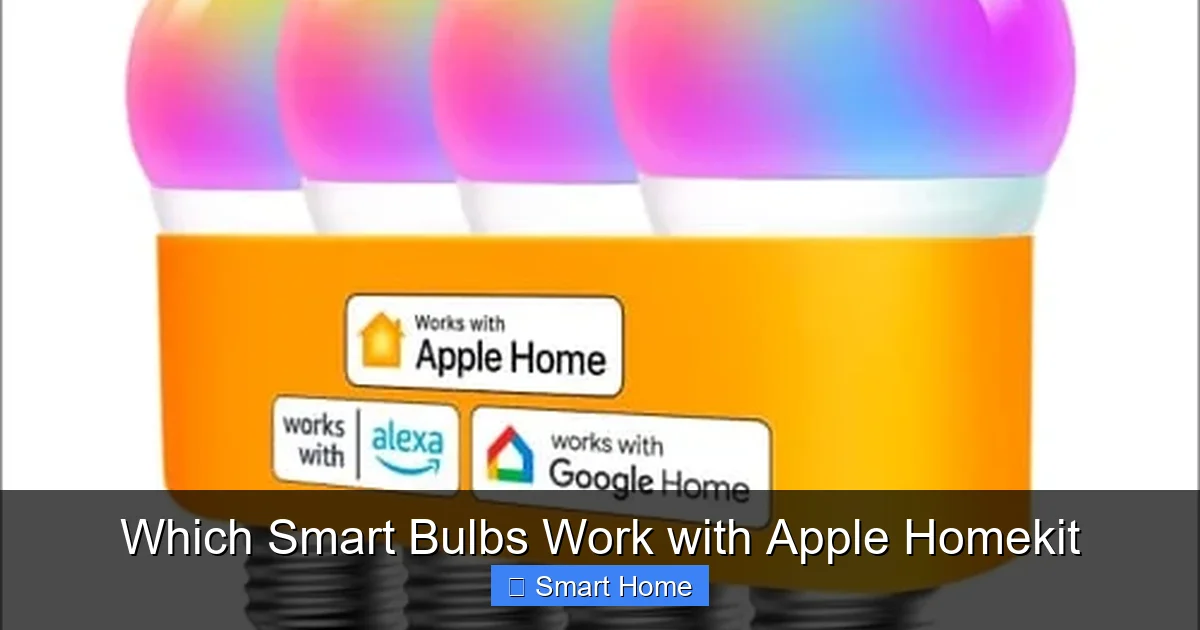
Which Smart Bulbs Work With Apple Homekit? Apple HomeKit offers a secure, private way to control smart lighting through Siri, the Home app, and automation. This guide walks you through top-rated, HomeKit-compatible bulbs, setup steps, and tips to create a smart lighting experience that’s reliable, easy to use, and integrates perfectly with your Apple ecosystem.
Key Takeaways
- HomeKit compatibility ensures privacy and security: Unlike some smart bulbs that require cloud access, HomeKit bulbs process commands locally or through Apple’s secure cloud, reducing exposure to hacking.
- Siri voice control is built-in: Use voice commands like “Hey Siri, turn on the living room light” to control bulbs without opening an app.
- Automation and scenes are easy to create: Set up routines like “Good Morning” to gradually brighten lights or “Movie Night” to dim and warm the room.
- Top brands include Philips Hue, LIFX, Nanoleaf, and Eve: These manufacturers consistently deliver reliable, feature-rich bulbs that work seamlessly with Apple devices.
- Not all smart bulbs support HomeKit: Always check the packaging or product description for the “Works with Apple HomeKit” badge.
- HomeKit Secure Video integration is possible: Pair compatible bulbs with HomeKit-enabled cameras for intelligent lighting responses.
- Energy efficiency and color options vary: Choose bulbs based on brightness, color temperature, and energy-saving features like motion detection.
[FEATURED_IMAGE_PLACEHOLDER]
Introduction
Imagine walking into your living room and saying, “Hey Siri, it’s movie time,” and your lights dim to a cozy warm glow. Or waking up to a sunrise simulation that gently brightens your bedroom over 30 minutes. That’s the magic of smart lighting—and when it works with Apple HomeKit, it’s not only convenient but also secure and private.
Apple HomeKit is a smart home platform designed with privacy and security in mind. It allows you to control compatible devices using Siri, the Home app, and automation routines—all while keeping your data on Apple’s secure iCloud servers or processing locally on your home hub. But not every smart bulb supports HomeKit. In fact, many popular brands use their own apps or rely on third-party cloud services, which can compromise privacy and require constant internet access.
If you’re an iPhone, iPad, or Mac user, integrating smart bulbs with Apple HomeKit means you get a unified, intuitive experience. No extra apps, no complicated setups, and no need to log into separate accounts. Instead, everything syncs with your Apple ID and works seamlessly across your devices. In this guide, we’ll walk you through everything you need to know—from which bulbs actually work with HomeKit to how to set them up, troubleshoot issues, and build smart lighting scenes that make your home feel alive.
What Is Apple HomeKit and Why Does It Matter?
Apple HomeKit is a software framework that allows you to control smart home devices—like lights, thermostats, locks, and cameras—through Apple’s ecosystem. It was introduced in iOS 10 and has since become a gold standard for privacy-focused smart home users. Unlike many competing platforms, HomeKit devices don’t require you to create a separate account or rely on third-party cloud services for basic functions.
The HomeKit Security Advantage
One of the biggest reasons to choose HomeKit-compatible bulbs is security. When a bulb supports HomeKit, commands are either processed locally on your Apple TV, iPad, or HomePod (known as a Home Hub), or encrypted and sent through Apple’s secure iCloud servers. This means your smart home activity isn’t stored on external servers or accessible to hackers—even if your Wi-Fi is compromised.
Compare that to many non-HomeKit bulbs, which may send data to foreign servers or require you to log into a third-party app with its own terms of service. With HomeKit, Apple enforces strict privacy rules: manufacturers must use end-to-end encryption, and data about your home is not shared with advertisers or used for analytics.
HomeKit vs. Other Smart Home Platforms
While platforms like Amazon Alexa, Google Home, and Samsung SmartThings offer broad device compatibility, they often rely more heavily on cloud processing. This can lead to lag, privacy concerns, and the need to keep apps open in the background. HomeKit, by contrast, offers a more integrated, app-light experience. Once set up, you control everything through the Home app—no need to switch between multiple apps.
That said, some HomeKit bulbs also work with Alexa or Google Assistant, thanks to Apple’s HomeKit Secure Video and HomeKit Bridge features. This gives you flexibility without sacrificing privacy.
How to Set Up HomeKit-Compatible Smart Bulbs
Setting up a HomeKit bulb is surprisingly simple—but it does require a few key steps. The most important thing to remember is that you’ll need an Apple device running iOS 13 or later, and a Wi-Fi network. For advanced features like automation and remote access, you’ll also need a Home Hub (Apple TV 4K, iPad, or HomePod).
Step 1: Choose the Right Bulb
Not all smart bulbs support HomeKit. Always look for the “Works with Apple HomeKit” badge on the packaging or product page. Some bulbs come with a small HomeKit logo, while others include a QR code you can scan during setup.
Avoid bulbs that only mention “compatible with Siri” without specifying HomeKit. While Siri can sometimes control non-HomeKit devices, they won’t support automation, scenes, or secure remote access.
Step 2: Install the Bulb
Turn off your light, screw in the bulb, and turn the power back on. Make sure the bulb is powered and within range of your Wi-Fi router.
Step 3: Open the Home App
On your iPhone or iPad, open the Home app. Tap the + icon in the top-right corner, then select Add Accessory. You’ll be prompted to scan the HomeKit setup code or QR code on the bulb or its packaging.
Step 4: Name and Assign the Bulb
Give your bulb a name (e.g., “Living Room Lamp”) and assign it to a room. You can also create a favorite scene, like “Reading Light,” with a specific brightness and color.
Step 5: Test Voice Control
Say, “Hey Siri, turn on the living room lamp,” and see if it responds. If it does, you’re all set!
Pro Tip: Use a Home Hub for Full Features
Without a Home Hub, you can still control your bulbs on the same Wi-Fi network, but remote access (like turning on lights when you’re away) and automation won’t work. A Home Hub also enables features like HomeKit Secure Video, which can trigger lights when motion is detected.
Top Smart Bulbs That Work With Apple HomeKit
Now that you know how to set up a HomeKit bulb, let’s look at some of the best options on the market. These bulbs offer excellent performance, reliability, and integration with Apple’s ecosystem.
Philips Hue
Philips Hue is arguably the most popular smart lighting brand, and many of its bulbs are HomeKit-compatible. The Hue White and Color Ambiance A19 LED Smart Bulb is a top choice—it supports 16 million colors, dimming, and smooth transitions. It also works with Apple’s Thread protocol for faster, more reliable connectivity.
Hue bulbs integrate deeply with HomeKit, allowing you to create complex scenes like “Good Night” that turns off all lights, locks doors, and adjusts thermostats. The Hue app also offers advanced features, but all control remains accessible through the Home app.
LIFX
LIFX bulbs are known for their vibrant colors and high brightness. The LIFX Color A19 Smart LED Light Bulb supports HomeKit and offers 1100 lumens of brightness—perfect for task lighting. Unlike some competitors, LIFX bulbs don’t require a hub, making setup even simpler.
One standout feature is multi-room lighting: you can sync lights across multiple rooms or set them to react to music. LIFX also supports Apple Music integration, so your lights pulse to the beat of your favorite songs.
Nanoleaf Essentials
Nanoleaf’s Essentials line is built specifically for Apple HomeKit and Thread. The Nanoleaf Essential Bulbs offer warm-to-cool white lighting and are ideal for ambient mood lighting. They’re energy-efficient, flicker-free, and compatible with Siri for voice control.
What sets Nanoleaf apart is its use of Thread, a low-power, secure mesh networking protocol. This means better reliability and battery life, even with multiple bulbs in a room.
Eve Light Strip
For those who want more than just bulbs, the Eve Light Strip is a flexible, adhesive LED strip that supports HomeKit. It’s perfect for under-cabinet lighting, gaming setups, or accent lighting in bedrooms. The strip includes a power adapter and offers 16 million colors with smooth dimming.
Eve devices are known for their privacy-first approach—no cloud dependency, no analytics tracking. All processing happens locally or through HomeKit’s secure cloud.
Koogeek Smart Bulbs
Koogeek offers affordable HomeKit-compatible bulbs with a focus on simplicity. The Koogeek Smart A19 LED Bulb supports dimming, scheduling, and Siri voice control. It’s a great budget option for those new to smart lighting.
While it doesn’t support color changing, it’s perfect for basic on/off, dimming, and scheduling needs. Koogeek bulbs are also compatible with Apple’s HomeKit Secure Video, so they can respond to smart camera triggers.
TP-Link Kasa Smart Bulbs
TP-Link’s Kasa Smart Light Bulb KL110P4 is a budget-friendly HomeKit bulb with 800 lumens of brightness. It supports dimming and scheduling but only offers white light (no color). It’s ideal for users who want basic smart lighting without extra features.
TP-Link also offers a Kasa Smart Hub that can connect multiple bulbs and non-HomeKit devices, giving you more control over your smart home.
Advanced HomeKit Features for Smart Lighting
Once your bulbs are set up, you can unlock even more functionality using HomeKit’s advanced features. These go beyond simple on/off commands and allow you to create truly intelligent lighting systems.
Automation and Scenes
With automation, you can set your lights to respond to time, location, or device triggers. For example, you can create a routine called “Good Morning” that gradually brightens your bedroom lights at 7:00 AM, plays your favorite playlist, and opens the blinds.
Scenes let you group multiple actions into one tap. Try creating a “Movie Night” scene that dims the living room lights, turns on the TV, and sets the color temperature to warm white.
Geofencing and Location-Based Triggers
Using your iPhone’s location, HomeKit can automatically turn on lights when you arrive home or dim them when you leave. This is powered by geofencing, which detects when you’re within a certain distance of your home.
To set this up, go to the Home app, tap the automation you want, and select “When I Arrive” or “When I Leave.” You can also add conditions, like “Only if it’s after sunset,” for smarter control.
HomeKit Secure Video Integration
If you have a HomeKit-compatible camera (like the Logitech Circle View or Eve Cam), you can link it to your bulbs. For example, when the camera detects motion at night, it can trigger your porch light to turn on automatically.
This not only improves security but also enhances convenience. No more fumbling for the light switch in the dark.
Thread and Apple’s Ecosystem
Many new HomeKit bulbs now support Thread, a next-generation wireless protocol designed for smart homes. Thread creates a mesh network, meaning each bulb can relay signals to others, improving reliability and reducing lag.
Thread is especially useful in larger homes or areas with Wi-Fi dead zones. It also uses less power, which is better for battery-powered devices like sensors.
Troubleshooting Common HomeKit Issues
Even with the best setup, you might run into a few hiccups. Here are some common issues and how to fix them.
Bulb Not Showing Up in Home App
If your bulb isn’t appearing during setup, make sure you’re scanning the correct QR code. Some bulbs have the code on the bulb itself, while others are on the packaging. Also, ensure your Wi-Fi network isn’t using a 5GHz band—HomeKit setup works best on 2.4GHz.
Siri Not Responding
If Siri doesn’t recognize your bulb, check that you’ve named it correctly and that it’s assigned to a room. Try saying, “Hey Siri, show me the lights in the living room,” to see if Siri can find it.
Automation Not Triggering
This is often due to missing a Home Hub. Without one, automation only works when you’re on the same Wi-Fi network. Also, check that your phone’s location services are enabled and that you’ve granted the Home app permission.
Bulb Keeps Disconnecting
If your bulb frequently goes offline, it might be a Wi-Fi signal issue. Try moving the bulb closer to your router or using a Wi-Fi extender. Thread-enabled bulbs often have better connectivity due to mesh networking.
App Crashes or Freezes
Sometimes, the Home app can become unstable. Try force-closing it and reopening. If the problem persists, restart your iPhone or iPad. Make sure your iOS is up to date.
Tips for Maximizing Your Smart Lighting Experience
Want to get the most out of your HomeKit bulbs? Here are some expert tips to enhance your setup.
Use Warm White for Relaxation
Cool white light (5000K+) is great for focus and productivity, but warm white (2700K) is better for relaxation and sleep. Set your bedroom and living room bulbs to warm white during evening hours.
Create a “Good Night” Routine
Set a scene that turns off all lights, locks doors, and sets your thermostat to energy-saving mode. This not only saves energy but also adds peace of mind.
Group Bulbs into Rooms
In the Home app, you can assign multiple bulbs to a room and control them together. This makes it easy to dim all living room lights with one command.
Use Dimming for Ambiance
Dimming isn’t just about saving energy—it’s about mood. Try setting your dining room lights to 30% brightness for a romantic dinner.
Schedule Lights to Simulate Presence
If you’re away on vacation, schedule your lights to turn on and off at different times. This deters break-ins and makes your home look lived-in.
Combine with Sensors
Add motion or door sensors to trigger lights automatically. For example, your hallway light can turn on when someone enters, even if they forget to flip the switch.
Conclusion
Smart bulbs that work with Apple HomeKit offer a secure, intuitive, and powerful way to control your home’s lighting. Whether you’re looking for vibrant colors, energy savings, or seamless integration with Siri and the Home app, there’s a HomeKit-compatible bulb for every need. From premium brands like Philips Hue and LIFX to budget-friendly options like Koogeek, the market is full of reliable choices.
More importantly, HomeKit ensures your smart home remains private and secure. No third-party apps, no cloud dependency for basic functions, and end-to-end encryption for everything. With features like automation, geofencing, and HomeKit Secure Video, you can create a lighting system that’s not just smart—it’s truly intelligent.
So if you’re ready to upgrade your lighting, start by choosing a HomeKit bulb, setting it up in the Home app, and experimenting with scenes and routines. Before long, you’ll wonder how you ever lived without it.
FAQs
Can I use HomeKit bulbs with Alexa or Google Assistant?
Yes, many HomeKit bulbs support integration with Alexa and Google Assistant through the Home app. However, full automation and secure features may be limited compared to native platforms.
Do I need a hub to use HomeKit bulbs?
For basic control and automation, you can use an iPhone or iPad. But for remote access and advanced features like geofencing, a Home Hub (Apple TV, iPad, or HomePod) is required.
Are HomeKit bulbs more expensive than regular smart bulbs?
Not always. While premium brands like Philips Hue may cost more, budget options like Koogeek and TP-Link offer affordable HomeKit bulbs. The price depends on features like color changing, brightness, and connectivity.
Can I control HomeKit bulbs without Wi-Fi?
No, you need Wi-Fi to set up and control HomeKit bulbs. However, once connected, some bulbs use Thread or Zigbee for better local control.
Do HomeKit bulbs work with Android devices?
No, HomeKit is exclusive to Apple devices. However, some bulbs may offer limited control through third-party apps on Android.
How do I remove a bulb from HomeKit?
In the Home app, tap the bulb, scroll down, and tap “Remove Accessory.” Confirm, and the bulb will no longer appear in your Home app.
This is a comprehensive guide about Which Smart Bulbs Work With Apple Homekit.
Key Takeaways
- Understanding Which Smart Bulbs Work With Apple Homekit: Provides essential knowledge
Frequently Asked Questions
What is Which Smart Bulbs Work With Apple Homekit?
Which Smart Bulbs Work With Apple Homekit is an important topic with many practical applications.