How to Connect Smart Bulb to Alexa
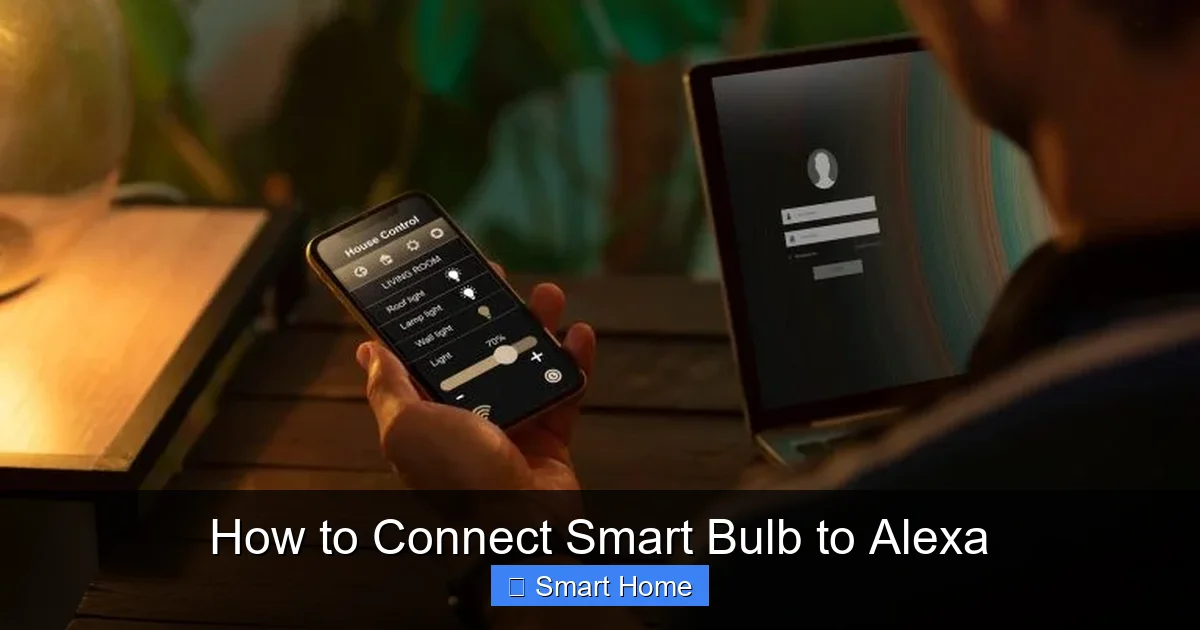
Connecting your smart bulb to Alexa is simple and opens up a world of voice control and automation possibilities. Whether you’re setting up your first smart bulb or upgrading your existing setup, this guide walks you through every step. With just a few clicks and your voice, you can dim, color-change, and schedule your lights like never before.
Key Takeaways
- Voice Control: Use Alexa to turn lights on/off, dim, change colors, and set schedules—no hands needed.
- Smart Automation: Create routines like “Good Morning” to turn on lights automatically at sunrise.
- Easy Setup: Most smart bulbs connect via Wi-Fi and work with Alexa in under 10 minutes.
- Compatibility Check: Ensure your bulb is Alexa-compatible before purchasing or setting up.
- Wi-Fi Matters: A stable 2.4 GHz Wi-Fi network is required—5 GHz won’t work for most bulbs.
- App Integration: Use the bulb’s original app (e.g., Philips Hue, LIFX) for advanced features before linking to Alexa.
- Troubleshooting: Reset bulbs, restart Alexa, or re-link devices if connection fails.
📑 Table of Contents
- How to Connect Smart Bulb to Alexa: A Complete Guide
- Why Connect a Smart Bulb to Alexa?
- What You’ll Need Before You Start
- Step-by-Step: Connecting Your Smart Bulb to Alexa
- Voice Commands You Can Use
- Advanced Tips for Smart Lighting Control
- Troubleshooting Common Connection Issues
- Best Smart Bulbs for Alexa (2024)
- Security and Privacy Considerations
- Conclusion: Your Smart Home Journey Starts Here
How to Connect Smart Bulb to Alexa: A Complete Guide
If you’re ready to upgrade your home lighting experience, connecting a smart bulb to Alexa is one of the most rewarding smart home projects. Imagine walking into a room and saying, “Alexa, turn on the living room light,” and instantly having warm, cozy lighting fill the space. Or setting a “Good Night” routine that dims all lights and locks your doors—all with your voice. It’s not just convenient; it’s transformative.
But where do you start? Don’t worry—this guide breaks everything down into simple, easy-to-follow steps. Whether you’re a tech newbie or a seasoned smart home enthusiast, you’ll find everything you need to get your smart bulb talking to Alexa. We’ll cover compatibility, setup, troubleshooting, and even tips for getting the most out of your new system. By the end, you’ll be controlling your lights like a pro—without breaking a sweat.
Why Connect a Smart Bulb to Alexa?
Before we dive into the how-to, let’s talk about the why. Smart bulbs paired with Alexa aren’t just about turning lights on and off. They open the door to a smarter, more responsive home. Here’s what you gain:
Visual guide about How to Connect Smart Bulb to Alexa
Image source: smart-in-home.com
- Voice Control: No more fumbling for switches—just say the word.
- Remote Access: Control lights from anywhere using the Alexa app.
- Automation & Routines: Lights can turn on when you arrive, dim at bedtime, or flash when smoke is detected.
- Energy Savings: Use motion sensors or timers to avoid wasting electricity.
- Enhanced Ambiance: Change colors, set mood lighting, or sync with music.
And the best part? Most smart bulbs work with Alexa out of the box—no extra hubs or complicated setups required. All you need is a compatible bulb, a working Wi-Fi network, and your Amazon Echo device.
What You’ll Need Before You Start
Before you plug in your first smart bulb, make sure you have the essentials. Having everything ready will save you time and frustration during setup.
Visual guide about How to Connect Smart Bulb to Alexa
Image source: smart-in-home.com
1. Alexa-Compatible Smart Bulb
Not all smart bulbs work with Alexa. To avoid disappointment, check the product description or packaging for phrases like:
- “Works with Amazon Alexa”
- “Compatible with Alexa”
- “Voice control via Alexa”
Popular Alexa-compatible brands include Philips Hue, LIFX, Wyze, TP-Link Kasa, Sylvania, and IKEA TRÅDFRI. If you’re unsure, look for the Works with Alexa badge on the box or Amazon listing.
2. Amazon Echo Device
You’ll need at least one Alexa-enabled device, such as:
- Amazon Echo (3rd gen or later)
- Echo Dot
- Echo Show
- Fire TV Cube
- Fire tablet with Alexa
If you don’t have one yet, you can buy an Echo device directly from Amazon or a trusted retailer. Most setups start with an Echo Dot—it’s affordable, compact, and perfect for controlling lights.
3. 2.4 GHz Wi-Fi Network
Smart bulbs typically connect to your home’s 2.4 GHz Wi-Fi network. Why? Because 2.4 GHz has better range and can penetrate walls more effectively than 5 GHz. Most routers broadcast both bands, but your bulb will only connect to the 2.4 GHz one.
To check your network:
- Go to your router’s admin page (often at 192.168.1.1)
- Look for “Wireless Settings”
- Ensure 2.4 GHz is enabled
If your router only has one band (a newer model), make sure it supports 2.4 GHz—most do, but it’s worth confirming.
4. Smartphone or Tablet
You’ll use your phone or tablet to run the bulb’s app during setup. Make sure it’s charged and connected to the same Wi-Fi network as your Echo device.
5. Amazon Alexa App
Download the Amazon Alexa app from the App Store or Google Play. This app is essential for discovering devices, creating routines, and managing your smart home.
Step-by-Step: Connecting Your Smart Bulb to Alexa
Now for the fun part—getting your bulb connected! Follow these steps in order. Most setups take 5–10 minutes.
Visual guide about How to Connect Smart Bulb to Alexa
Image source: smart-in-home.com
Step 1: Install the Smart Bulb
Start by screwing your smart bulb into a light fixture. Make sure it’s fully tightened but not over-torqued. Then, plug the lamp or fixture into a power source.
Tip: If the bulb doesn’t light up, double-check the socket and power source. Some fixtures (like recessed cans) may require a compatible base.
Step 2: Download and Open the Bulb’s App
Each brand has its own app. For example:
- Philips Hue → Philips Hue app
- LIFX → LIFX app
- Wyze → Wyze app
- TP-Link Kasa → Kasa app
Download the app, create an account (if needed), and open it. The app will guide you through connecting the bulb to your Wi-Fi.
Step 3: Connect the Bulb to Wi-Fi
Within the bulb’s app, follow the setup process. This usually involves:
- Selecting your Wi-Fi network
- Entering your password
- Waiting for the bulb to connect (the light may blink or change color)
Once connected, the app will assign the bulb a name (e.g., “Living Room Lamp”). You can rename it later in the Alexa app.
Step 4: Open the Alexa App
Now that your bulb is on the network, it’s time to link it to Alexa. Open the Amazon Alexa app on your phone or tablet.
Step 5: Discover Devices
In the Alexa app:
- Tap the Devices tab (bottom right)
- Tap the + icon
- Select Add Device
- Choose the brand of your bulb (e.g., Philips Hue, LIFX)
- Follow the on-screen prompts to allow Alexa to discover your devices
Alexa will search for compatible devices on your network. This usually takes 30–60 seconds.
Step 6: Name and Group Your Bulb
Once discovered, Alexa will list your bulb. Tap it, then:
- Rename it (e.g., “Bedroom Light” instead of “Philips Hue 1”)
- Assign it to a room (e.g., “Bedroom”)
- Create a group (optional) to control multiple bulbs at once (e.g., “Living Room Lights”)
Step 7: Test Your Setup
Say, “Alexa, turn on the bedroom light” or “Alexa, dim the living room lights.” If it works—congratulations! You’ve successfully connected your smart bulb to Alexa.
Voice Commands You Can Use
Now that your bulb is connected, here are some voice commands to try:
- “Alexa, turn on/off [room name] light”
- “Alexa, set the living room to blue.”
- “Alexa, dim the lights to 50%.”
- “Alexa, turn on the movie night routine.”
- “Alexa, is the bedroom light on?”
You can also use Alexa Routines to automate lighting. For example:
- “When I say ‘Good Morning,’ turn on the kitchen lights and set them to 70% brightness.”
- “At 9 PM, dim all lights and turn on the hallway nightlight.”
Advanced Tips for Smart Lighting Control
Once your basic setup is working, you can take your smart lighting to the next level.
Create Scenes and Routines
In the Alexa app, go to Routines and create custom lighting scenes. For example:
- Movie Night: Dim lights, set color to warm amber, turn off ceiling lights.
- Energy Saver: Turn off all lights when no motion is detected for 10 minutes.
Use Skills for Extra Features
Some bulbs support Alexa Skills for advanced control. For example:
- Philips Hue Skill – Full color and brightness control
- LIFX Skill – Music sync and effects
- TP-Link Kasa Skill – Scheduling and energy monitoring
Enable these in the Alexa app under Skills & Games.
Group Bulbs for Whole-Room Control
Instead of controlling each bulb individually, group them by room. In the Alexa app:
- Go to Devices > Groups
- Tap Create Group
- Name it (e.g., “Bedroom”)
- Add all bulbs in that room
Now say, “Alexa, turn off all bedroom lights,” and it will work instantly.
Troubleshooting Common Connection Issues
Sometimes things don’t go as planned. Here’s how to fix the most common issues.
Issue: Alexa Can’t Find the Bulb
Solution:
- Make sure the bulb is connected to Wi-Fi via its own app.
- Restart your Echo device (unplug for 10 seconds, then plug back in).
- Try the discovery process again.
- Check that your phone and Echo are on the same Wi-Fi network.
Issue: Bulb Turns Off After a Few Minutes
Solution:
- Some bulbs enter “sleep mode” if not used for a while. Turn them on once a day to keep them active.
- Check the bulb’s app for firmware updates.
Issue: Voice Commands Don’t Work
Solution:
- Confirm the bulb is named correctly in the Alexa app.
- Try saying the room name first: “Alexa, in the bedroom, turn on the light.”
- Make sure Alexa isn’t confused by similar names (e.g., “Kitchen Light” vs. “Kitchen Lamp”).
Issue: Bulb Won’t Connect to Wi-Fi
Solution:
- Reset the bulb (usually by turning it on/off 5 times in a row).
- Ensure you’re using 2.4 GHz Wi-Fi.
- Try connecting from a different device.
Best Smart Bulbs for Alexa (2024)
Not all smart bulbs are created equal. Here are some top picks for Alexa users:
| Brand | Key Features | Price Range |
|---|---|---|
| Philips Hue | Best color accuracy, app control, works with Hue Bridge (optional) | $50–$100 |
| LIFX | No hub needed, bright colors, music sync | $30–$50 |
| Wyze Bulb | Affordable, voice control, app integration | $8–$12 |
| TP-Link Kasa | Easy setup, scheduling, energy monitoring | $10–$20 |
| Sylvania Smart+ | Works with Alexa and Google Assistant, dimmable | $15–$25 |
For beginners, the Wyze or TP-Link bulbs offer great value. For advanced lighting, Philips Hue is the gold standard.
Security and Privacy Considerations
Smart bulbs and Alexa collect data to improve your experience. Here’s what to know:
- Voice Recordings: Alexa saves voice clips to improve recognition. You can delete them anytime in the Alexa app.
- Wi-Fi Security: Use WPA2 or WPA3 encryption on your Wi-Fi network.
- Device Isolation: Consider setting up a separate guest network for smart devices to reduce risk.
Always check the privacy policy of your bulb’s brand. Most reputable companies allow you to opt out of data collection.
Conclusion: Your Smart Home Journey Starts Here
Connecting a smart bulb to Alexa is one of the simplest and most rewarding ways to start your smart home journey. With just a few minutes and a few taps, you can transform your lighting into a responsive, voice-controlled system. Whether you’re setting the mood for movie night, saving energy, or waking up to soft morning light, Alexa makes it possible.
The beauty of smart lighting is its flexibility. You can start small—one bulb, one room—and expand over time. Add more bulbs, create routines, integrate with other smart devices like thermostats and doorbells, and watch your home come alive.
Remember: the key is starting simple. Pick a bulb, plug it in, say “Alexa, discover devices,” and enjoy the magic of voice control. Before you know it, you’ll be telling Alexa to dim the lights and lock the doors—all without lifting a finger.
So go ahead—upgrade your lighting. Your future self (and your guests) will thank you.
Frequently Asked Questions
Do all smart bulbs work with Alexa?
No, not all smart bulbs are compatible with Alexa. Look for bulbs labeled “Works with Alexa” or “Compatible with Alexa” on the packaging or product listing. Popular compatible brands include Philips Hue, LIFX, Wyze, and TP-Link Kasa.
Can I connect multiple smart bulbs to Alexa at once?
Yes, you can connect and control multiple smart bulbs with Alexa. Once each bulb is connected via its own app, Alexa will discover them and allow you to group them by room or create routines for all of them together.
Do I need a smart hub to connect smart bulbs to Alexa?
Not always. Many smart bulbs (like Wyze and TP-Link Kasa) connect directly to Wi-Fi and work with Alexa without a separate hub. However, bulbs like Philips Hue require a Hue Bridge for full functionality, though basic voice control may still work without it.
Why won’t Alexa find my smart bulb?
Common reasons include: the bulb isn’t connected to Wi-Fi via its app, your Echo device isn’t on the same network, or the bulb is only on the 5 GHz band. Make sure your bulb is on 2.4 GHz Wi-Fi and restart your Echo device during discovery.
Can I control my smart bulb with Alexa even when I’m away from home?
Yes, if your bulb is connected to Wi-Fi and the Alexa app is enabled on your phone, you can control it remotely. Just make sure your internet connection is stable and the bulb’s app allows cloud access.
How do I remove a smart bulb from Alexa?
In the Alexa app, go to Devices > select the bulb > More > Delete from Device List. This removes it from Alexa but doesn’t reset the bulb itself. To fully reset, use the bulb’s app or physical reset method (usually 5 on/off cycles).