Why Is My Smart Bulb Not Working
Smart bulbs can stop working for many reasons—from Wi-Fi issues to app glitches. This guide walks you through simple steps to diagnose and fix the most common causes. Whether your bulb won’t turn on or won’t respond to your voice commands, you’ll find practical solutions to restore control.
Key Takeaways
- Wi-Fi Connection Issues: Weak signals or network changes often prevent smart bulbs from connecting or staying online.
- App and Firmware Problems: Outdated apps or outdated bulb firmware can cause unresponsiveness.
- Power and Physical Issues: Loose bulbs, faulty sockets, or incorrect voltage can stop the bulb from working.
- Compatibility Concerns: Not all smart bulbs work with every hub or voice assistant.
- Overloaded Networks: Too many devices on one network can slow down or block smart bulb communication.
- Reset and Re-pairing: Resetting the bulb and re-pairing it often resolves persistent issues.
- Manufacturer Support: If all else fails, contacting support or checking warranty options is a smart move.
📑 Table of Contents
- Why Is My Smart Bulb Not Working?
- Common Reasons Your Smart Bulb Isn’t Working
- Wi-Fi Connection Problems: The Most Common Culprit
- App and Firmware Glitches: Software Fixes
- Power and Physical Connection Issues
- Compatibility Issues: Does Your Setup Support the Bulb?
- Overloaded Networks and Interference
- Reset and Re-Pair: The Nuclear Option
- When to Contact Support
- Preventing Future Issues
- Conclusion
Why Is My Smart Bulb Not Working?
You just installed your new smart bulb—excited to control it with your voice or schedule it to turn on at sunrise. But when you try to use it, nothing happens. The light doesn’t turn on. The app says it’s offline. Or maybe Alexa just ignores you when you say “turn on the living room light.” Frustrating, right?
Smart bulbs are amazing—when they work. But like any technology, they can have hiccups. The good news? Most smart bulb issues have simple fixes. This guide walks you through the most common reasons your smart bulb isn’t working and gives you step-by-step solutions to get it back under your control.
Common Reasons Your Smart Bulb Isn’t Working
Before diving into fixes, let’s cover what might be going wrong. Smart bulbs rely on a few key things to function: power, a stable Wi-Fi connection, a compatible app, and sometimes a hub. If any of these are off, your bulb might not respond.
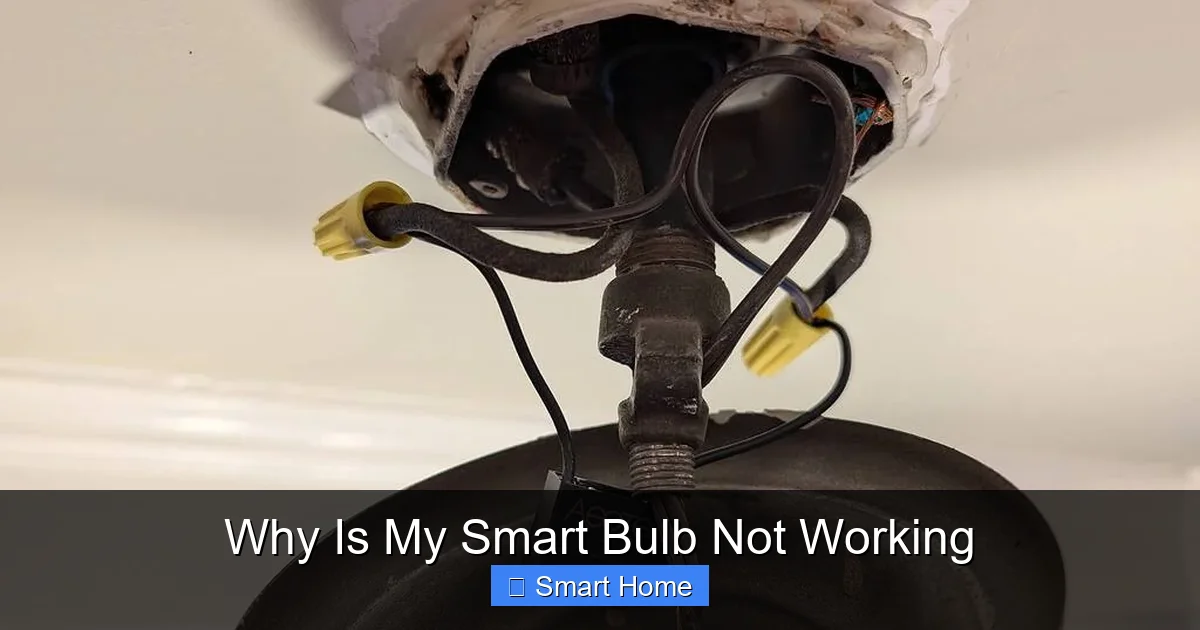
Visual guide about Why Is My Smart Bulb Not Working
Image source: community.inovelli.com
Here are the most frequent causes:
- Wi-Fi connection issues: The bulb needs a strong, consistent Wi-Fi signal to communicate.
- App or firmware problems: Outdated software can cause glitches.
- Power or physical connection problems: A loose bulb or faulty outlet can stop it from working.
- Compatibility issues: Not all bulbs work with every smart home system.
- Overloaded network: Too many devices can slow things down.
Let’s explore each in detail—and how to solve them.
Wi-Fi Connection Problems: The Most Common Culprit
If your smart bulb won’t turn on or stays offline in the app, the first thing to check is your Wi-Fi connection. Smart bulbs use Wi-Fi to talk to your router and your apps. If the signal is weak or unstable, the bulb can’t stay connected.
Visual guide about Why Is My Smart Bulb Not Working
Image source: diysmarthomehub.com
How to Check and Fix Wi-Fi Issues
Start by testing the signal strength near the bulb’s location. If the signal is weak, try these fixes:
- Move the bulb closer to the router: This often solves the problem instantly.
- Use a Wi-Fi extender or mesh network: These help boost coverage in larger homes.
- Switch to a 2.4 GHz network: Most smart bulbs only work on 2.4 GHz. If your router has both 2.4 GHz and 5 GHz, make sure the bulb is connected to the 2.4 GHz band.
- Restart your router: Unplug it for 30 seconds, then plug it back in. This refreshes the network and often fixes connectivity issues.
For example, if your smart bulb is in the basement and your router is in the living room, the signal might be too weak. Try moving the bulb to a spot closer to the router—or install a Wi-Fi extender to improve coverage.
What If the Bulb Still Won’t Connect?
If the bulb won’t connect even after checking the signal, try resetting it. Most smart bulbs have a reset button or a sequence (like turning the bulb on and off five times) to restore factory settings. Check your bulb’s manual for the exact method.
After resetting, re-pair the bulb with your app. This often clears connection glitches.
App and Firmware Glitches: Software Fixes
Sometimes the issue isn’t the bulb—it’s the app or the bulb’s internal software (called firmware). Outdated software can cause the bulb to freeze, disconnect, or stop responding.
Visual guide about Why Is My Smart Bulb Not Working
Image source: pastimebarandgrill.com
Update Your App
Open your smart home app (like Philips Hue, LIFX, or the brand’s app) and check for updates. Go to your device settings and look for “Update App” or “Check for Updates.” Installing the latest version often fixes bugs and improves performance.
Update the Bulb’s Firmware
Many smart bulbs update their firmware automatically when connected to Wi-Fi. But sometimes they don’t. To force an update:
- Open the app.
- Find your bulb in the device list.
- Look for “Firmware Update” or “Device Settings.”
- Tap to check for updates and install if available.
For example, LIFX bulbs often require manual firmware updates through their app. If your LIFX bulb won’t turn on, checking for a firmware update is a smart first step.
Clear the App Cache
On your phone, go to Settings > Apps > [Your Smart Bulb App] > Storage > Clear Cache. This removes temporary files that might be causing conflicts. Then restart the app and try again.
Power and Physical Connection Issues
If your smart bulb won’t turn on at all—even manually—the problem might be physical. The bulb might be loose, the socket might be faulty, or the bulb itself could be damaged.
Check the Bulb and Socket
Start by turning off the power, removing the bulb, and checking for damage. Then:
- Reinstall the bulb tightly: A loose bulb can cause intermittent power.
- Test the bulb in another socket: This helps identify if the outlet is the issue.
- Try a different bulb: If you have a regular bulb, test it in the same socket to see if it works. If not, the socket might be faulty.
For example, if your smart bulb flickers or won’t turn on manually, the socket might not be delivering consistent power. Try plugging in a regular bulb to test it.
Voltage and Wattage Compatibility
Some smart bulbs require specific voltage (like 120V or 220V) depending on your region. Using the wrong voltage can damage the bulb or prevent it from working. Also, some bulbs don’t work with dimmer switches or LED-compatible ones. Check the bulb’s specifications to ensure compatibility.
Overheating or Damage
If the bulb feels hot to the touch or has visible damage (like a cracked base), it may need replacement. Overheating can happen if the bulb is in a fixture with poor ventilation.
Compatibility Issues: Does Your Setup Support the Bulb?
Not all smart bulbs work with every smart home system. If your bulb won’t respond to voice commands or doesn’t appear in the app, compatibility might be the issue.
Check Voice Assistant Compatibility
Most smart bulbs work with Alexa, Google Assistant, or Siri. But some require specific hubs. For example:
- Philips Hue bulbs need the Hue Bridge to work with Alexa.
- TP-Link Kasa bulbs can work directly with Wi-Fi and Alexa.
If your bulb requires a hub and you don’t have it, the bulb won’t respond to voice commands.
App and Platform Support
Make sure you’re using the correct app for your bulb. For example:
- Philips Hue → Hue app
- LIFX → LIFX app
- TP-Link Kasa → Kasa app
Using the wrong app can prevent the bulb from showing up or connecting.
Zigbee vs. Wi-Fi Bulbs
Some bulbs use Zigbee (a low-power protocol) and need a Zigbee hub (like Samsung SmartThings or Hubitat). Others use Wi-Fi and connect directly to your router. Mixing these types can cause confusion. Make sure you know what type your bulb uses.
Overloaded Networks and Interference
If your smart bulb works sometimes but not others, your Wi-Fi network might be overloaded or experiencing interference.
Too Many Devices
Each device on your network uses bandwidth. If you have dozens of smart devices, the network can slow down. Try disconnecting unused devices or upgrading to a dual-band router with better capacity.
Interference from Other Devices
Microwaves, cordless phones, and even baby monitors can interfere with Wi-Fi signals. Move the bulb away from these devices if possible.
Channel Congestion
If your Wi-Fi channel is crowded (common in apartments or dense neighborhoods), the signal can degrade. Use a Wi-Fi analyzer app to find a less congested channel and change it in your router settings.
Reset and Re-Pair: The Nuclear Option
If nothing else works, resetting your smart bulb and re-pairing it often fixes stubborn issues. This clears all settings and starts fresh.
How to Reset a Smart Bulb
The method varies by brand, but common steps include:
- Turn the bulb on and off five times quickly.
- Press and hold the reset button (if available) for 10 seconds.
- Use the app to initiate a factory reset.
Check your bulb’s manual for the exact reset procedure.
Re-Pairing the Bulb
After resetting, open your app and add the bulb as a new device. Follow the setup wizard to connect it to Wi-Fi and your smart home system.
This process often resolves deep software glitches.
When to Contact Support
If your smart bulb still isn’t working after trying all these steps, it might be defective. Most brands offer a warranty or replacement policy.
Contact customer support with your purchase details. Provide photos or videos of the issue if possible. Many companies will replace faulty bulbs quickly.
Also, check online forums or the brand’s support page. Others may have faced the same issue and found a fix.
Preventing Future Issues
To keep your smart bulbs working smoothly:
- Use a strong, reliable Wi-Fi network.
- Keep apps and firmware updated.
- Avoid dimmer switches unless the bulb is labeled compatible.
- Use a hub if your bulb requires one.
- Label bulbs in the app for easier control.
These simple habits reduce the chance of future problems.
Conclusion
Smart bulbs are powerful tools for modern homes—but they’re not perfect. When your smart bulb isn’t working, the cause is usually one of the common issues we’ve covered: Wi-Fi problems, app glitches, physical connection issues, or compatibility concerns.
By methodically checking each possibility—starting with the simplest fixes like restarting the router or re-pairing the bulb—you can often solve the problem yourself. And if not, most brands offer great customer support.
Remember: technology glitches happen. The key is knowing how to troubleshoot. With this guide, you’re now equipped to fix your smart bulb and get back to enjoying your smart home.
Frequently Asked Questions
Why does my smart bulb work manually but not through the app?
This usually means the bulb is receiving power but not connecting to Wi-Fi. Check your network signal, restart the router, and ensure the bulb is on the 2.4 GHz band. Also, try resetting and re-pairing the bulb.
Can a smart bulb work without Wi-Fi?
Most smart bulbs require Wi-Fi to control remotely. However, some use local control (like a hub or app on the same network) and may work briefly without internet. Voice assistants like Alexa can sometimes control bulbs via local networks, but remote access still needs Wi-Fi.
How do I know if my smart bulb is compatible with my router?
Check the bulb’s specifications—most only work on 2.4 GHz networks. If your router has separate bands, make sure the bulb connects to the 2.4 GHz one. Also, verify that your router supports the required protocols (like Zigbee or Wi-Fi).
What should I do if my smart bulb flashes when I try to turn it on?
Flashing can indicate a connection issue or a reset mode. Try turning the bulb off and on five times to reset it. If it still flashes, check for firmware updates or re-pair the bulb. In rare cases, it may signal a hardware fault.
Can I use a smart bulb with a dimmer switch?
Only if the bulb is labeled as “dimmable” and compatible with your switch. Using a smart bulb with a standard dimmer can cause flickering or prevent it from working. Always check the bulb’s packaging or manual for compatibility.
How long do smart bulbs last before needing replacement?
Most smart bulbs last 15,000 to 25,000 hours—about 10–15 years with normal use. However, connectivity issues or power surges can cause early failure. If your bulb stops working after a short time, it may be defective and under warranty.