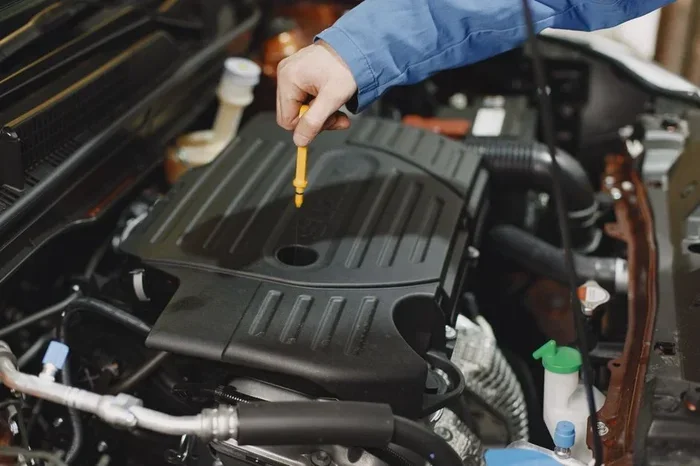
INPA for BMW Owners Everything You Need to Know About
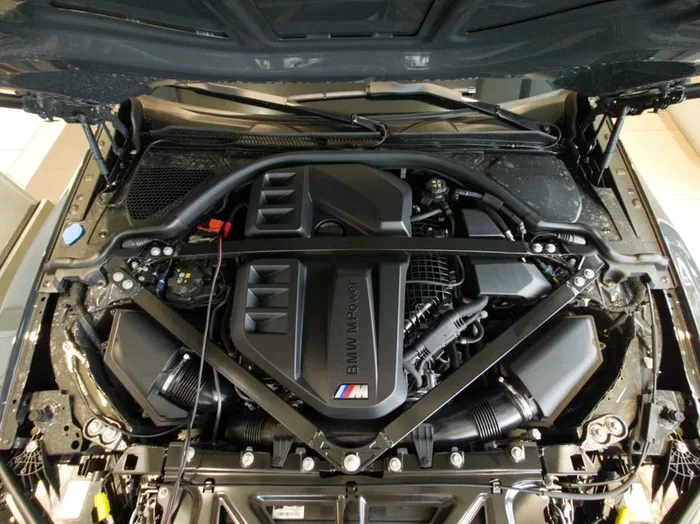
INPA is the go-to BMW diagnostic software that lets you read fault codes, view live data, and troubleshoot issues like a pro. Whether you are a DIY mechanic or a curious BMW enthusiast, this tool gives you deep access to your car’s systems. In this guide, we cover everything from setup to advanced features so you can get the most out of INPA for your BMW.
If you own a BMW, you have probably heard the name INPA floating around forums and YouTube videos. Maybe a friend mentioned it, or you stumbled across it while searching for a way to fix a check engine light. Either way, INPA for BMW is one of the most talked-about diagnostic tools in the enthusiast community. But what exactly is it? And do you really need it?
INPA stands for BMW Integrated Networking Applications. It is a diagnostic software package developed by BMW themselves. Dealerships have used it for years to diagnose and repair vehicles. But in recent years, independent shops and DIY owners have started using it too. The software connects to your BMW through the OBD-II port and gives you access to a wealth of information that you cannot get from a basic scanner.
In this article, we will walk you through everything you need to know about INPA. From what it does to how you can set it up, we have you covered. Let us dive in.
Key Takeaways
- INPA is BMW’s official diagnostic software: It connects to your car’s OBD port and reads detailed fault codes and live data.
- You need a compatible cable and laptop: A K+DCAN cable or ENET adapter is essential for INPA to work with your BMW.
- INPA supports multiple BMW systems: From engine and transmission to ABS and air conditioning, it covers many modules.
- It is free to download: But you need the right hardware and some basic knowledge to set it up.
- INPA is not a replacement for ISTA: BMW’s newer dealer-level software, but it still holds great value for enthusiasts.
- Common uses include fault finding, coding, and data logging: It helps both DIYers and independent shops save money on diagnostics.
📑 Table of Contents
What Is INPA and Why BMW Owners Love It
At its core, INPA is a diagnostic program that talks to your BMW’s onboard computers. Think of it as a bridge between your laptop and your car. When you plug in the right cable, INPA can read fault codes, display live sensor data, and even help you test different modules. It is much more powerful than a generic OBD-II scanner you would find at an auto parts store.
BMW owners love INPA because it gives them professional-level diagnostic access. You do not need to visit a dealer or pay expensive shop rates just to find out what is wrong with your car. With INPA, you can see exactly what your BMW’s computers are reporting. This saves time, money, and frustration.
What Makes INPA Different from Generic Scanners
A basic OBD-II scanner will give you a generic fault code and maybe a short description. INPA goes much deeper. Here is why it stands out:
- Module-specific diagnostics: You can select individual systems like the engine, transmission, or ABS.
- Live data streams: You can watch real-time sensor values while driving or idling.
- Actuator tests: You can command certain components to test them directly.
- Coding capabilities: Some versions of INPA allow basic coding changes.
- BMW-specific fault descriptions: The codes come with detailed BMW explanations, not generic ones.
These features make INPA a favorite among BMW owners who want to understand their cars better. It is not just about reading codes. It is about gaining real insight into how your vehicle works.
How INPA Works with Your BMW
Understanding how INPA connects to your BMW helps you use it more effectively. The software relies on a diagnostic protocol called EDIABAS, which is BMW’s own data exchange system. INPA uses EDIABAS as the middleman between your laptop and the car.
The Hardware You Need
To use INPA, you need more than just the software. You need a way to connect your computer to your BMW. Here are the most common options:
- K+DCAN cable: This is a popular USB-to-OBD cable that works with INPA. It is affordable and widely available.
- ENET adapter: This is an Ethernet-based adapter that connects directly to the BMW’s diagnostic port. It offers faster and more stable connections.
- ICOM interface: This is a more advanced tool that supports both INPA and the newer ISTA software.
Each option has its pros and cons. The K+DCAN cable is great for beginners because it is cheap and easy to set up. The ENET adapter is better for regular use because it provides a more reliable connection. The ICOM is ideal if you plan to do advanced work like BMW coding or module programming.
Supported BMW Models and Years
INPA works with a wide range of BMW models. Most E-series and F-series vehicles are fully supported. This includes popular models like the E46 3 Series, E90 3 Series, E60 5 Series, and F10 5 Series. Newer G-series models may have limited support, as BMW has moved toward their ISTA diagnostic platform.
Here is a quick look at what you can expect:
- E36, E46, E39, E46: Full support with INPA and K+DCAN.
- E87, E90, E91, E92, E93: Full support, though some models may need an ENET adapter.
- F10, F11, F30, F31: Partial support. INPA can read codes, but some advanced features may not work.
- G-series (G20, G22, etc.): Limited support. BMW strongly recommends ISTA for these models.
Before you buy any hardware, make sure your specific BMW model and year are compatible with INPA. This will save you time and money.
Key Features and Capabilities of INPA
INPA offers a range of features that make it a valuable tool for any BMW owner. Let us break down the most important ones.
Reading and Clearing Fault Codes
The most basic function of INPA is reading fault codes. When something goes wrong in your BMW, the car stores a code in the relevant module. INPA can pull these codes and display them with detailed descriptions. This is incredibly helpful when you see a warning light on your dashboard and have no idea what it means.
You can also clear fault codes after you have fixed the problem. However, keep in mind that clearing codes does not fix the underlying issue. It just removes the stored data. If the problem persists, the codes will come back.
Viewing Live Data
One of the most powerful features of INPA is the ability to view live data from your BMW’s sensors. This means you can watch real-time values for things like engine RPM, coolant temperature, fuel trim, and oxygen sensor readings. This is incredibly useful for troubleshooting intermittent issues that do not always trigger a fault code.
For example, if your BMW idles rough, you can use INPA to watch the short-term fuel trim values in real time. If the values are jumping around, you might have a vacuum leak or a failing sensor. Without live data, you would be guessing. With INPA, you have real evidence to work with.
Actuator Tests
INPA allows you to perform actuator tests on various components. This means you can command parts like fuel pumps, fans, solenoids, and valves to turn on or off. This is a great way to test a component before replacing it.
For instance, if your BMW’s cooling fan is not coming on, you can use INPA to command the fan to activate. If it does not respond, you know the issue is likely electrical or with the fan itself. If it does respond, the problem might be in the wiring or the temperature sensor.
Coding and Adaptation
Some versions of INPA support basic coding functions. This means you can change certain settings in your BMW’s modules. Common coding tasks include adjusting headlight leveling, changing window auto-up/down behavior, or modifying comfort access settings.
However, INPA is not as powerful as BMW’s newer coding tools. For advanced BMW coding, many enthusiasts now use tools like BimmerCode or E-Sys. But INPA still handles many basic coding tasks well.
Setting Up INPA on Your Computer
Setting up INPA can seem intimidating at first, but it is very doable if you follow the steps carefully. Here is a simplified guide to get you started.
Step 1: Download INPA and EDIABAS
You can find INPA and EDIABAS on various BMW enthusiast forums and websites. The software is typically available as a free download. Make sure you get the latest stable version that matches your operating system. INPA works on Windows 10 and Windows 11, though you may need to run it in compatibility mode for older versions.
Step 2: Install the Drivers
Once you have downloaded INPA, you need to install the correct drivers for your diagnostic cable. If you are using a K+DCAN cable, you will need to install the FTDI drivers. If you are using an ENET adapter, you will need the Realtek Ethernet drivers. These drivers allow your computer to communicate with the cable properly.
Step 3: Configure INPA
After installation, you need to configure INPA to match your setup. This involves setting the correct port number, selecting your cable type, and pointing the software to the EDIABAS installation folder. The configuration process is well-documented on most BMW forums, so you can usually find a step-by-step guide for your specific cable.
Step 4: Connect and Test
Plug your cable into the OBD-II port under your BMW’s steering column and connect the other end to your laptop. Open INPA and select your vehicle model. If everything is set up correctly, you should see the main menu with options for different BMW systems. Try reading fault codes first to confirm the connection is working.
Quick Tips for a Smooth Setup
- Always use a genuine or high-quality cable. Cheap knockoff cables can cause connection issues.
- Disable your antivirus software temporarily during setup. Some security programs flag INPA files as suspicious.
- Run INPA as an administrator to avoid permission errors.
- Join a BMW enthusiast forum if you get stuck. The community is very helpful with setup questions.
Common Uses for INPA in BMW Maintenance
INPA is not just for troubleshooting problems. It is also a great tool for regular maintenance and monitoring. Here are some of the most common ways BMW owners use INPA in their daily driving lives.
Troubleshooting Check Engine Lights
A check engine light can mean anything from a loose gas cap to a serious engine problem. INPA helps you narrow down the cause quickly. Instead of guessing, you can read the exact fault codes and see which system is affected. This saves you from replacing parts you do not need.
Monitoring Engine Health
Even if your BMW is running fine, you can use INPA to keep an eye on engine health. Watching live data over time can reveal trends that signal upcoming problems. For example, a gradually increasing fuel trim value might indicate a developing vacuum leak or fuel injector issue. Catching these early can prevent bigger repairs down the road.
Verifying Repairs
After you fix a problem, INPA lets you verify that the repair worked. You can clear the fault codes, drive the car, and then check if the codes return. If they do not come back, your repair was successful. This is a great way to confirm your work, especially if you are doing your own BMW repairs.
Pre-Purchase Inspections
If you are buying a used BMW, INPA can be a lifesaver. You can connect it to the car before you buy and check for any hidden fault codes. Some sellers clear codes before a sale, but INPA can sometimes still reveal pending codes or stored history that the seller tried to hide. This gives you valuable negotiating power and helps you avoid buying a problematic vehicle.
INPA vs Other BMW Diagnostic Tools
There are several diagnostic tools available for BMW owners. How does INPA compare to the alternatives? Let us take a look.
INPA vs ISTA
ISTA is BMW’s current dealer-level diagnostic software. It is more advanced than INPA and supports newer BMW models. However, ISTA is designed for professional use and requires a more complex setup. INPA is simpler, easier to set up, and perfectly fine for most DIY tasks. If you own an older BMW, INPA is often all you need.
INPA vs Autel or Launch Scanners
Hardware scanners like Autel or Launch are great for professional shops. They are standalone devices that do not need a laptop. However, they are expensive and often do not offer the same level of detail as INPA. With INPA, you get BMW-specific diagnostic depth that generic scanners simply cannot match.
INPA vs BimmerCode
BimmerCode is a popular coding tool that works with a Vgate iCar adapter. It is excellent for coding and module adjustments. However, BimmerCode does not have the full diagnostic capabilities of INPA. Many BMW owners use both tools together, with INPA for diagnostics and BimmerCode for coding.
| Feature | INPA | ISTA | Autel Scanner |
|---|---|---|---|
| BMW-specific diagnostics | Yes | Yes | Limited |
| Live data streaming | Yes | Yes | Yes |
| Coding support | Basic | Advanced | Limited |
| Older BMW support | Excellent | Limited | Good |
| Setup complexity | Moderate | High | Low |
| Cost | Free + cable | Expensive | Expensive |
As you can see, INPA holds its own against more expensive alternatives. For many BMW owners, it is the best balance of power, flexibility, and cost.
Common Mistakes to Avoid with INPA
Even though INPA is a powerful tool, it is easy to make mistakes when using it. Here are some common pitfalls to watch out for.
- Using the wrong cable: Not all OBD-II cables work with INPA. Make sure you use a K+DCAN or ENET adapter specifically designed for BMW diagnostics.
- Skipping EDIABAS setup: INPA relies on EDIABAS to function. If you skip this step, INPA will not work properly.
- Clearing codes without fixing the problem: This is a mistake many beginners make. Clearing codes without addressing the root cause will only lead to the codes returning.
- Ignoring software updates: BMW releases updates to INPA and EDIABAS from time to time. Using outdated software can cause compatibility issues.
- Trying advanced coding without knowledge: INPA allows coding changes, but making the wrong changes can cause problems. Always research a coding change before making it.
By avoiding these mistakes, you can get the most out of INPA without running into frustrating issues.
Final Thoughts on INPA for BMW Owners
INPA remains one of the most valuable tools in any BMW owner’s arsenal. It gives you professional-level diagnostic access at a fraction of the cost of dealer visits or expensive scan tools. Whether you are troubleshooting a check engine light, monitoring your engine’s health, or verifying a repair, INPA delivers reliable and detailed results.
The setup does require a bit of patience, especially if you are new to BMW diagnostics. But once you have INPA running, the benefits are immediate and significant. You will understand your BMW better, save money on repairs, and gain confidence in your ability to maintain your vehicle.
If you own a BMW and have not yet tried INPA, now is a great time to start. With a compatible cable and a laptop, you can unlock a whole new level of understanding for your car. The BMW community is full of resources to help you get started, so do not hesitate to dive in.
Embrace the power of INPA and take control of your BMW’s health today. Your car will thank you for it.
Frequently Asked Questions
What does INPA stand for?
INPA stands for BMW Integrated Networking Applications. It is BMW’s official diagnostic software used by dealerships and independent shops to diagnose and troubleshoot BMW vehicles.
Is INPA free to use?
Yes, the INPA software itself is free to download. However, you will need to purchase a compatible diagnostic cable like a K+DCAN or ENET adapter to connect it to your BMW.
Can INPA be used on all BMW models?
INPA works best with older BMW models from the E36, E46, E39, E90, and E60 families. Newer models like the G-series may have limited support, and BMW recommends using their ISTA software for those vehicles.
Do I need a laptop to use INPA?
Yes, INPA is a software application that runs on a Windows laptop or computer. You cannot use it on a phone or tablet. A laptop with a USB or Ethernet port is required for the diagnostic connection.
Can INPA perform BMW coding?
INPA supports basic coding functions like adjusting headlight leveling or window auto-up behavior. For advanced BMW coding, tools like E-Sys or BimmerCode are more powerful and recommended.
Is INPA better than a regular OBD-II scanner?
Yes, INPA is significantly more powerful than a generic OBD-II scanner. It provides BMW-specific fault codes, live data streams, and module-level diagnostics that standard scanners cannot match.
=== CONCLUSION ===
INPA for BMW owners is more than just a diagnostic tool. It is a gateway to understanding your vehicle at a deeper level. From reading fault codes to monitoring live data and performing basic coding, INPA gives you capabilities that go far beyond what a standard scan tool offers. Whether you are a seasoned DIY mechanic or a BMW enthusiast who wants to learn more, INPA is an invaluable resource. Set it up, explore its features, and you will wonder how you ever managed without it.